Logs Analyzis
Part 2 Chapter 9
Having said that, >99% of the logs are not useful, especially after a couple of days. So how do you minimize the cost while maximizing the benefit?
vSphere
Log Insight provides the ability to slice and dice vCenter events, tasks and alarms. This can be handy in audit investigation.
vCenter Events Analyzis
To see all the vCenter events, all we need is to select a built-in variable called VC Event Type. A log entry that has this field exist will appear.
From the following chart, we can see there are steady stream of events every 10 minutes. You can change the data granularity.

We can see actual event names by changing into a table. We can sort it to show the top events if required.
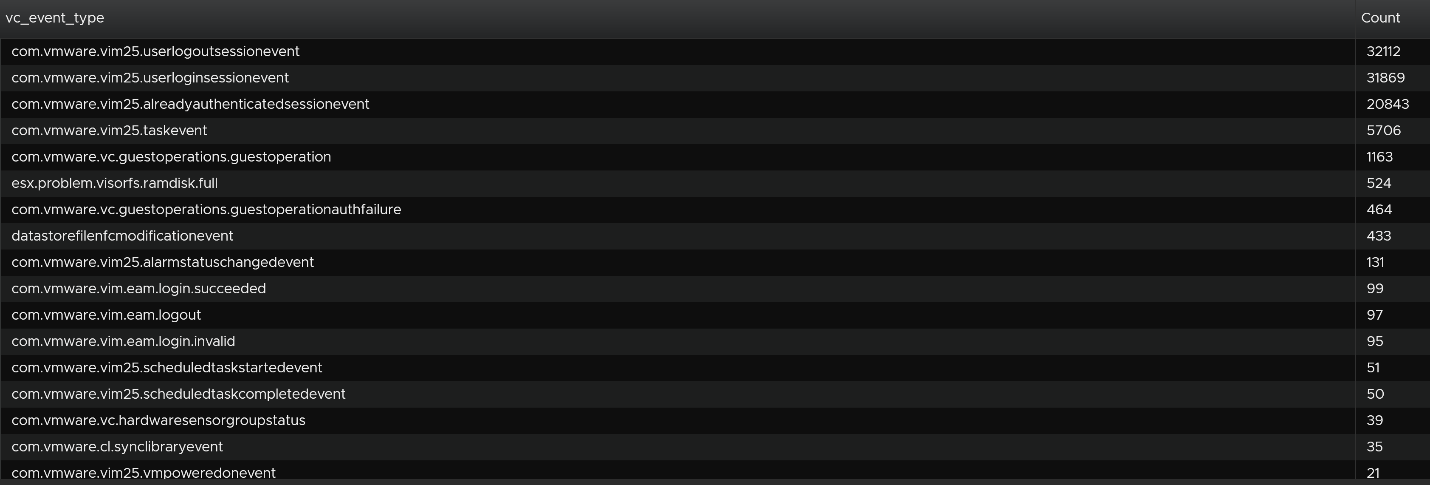
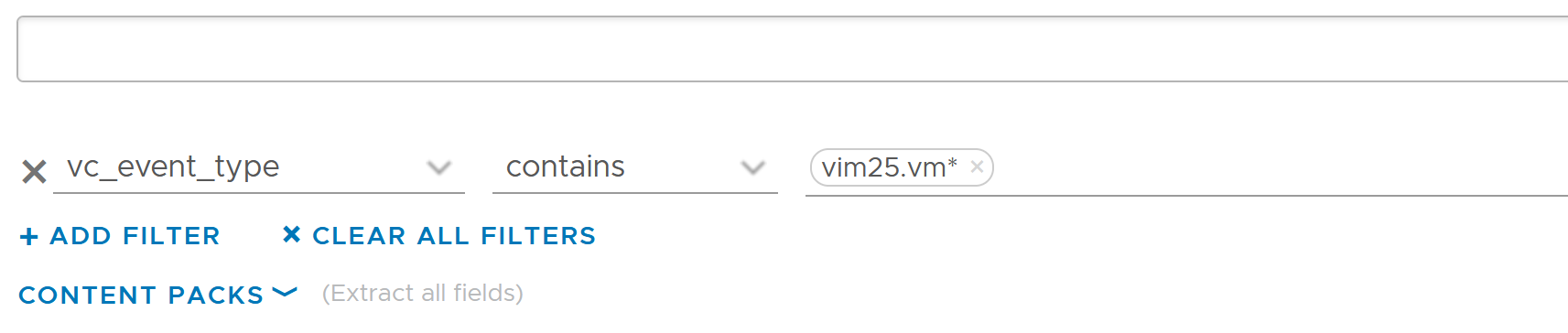
We are interested in events impacting our consumer (VMs), so let’s filter it out. The filter is vim25.vm* as that is what vCenter shows in its log as we can see from the above table. I did not know that vCenter uses vim25.vm*, but looking at the table above I could make an educated guess.
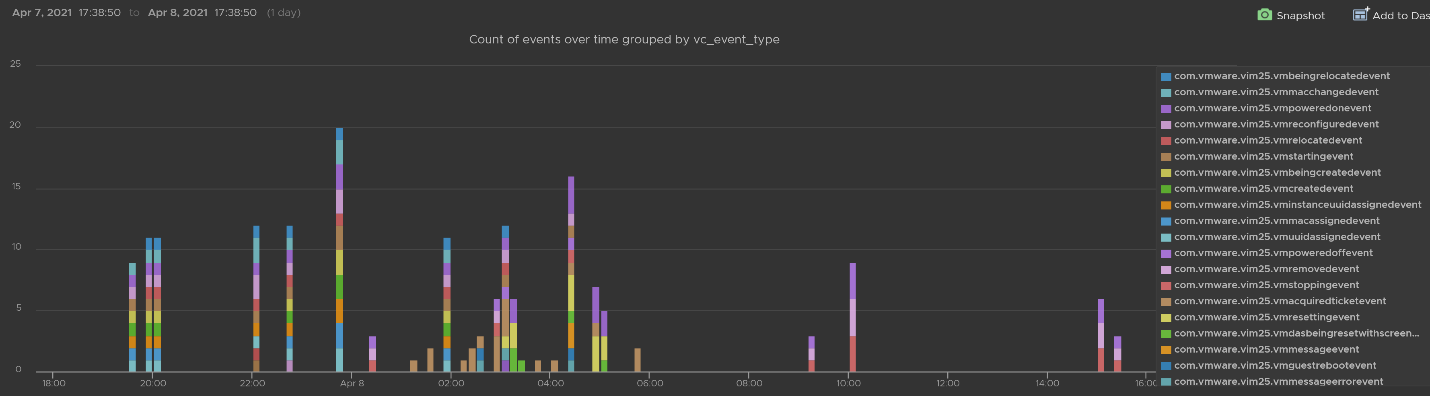
Once the above filter is set, I rerun the search and get all events impacting VM.
Let’s zoom into one of the events. Let’s say we’re interested in VM configuration event and want to know what exactly was changed. So let’s zoom into that event and group it by the user who changed it. We get the following chart, showing the user in the legend.

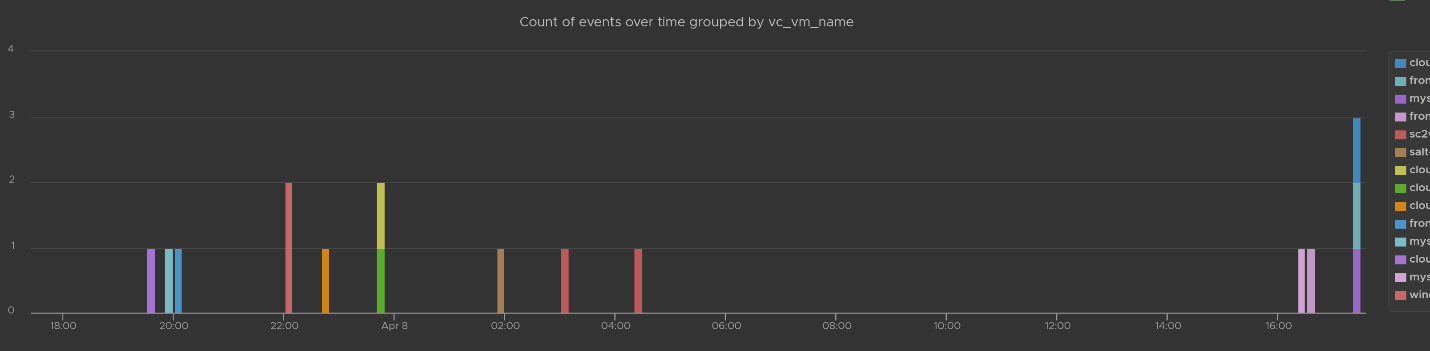
You can group the data by VM name to see which VM were changed when. I’ve cropped the VM name in the legend.
You can see the result in tabular format. You have the VM name, user name and additional context such as the parent ESXi host at the time of the change.

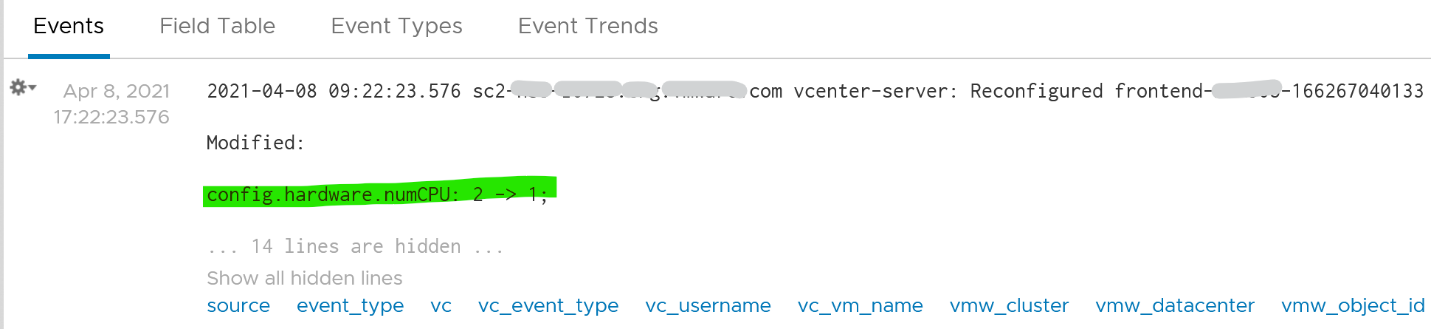
Last but not least, you can see the actual change, as highlighted in green.
vCenter Tasks Analyzis
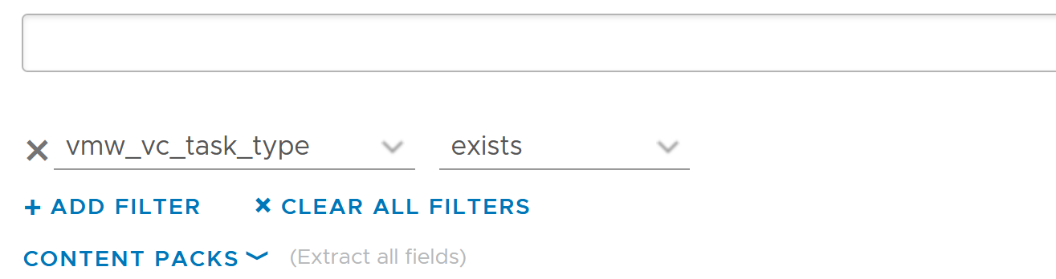
To see all the vCenter Tasks, all we need is to select a built-in variable called VC Task Type. A log entry that has this field exist will appear.
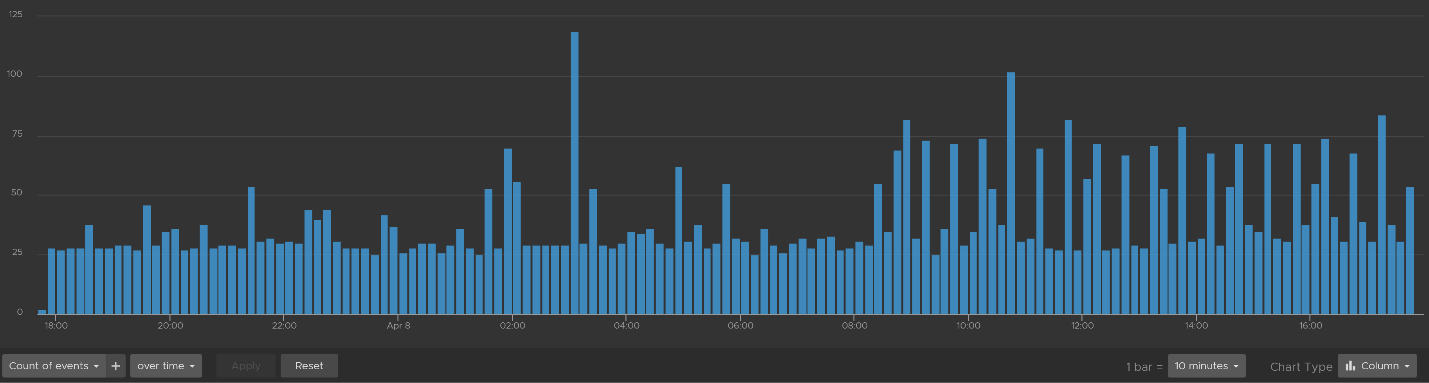
We can see that there is a regular stream of events throughout the day. The pattern looks normal.
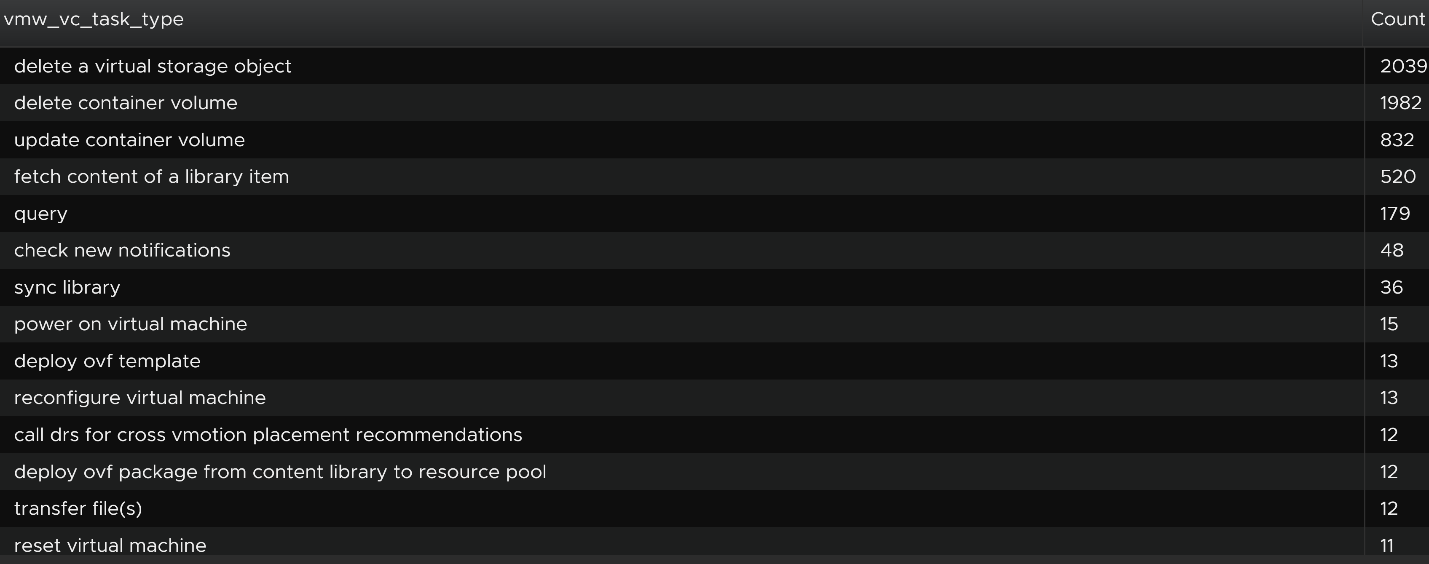
Let’s show the top tasks by showing the result in table format.
To zoom into any of the tasks, we specify the task name. I only specify one below, but it can take multiple.

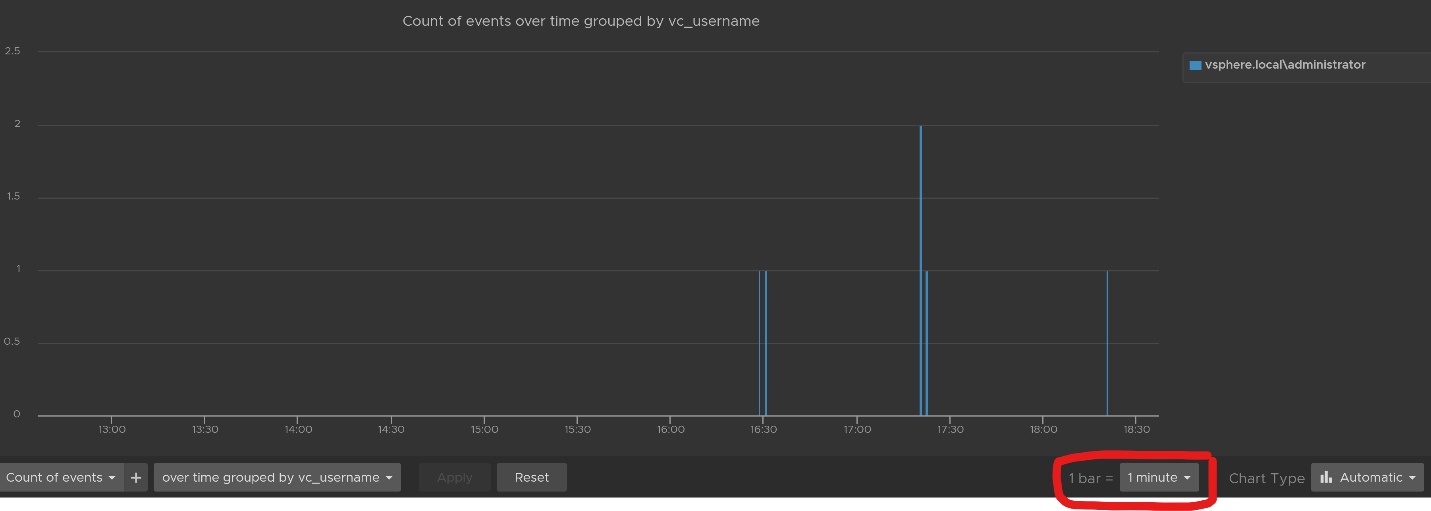
Using the above, and limiting the result to a narrower time window, we can zoom into the nearest minute.
Snapshot Analyzis
You can visually see all the snapshot operations with a single filter vmw_esxi_snapshot_operation. Just use the exist operator.

Group the data by the operations and you will get something like this. I can see there are 3 snapshots created but only two were removed. So one of the VM still has a snapshot.
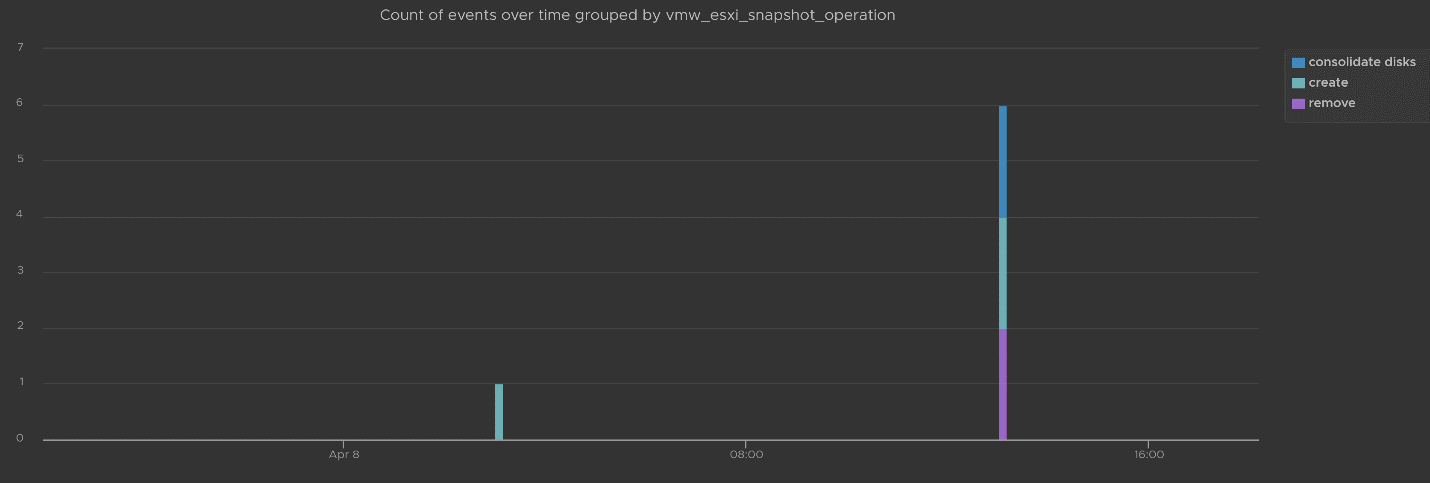
The above shows the time too. In production, you should not take snapshot during busy hours, especially on mission critical VM. So if you run the query in the last 1 week, you should expect no data during the busy hours, and all the daily back up should appear within the backup window.
You can see the details such as the VM name and other context, so see which VM did not have its snapshot removed.
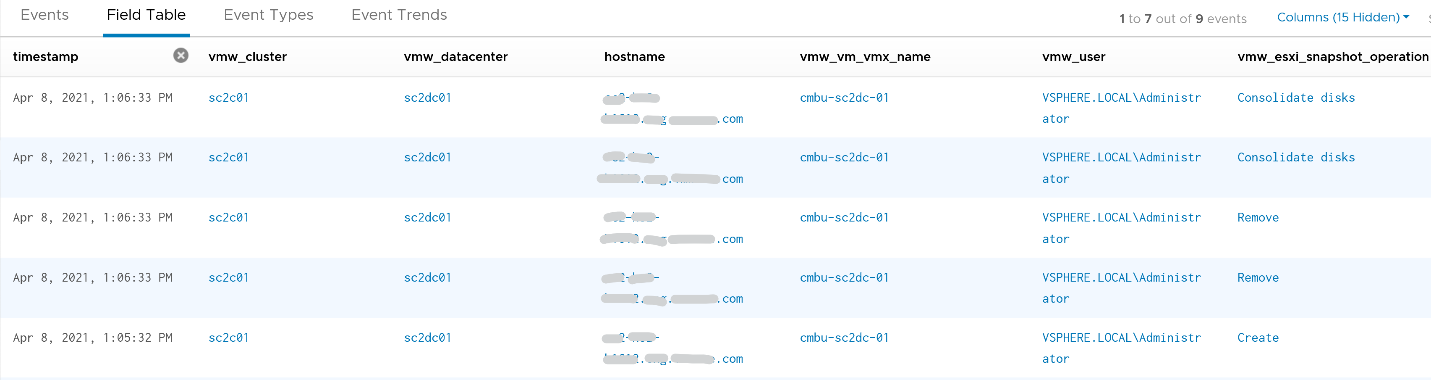
You can check the snapshot name (partially masked out in grey) and whether the snapshot include memory.

Template Analyzis
How do you prove to auditor that your VM templates have not been modified by unauthorised person. If a template has been modified, you want to know who did it.
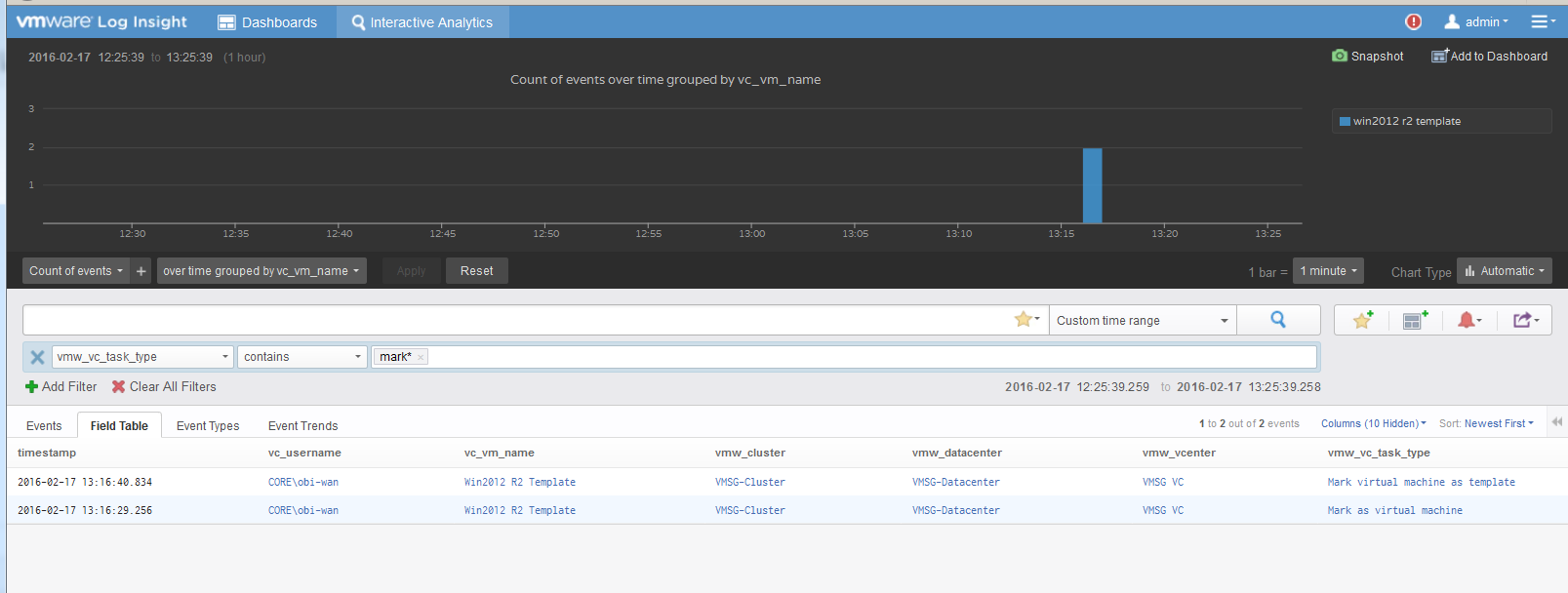
The good thing is there are only a few things you can change to a template. You can rename the template, change the permission, and convert it into a VM. All other changes require the template to be converted into a VM first. That means we can focus on this conversion.
The vCenter logs the entry as “mark virtual machine as template” when you convert a VM into a template. When it is converted back to, it writes “mark as virtual machine”. So it’s a matter of tracking these 2 entries.
vSphere Health
In general, you know that you did a good job with your vSphere IaaS as the VM owners are happy with the performance of their VMs. The business is powered by the VMware infrastructure that you design and operate. However, there is a chance that the vSphere, NSX, vSAN logs bear evidence of hidden issues which are not visible from the UI.
As VMware professionals, we know vSphere well and probably have years of experience working with vSphere. We can architect, design, implement, upgrade, and troubleshoot it.
The same thing cannot be said about the logs. Generally speaking, deep knowledge of vSphere logs belongs to VMware GSS engineers, as they read logs on a daily basis, and perform all kinds of troubleshooting activities. That knowledge has been transitioned to Log Insight release after release in the form of a vSphere content pack.
One common question I get from customers is how to prove that there is not hidden warning lurking around in the log files. As you know, vSphere produces a lot of logs.
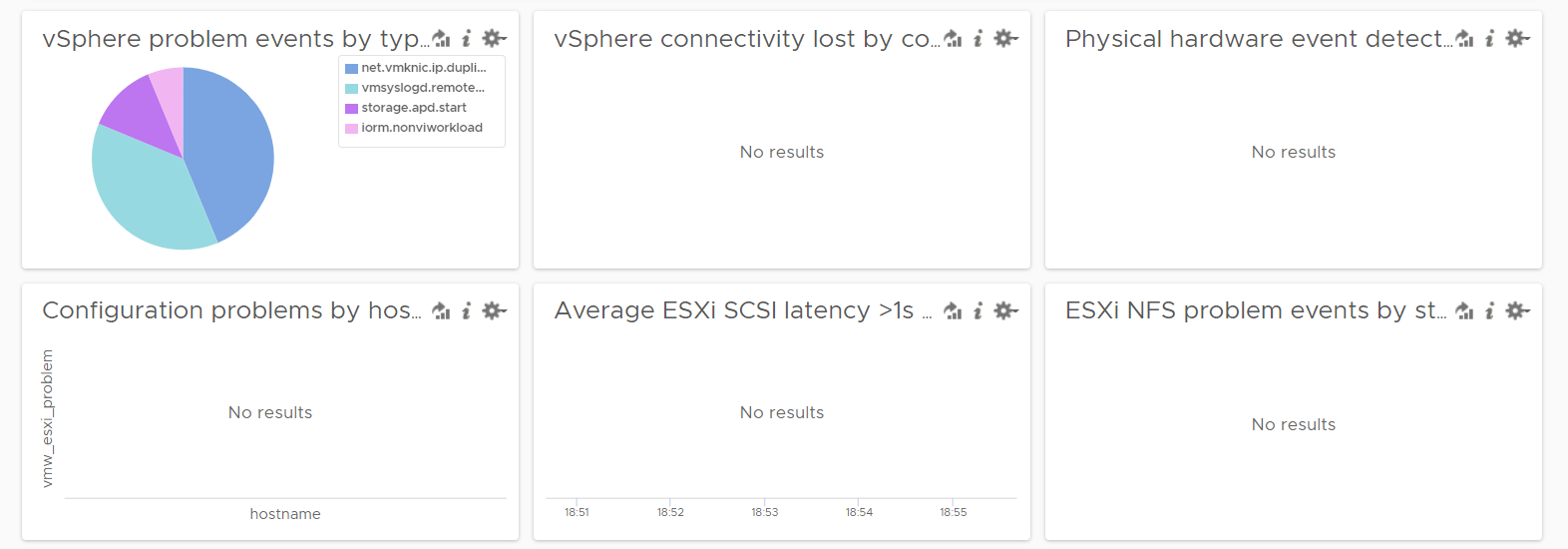
Your first stop should be the General Problems dashboard in Log Insight. This dashboard checks the health of your vSphere using 8 queries. You expect a flying color, meaning it should be blank like this. That means vSphere has not logged any issues.
BTW, by the default the detail log files of individual VM is not collected. The file vmware.log contains detailed VM activity messages including reconfiguration events, vmotions, VMware tools messages, memory state, power on/off events, features enabled, API requests, etc. It can be used to troubleshoot events leading up to core dumps or kernel panics. For more information, read this blog by Julie Roman.
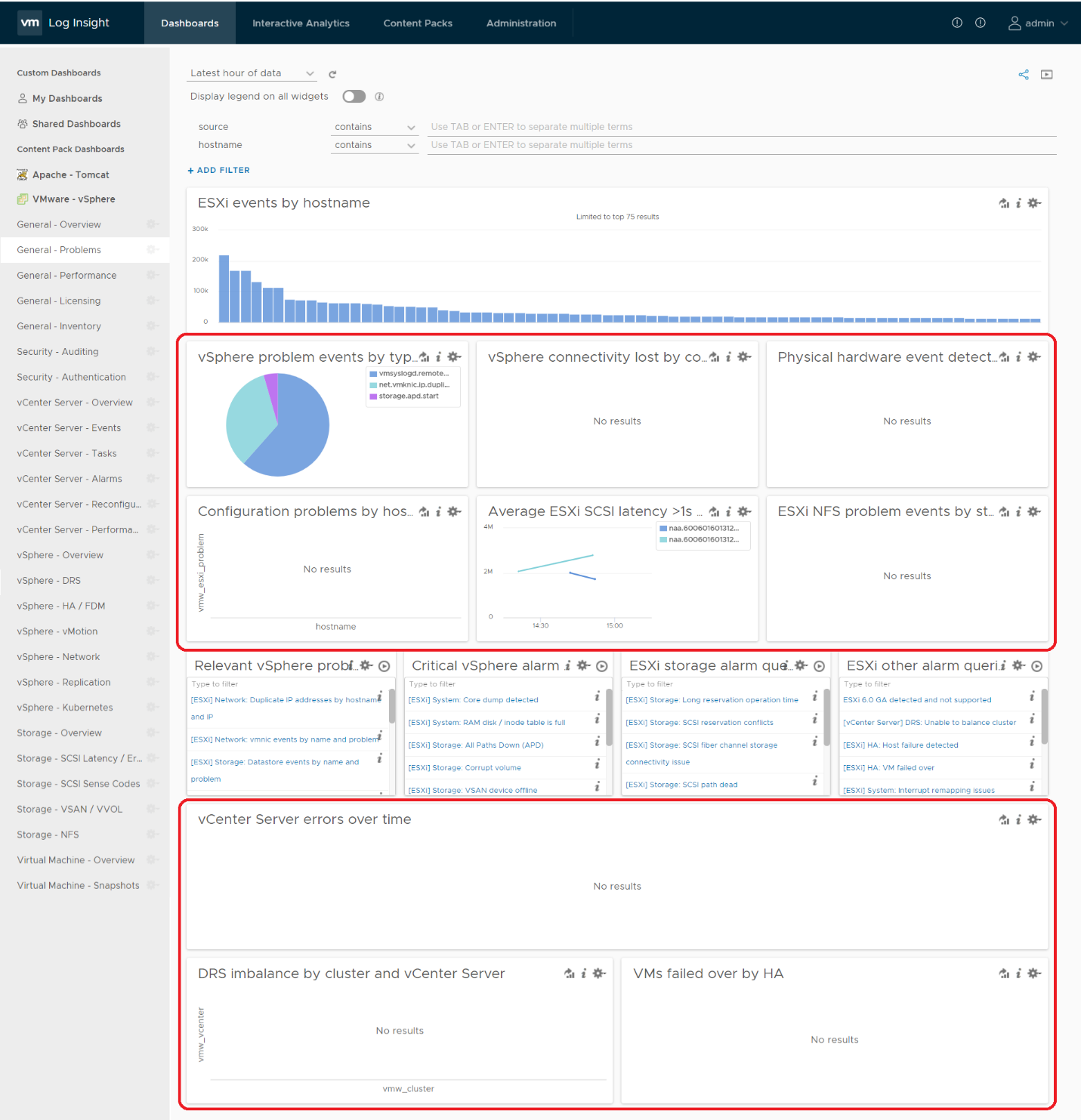
Let’s look at some of the queries that Log Insight runs. The SCSI latency is based on 1 second, which is 1,000,000 microseconds. Here is what the query looks like:

1 second is on the high side; you can change it to a lower number. Do note that this is from VMkernel viewpoint and it’s taking 1 SCSI operation (1 read or 1 write), so the number will be much higher than vCenter average. I’ve seen 12 ms value in vCenter (from the real time chart, so it is a 20 second average) became 600 ms.
The above query is simple, as it’s looking for a specific item. Here is a much broader health check.
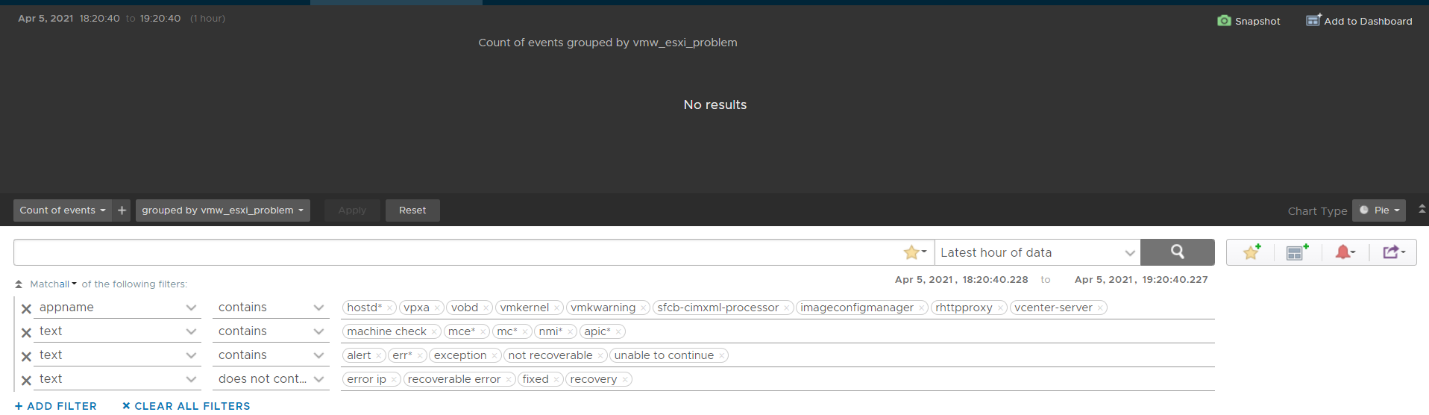
The example below checks for any errors in the vCenter which have not yet been reported as an alarm.

This query below checks for cluster imbalance.

And this query tracks for VM which were rebooted due to HA.

All the above widgets are what you would check out first. You might also want to ensure that there are no errors across major vSphere components.
Aria Operations
Log Insight sports out of the box dashboards that visualizes security-related activities in your Aria Operations. It also has a dashboard to help you watch and troubleshoot upgrade.
Authentication Analysis
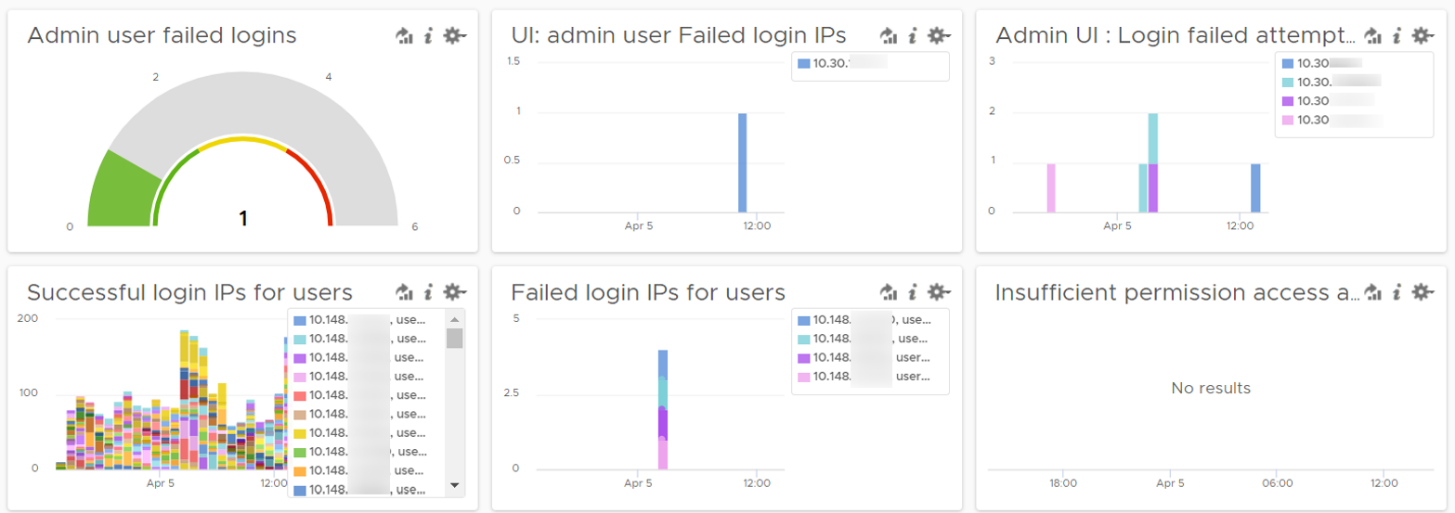
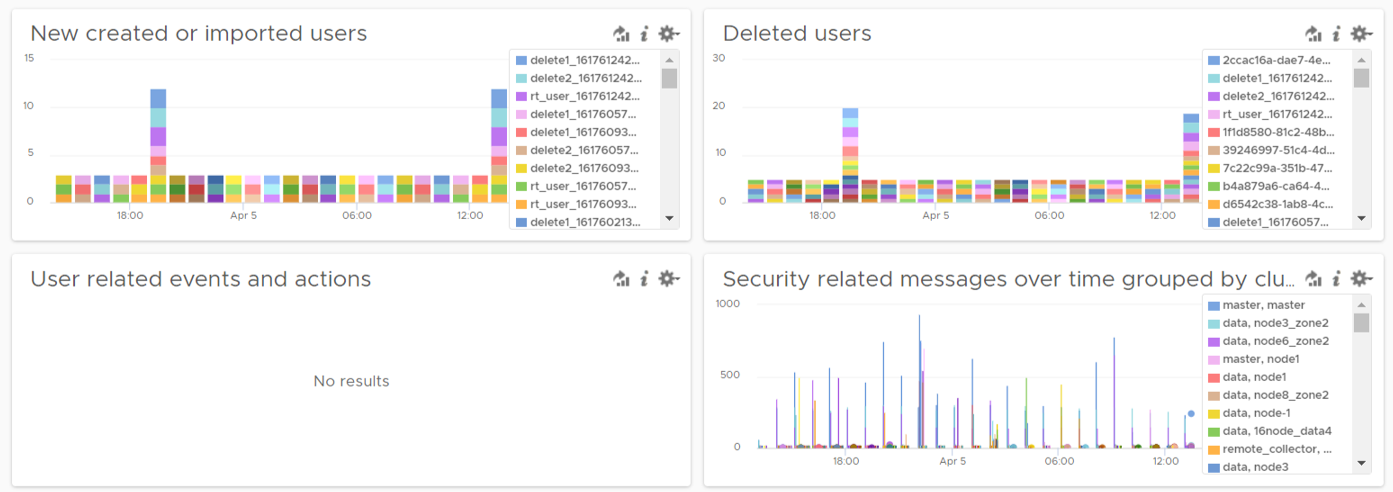
Let’s go through some of its contents in-depth.
There are two privileged login IDs that customers have access that audit requires compliance reporting: root and admin. Other privileged account such as MaintenanceAdmin is not accessible. How many times do admin ID login with the wrong passwords in a specific period? The following chart counts each time a login failure happens.
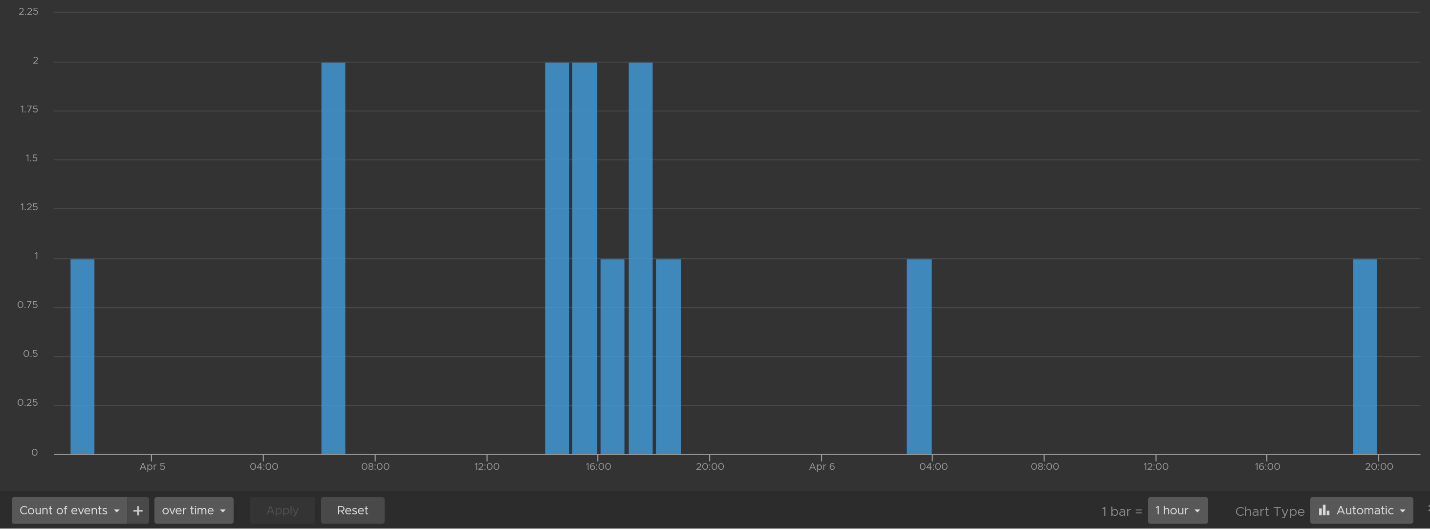
The count is possible because Log Insights create a field out of the log entries. The field is named vmw_vr_ops_admin_attempt and that’s what plotted over time. I’m showing two examples of actual log entries, with value added context by Log Insight.

The log entries themselves are in turn filtered using the following query. Log Insight has awareness of Aria Operations via the variable vmw_vr_ops_appname.

Aria Operations has 2 UI that are accessed via separate URLs. The Admin UI is for platform administration such as upgrading Aria Operations, so it’s important to track login activities. How many failed login attempts made in the Admin UI is also provided out of the box.
We’ve covered admin. How about root? As this is a Linux account as opposed to Aria Operations account, check the Linux content pack. The concept is the same.
What IP address do they login from? This helps you trace the location of the user who used the account. The following chart shows 6 different users and when they log in. We can drill down to any of them to see the exact time and the IP address used.
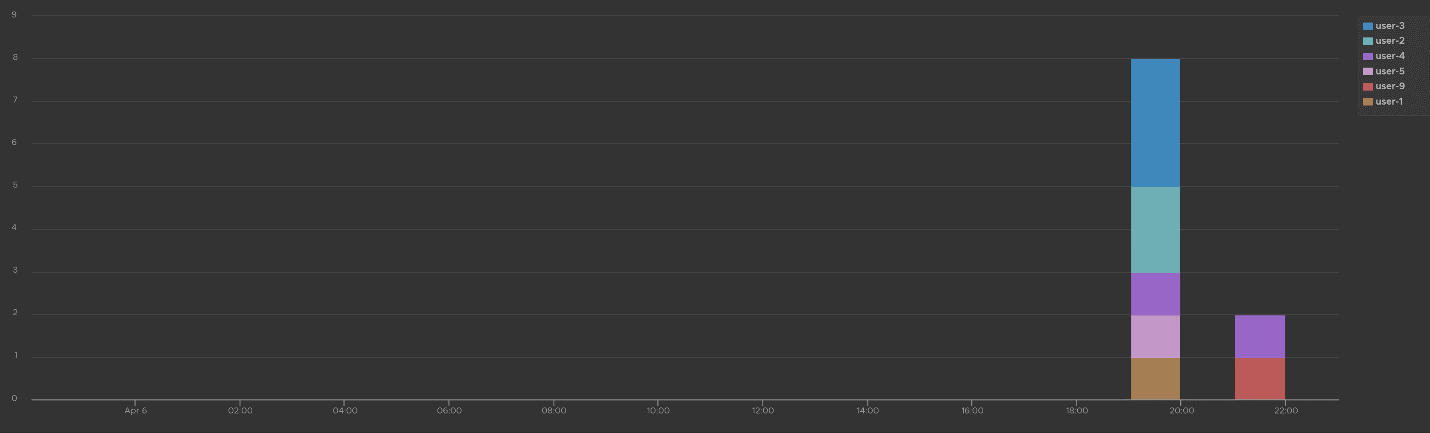
Alternatively, you can present in table format to show the IP address information. If you want the time stamp, use the Field Table feature.

Users addition, especially unexpected ones, can be a cause of security concern. Audit team may ask for the lists of users added in certain period. Users deletion is typically not an audit concern, but could be useful in troubleshooting. You can figure who deleted the user account and when.
The widgets in the third row of the dashboard covers users creation, import and deletion. By now you can guess that we can plot this event over time too. The following shows the list of user accounts that got deleted and when. I cut the full name as that’s part of actual product validation.
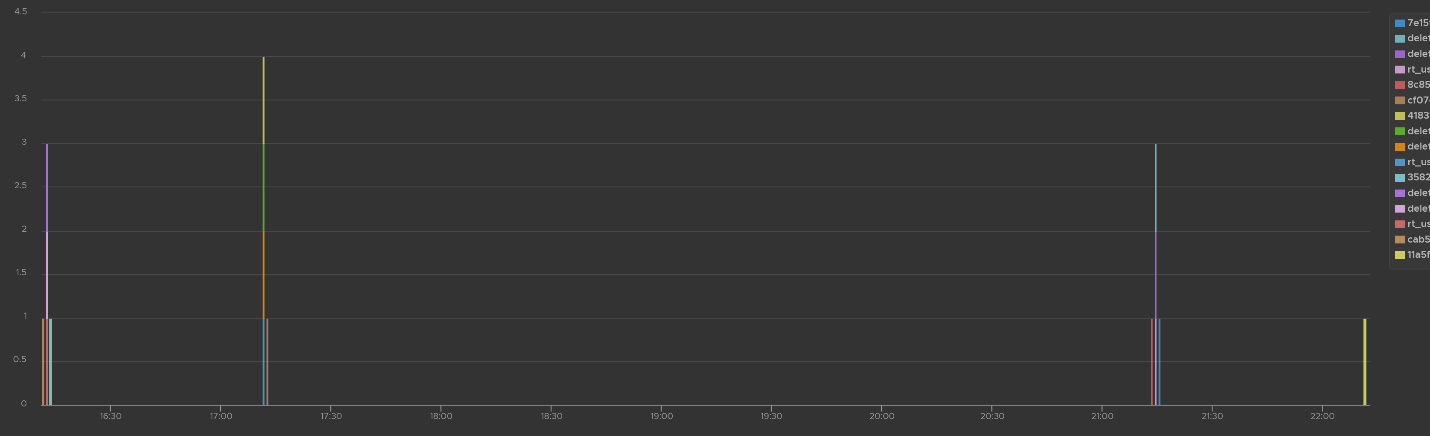
The query that produces the above chart is the following. To some extent, it’s actually human-readable!

Insufficient permission access logs events where users tried performing activities that they do not have sufficient privilege. The following shows some example where users were denied access.
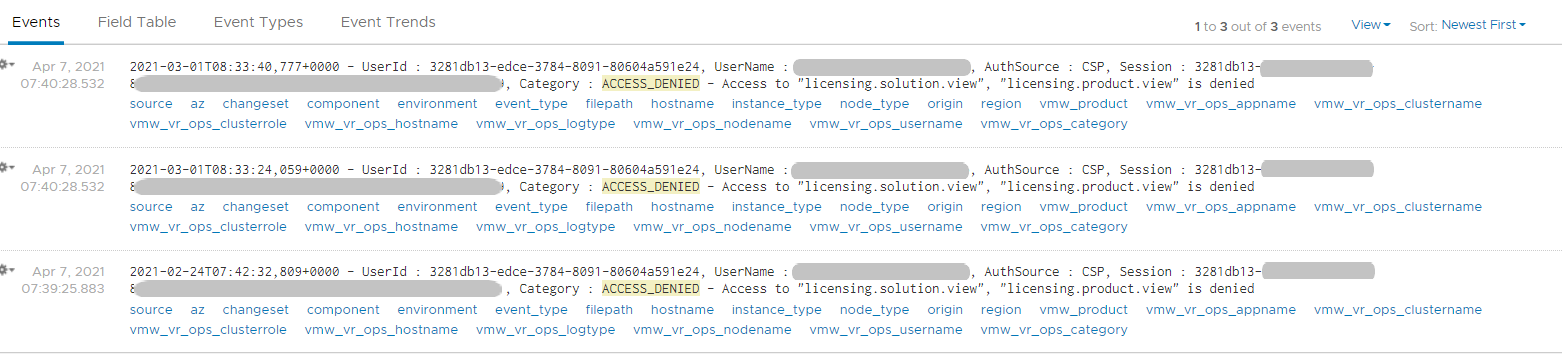
If user has the access, you will see something like this

The widget “Security related message” is my personal favourite, as it demonstrate the adhoc troubleshooting ability of Log Insight. The following shows the many security related messages. They are grouped by the Aria Operations nodes, so you can exclude certain types or zoom into a particular type.
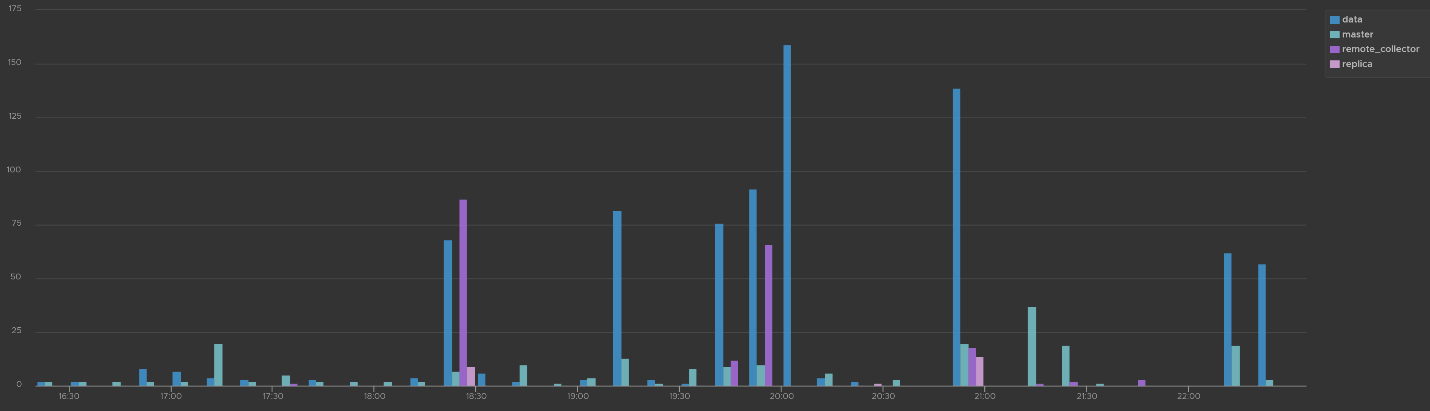
How was the above achieved? The following shows the actual query. Log Insight automatically group log entries of similar type and give them a unique event_type. This means you can filter out the types that are not relevant, like what I have done below.

Activity Audit
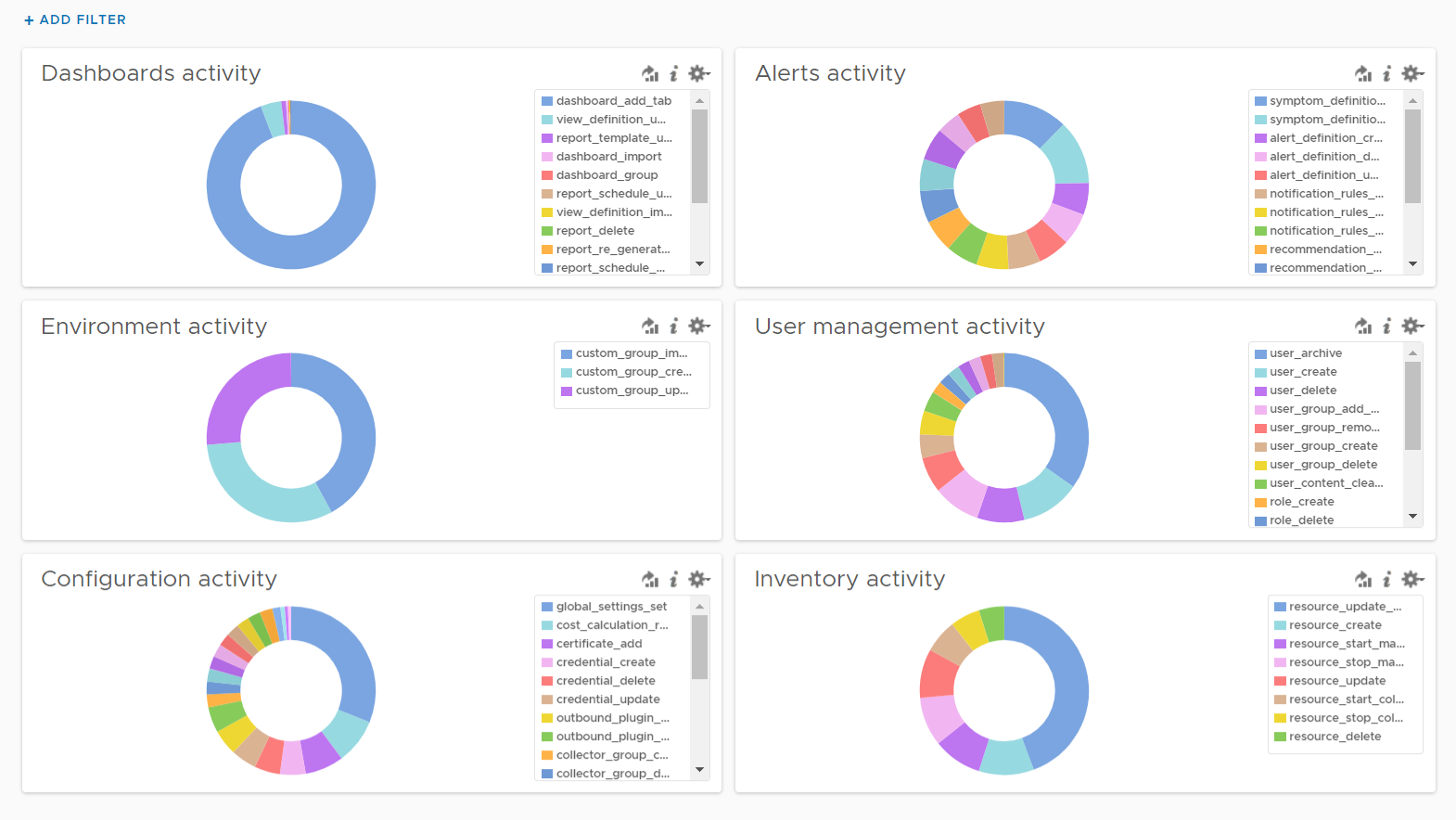
Use this dashboard to select a user and audit that user’s actions. The type of actions you can audit are
-
Dashboards, Views and Reports. This covers creation, update, deletion, import, schedule (report) and generate (report).
-
Alerts. This covers alert definition, symptom definition, notification rules and recommendation.
-
Environment. This covers Application, Custom Data Center and Custom Group activities
-
Inventory. This covers resource creation, resource deletion, resource changes, collection start, collection stop, maintenance mode start, maintenance mode end.
-
Configuration. This covers changes in global setting, cost settings, credential, collector groups, etc.
The widgets are separated as in the menu of Aria Operations Manager UI, so you can easily to orientate.
Let’s go through some of its contents in-depth.
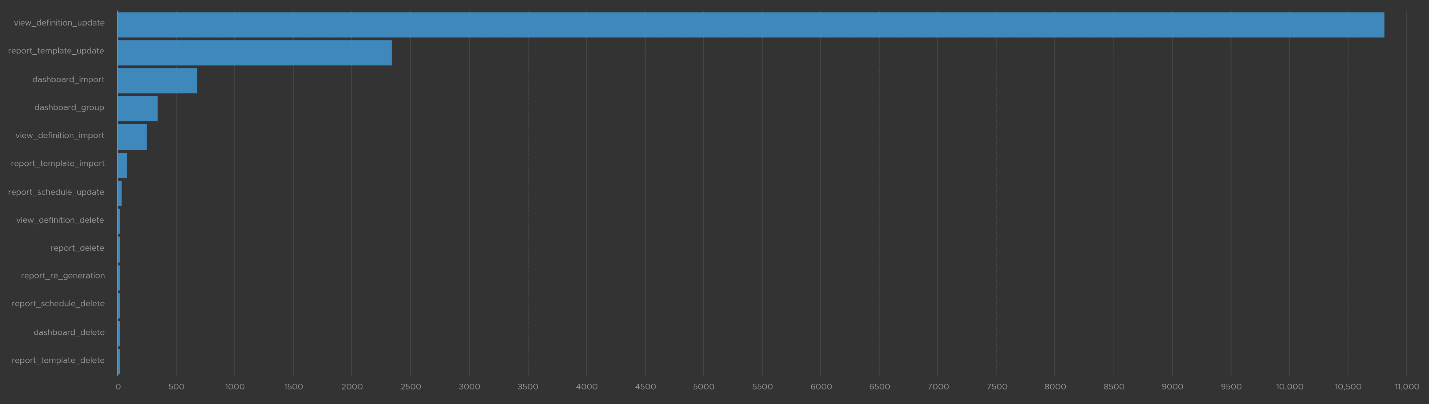
The query that produces the above chart is the following. I’ve excluded dashboard_add_tab from the category as it dominates the chart.

Let’s drill down into a specific task. Let’s say we have some views deleted and we need to know who deleted them and when. For that, we select the view_definition_delete and add it. Log Insight will automatically add the field name and operator. No need to manually type!
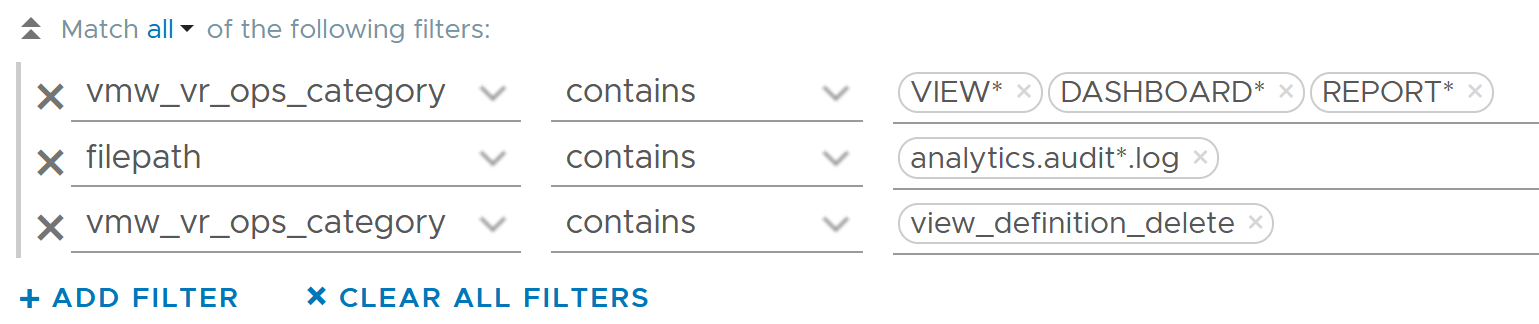
Since we’re down into a single activity, we can now plot the chart over time, grouped by the user. We can see here that the user is the system account maintenanceadmin.

Let’s take another example from the dashboard. This time we will take user management, where you can track things like user deletion, role creation, user password change and many others. The following shows some of those activities.

I’ve filtered out user_archive event as its value dominates the chart. As mentioned earlier, no need to manually type. Simply click on one of the log entries, choose a filter from the pop-up menu and that’s it!
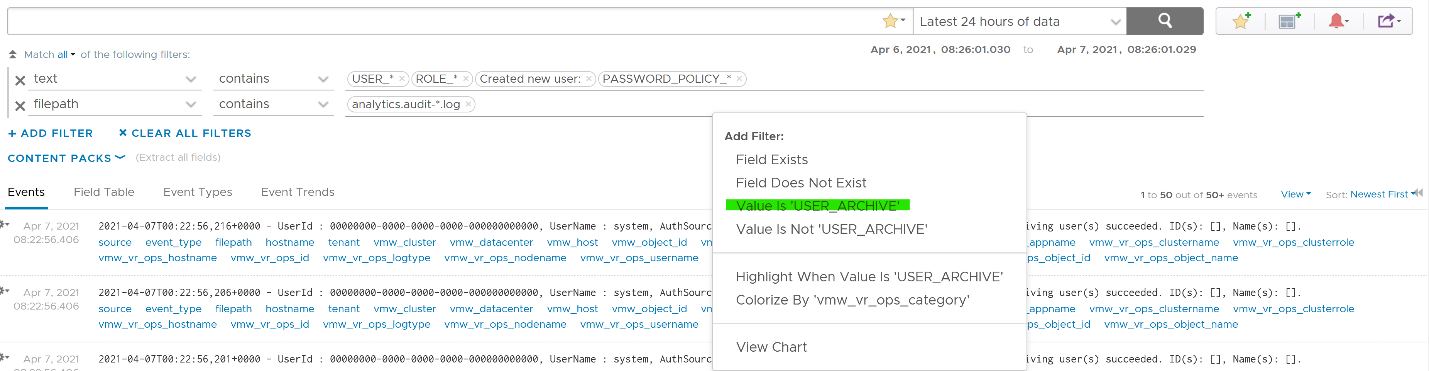
As usual, you can have a table of who did what when.

Let’s take one last example. I will take the configuration activity as it shows a range of interesting events. As usual, I started with a bar chart as it lets me see the activity name. We can see that changes in global settings dominate the result.

We already know how to filter it, so I’ll show you another way. Go to the Event Types. You’ll see the log entries grouped by type of events. To filter out, simply click on the X icon.
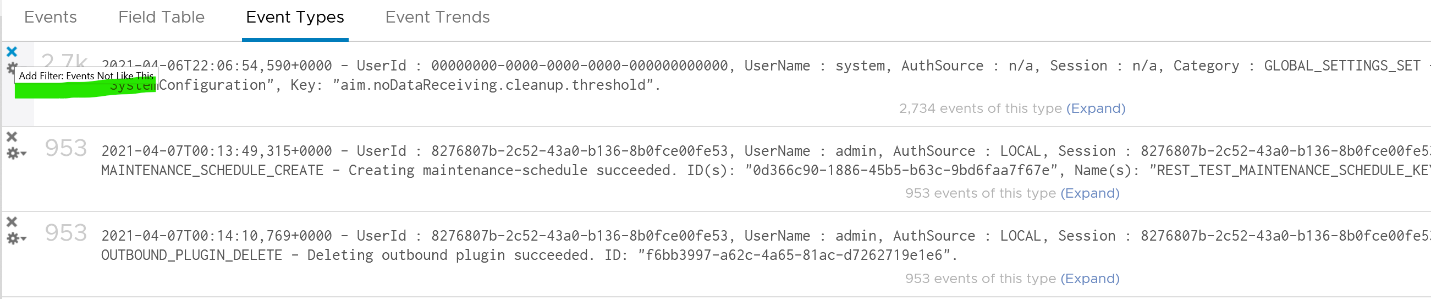
Once filtered out, the following is what I get. Let us know if there are events that you need to be logged that’s not trapped.
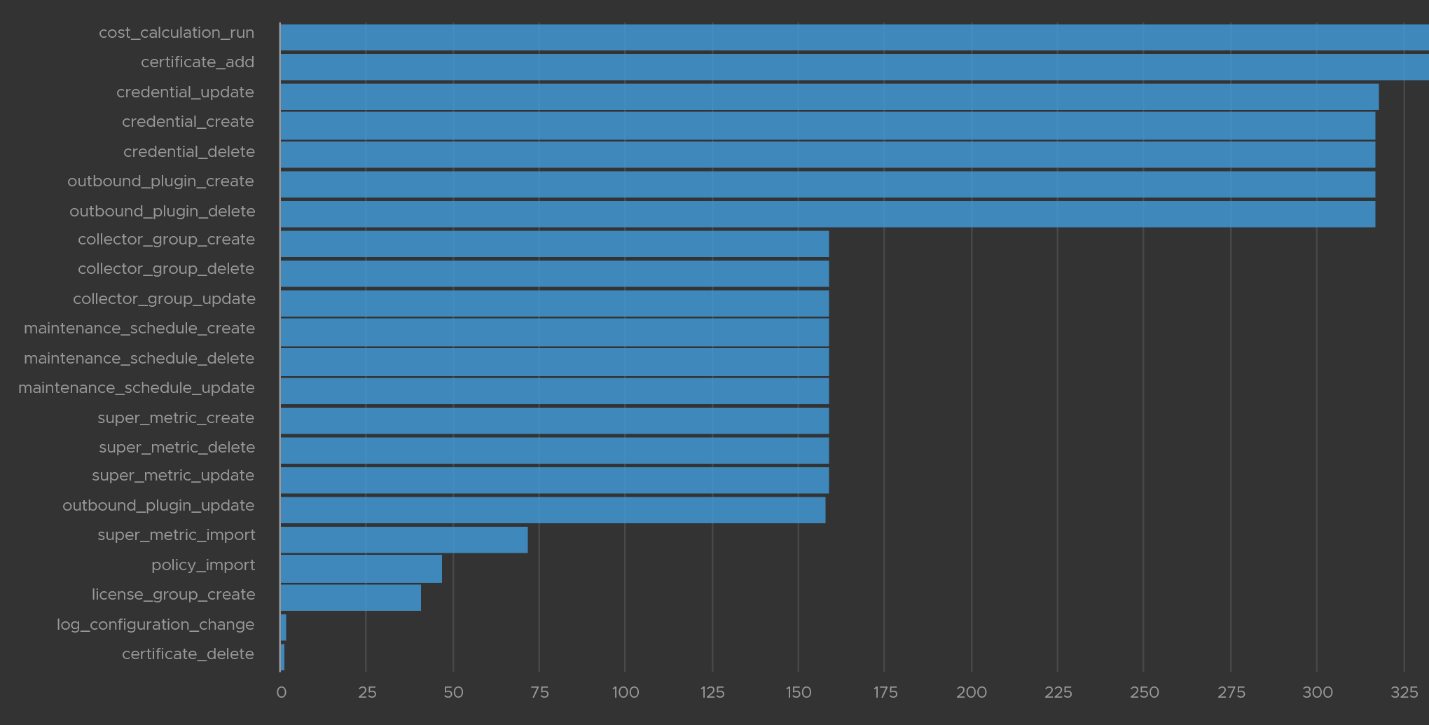
The query to get the above is complex

.*POLICY.*|super_metric_.*|disk_rebalance|collector_group.*|global_settings_set|GLOBAL_SETTINGS_OVERRIDE|dynamic_threshold_.*|license.*|DESCRIBE|CREDENTIAL_.*|CERTIFICATE_.*|MAINTENANCE_SCHEDULE_.*|WLP_.*|SCHEDULE_.*|RIGHTSIZING_.*|RECLAIM.*|OUTBOUND_.*|LOG_CONFIGURATION_.*|COST_.*|REFLIB_UPDATE
Delete Activity Audit
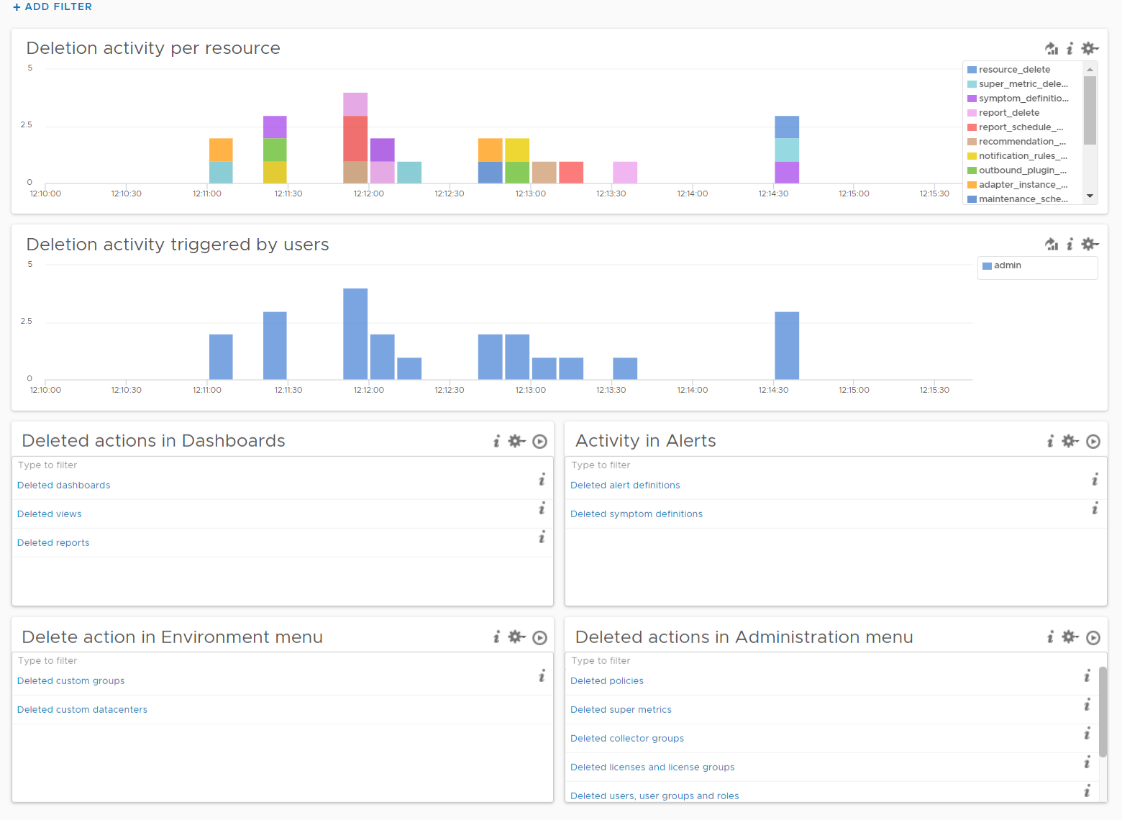
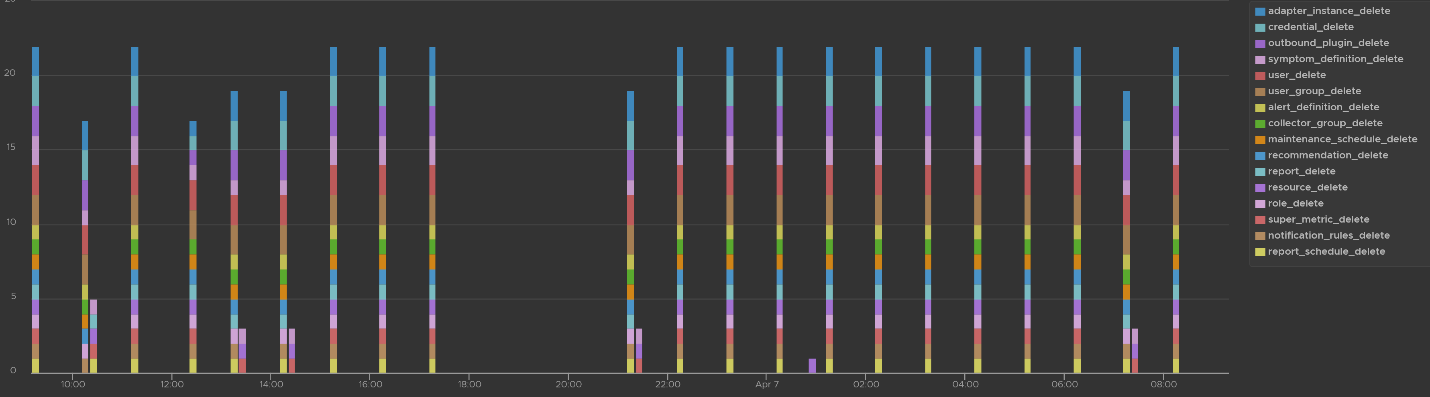
Let’s dive into “Deletion activity per resource” widget by opening it in Interactive Analytics page. You get the same information shown on the widget, but this time you can adjust it. I’ve made each time block to be 10 minute instead of 1 hour so I can see the changes better.
Note that not all activities show the actual resource name being added/modified/deleted. In the following screenshot, I’ve highlighted in green where the affected resource name being shown, and in orange where it is not captured.
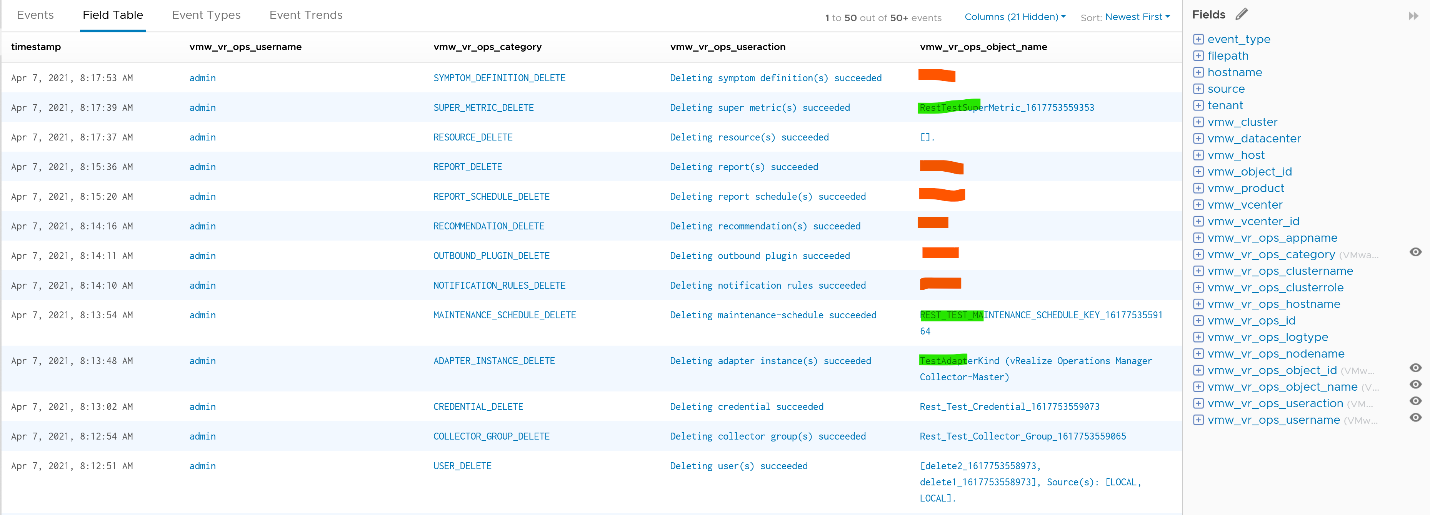
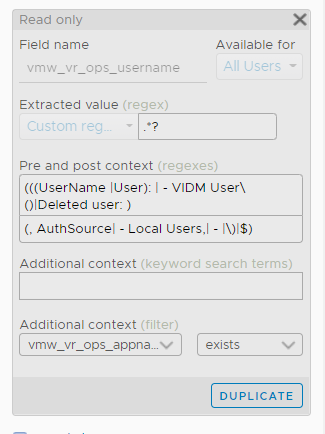
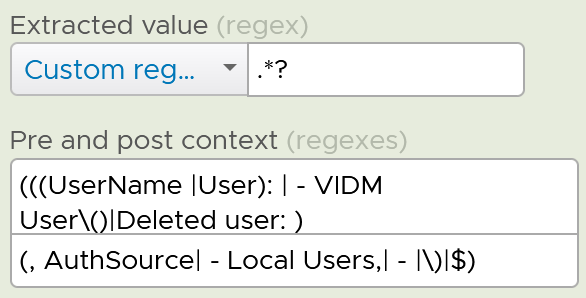
All the columns above are Log Insight field, a type of variable. Each extracted field has its own rules for extraction. Log Insight scans events and extracts fields whenever predefined patterns get matched. Let’s take vmw_vr_ops_username as an example, and shows its extraction formula.
|  |
|  |
|
|----|----|
All the VMware extracted fields are prefixed with vmw_ followed by the product name.
We’re now ready to evaluate the filters used in the preceding chart. It requires three filters working together, meaning they all must be true. It’s an AND operator, not an OR operator.

The first filter uses vmw_vr_ops_category field to filter out the events which were generated as a result to some kind of deletion.
The second filter uses filepath filter, a special system wide filter, to track the name and the path of the file from where events are collected. In Aria Operations, all audit related events are collected from analytics.audit log files.
The last filter uses vmw_vr_ops_username field to exclude logs generated by service and system users. We have to exclude automation admin, maintenance admin, migration admin and system as they are not accessible by users.
Upgrade Monitoring
You can monitor the above stages as they progress via Log Insight. Yup, pretty much like watching a live streaming, as the logs are streamed into the Log Insight dashboard. The dashboard sports 9 widgets arranged in 4 rows.
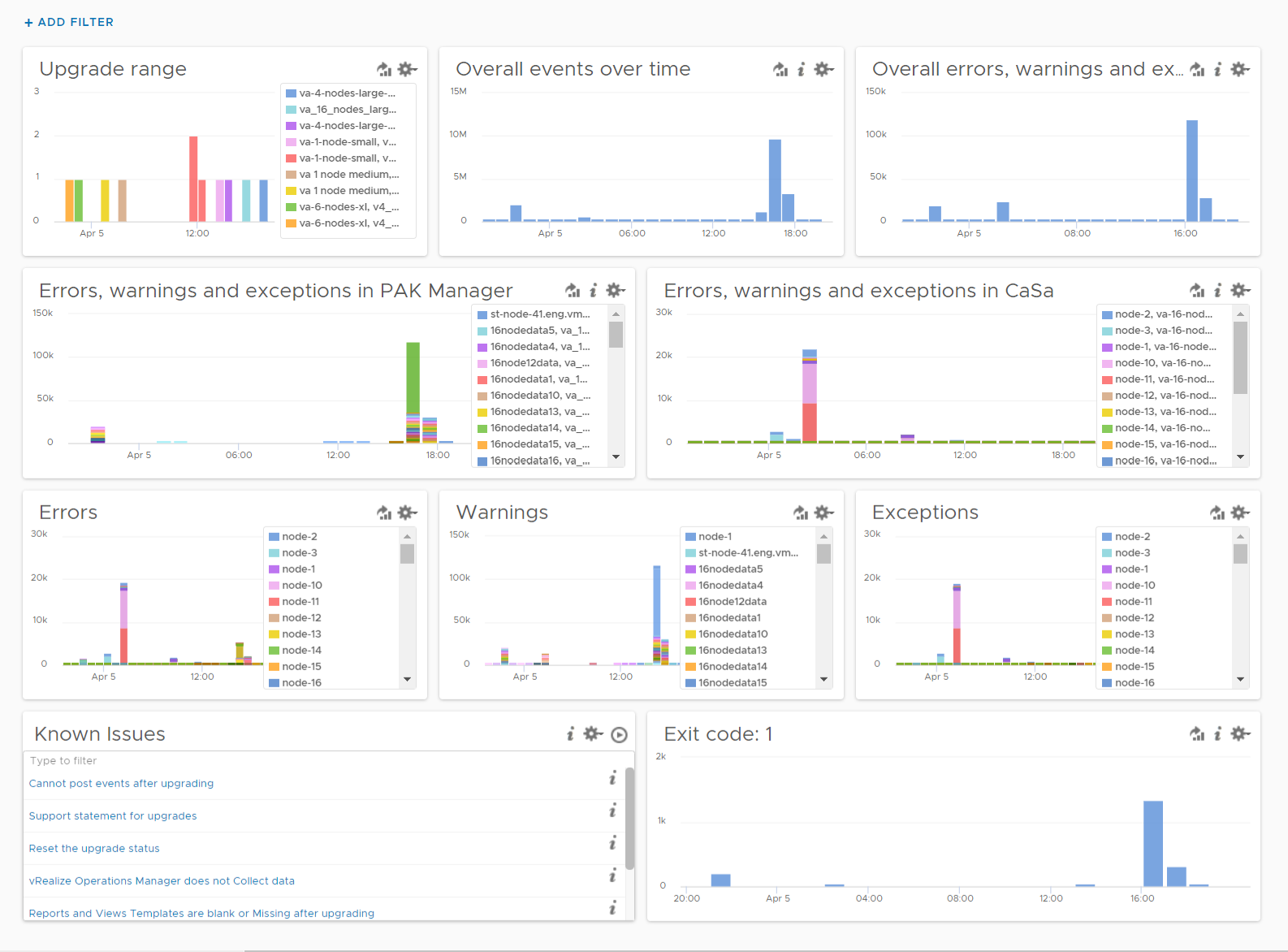
The “Upgrade Range” widget shows when the upgrade started and when it completed. It covers the time range of the upgrade process. If the process was successful, you’ll see two columns, one marking the start and one marking the end, as shown in the following.
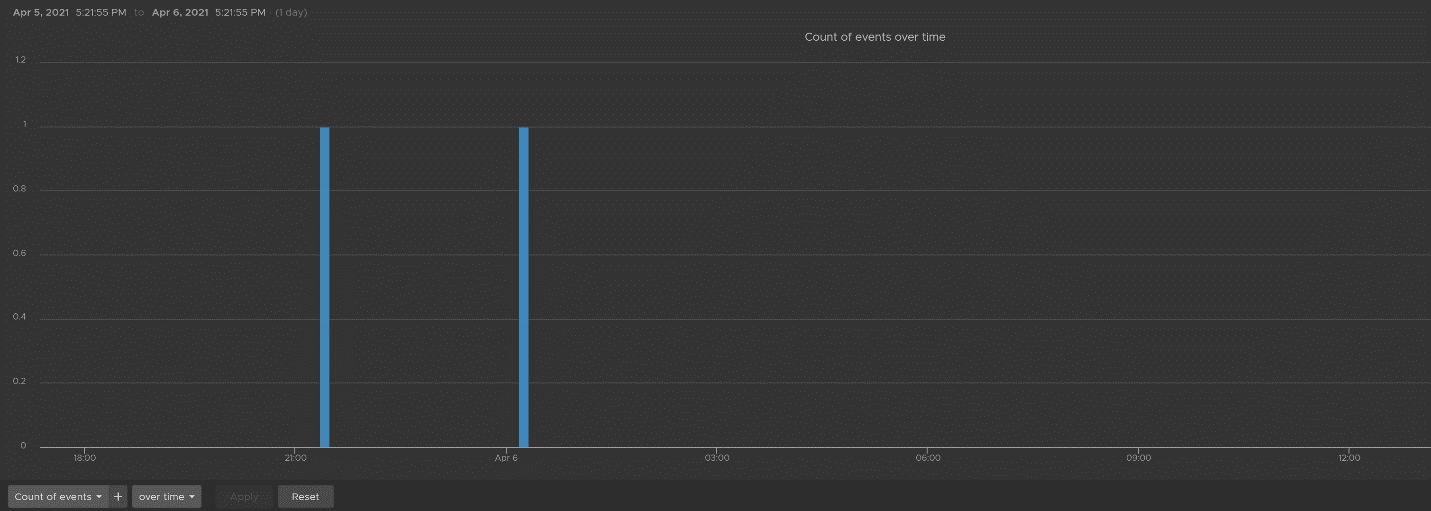
This widget is actually capable of monitoring multiple upgrades running in parallel. You can filter to only show the environment or nodes you are going to monitor by specifying their values in the fields vmw_vr_ops_clustername, vmw_vr_ops_hostname, and vmw_vr_ops_nodename.
The actual query to produce the chart is this.

When you see “uploaded into reserved” that means the upgrade process has started. When you see “Completed operation CLEANUP for pakID” that means the upgrade process for that node has been completed successfully. The following shows examples of actual messages you should expect to see.

The “Overall events over time” widget is showing the proportion of all logs generated during the upgrade.
The “Overall errors, warnings and exceptions” widget is showing the proportion of all logs with errors, warnings and exceptions generated during the upgrade.
The second row of the dashboard shows 2 widgets. They cover the main two services responsible for upgrade: PAK Manager and CaSa. The widget monitoring errors, warnings and exceptions generated from that services.
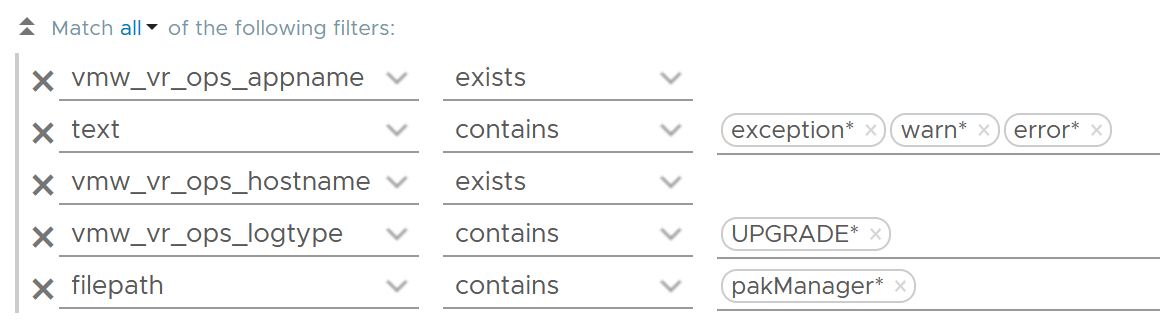
The query is as the following:
The third row of the dashboard covers errors, warning and exceptions separately. Ensure that the spikes here are not unusual high.
An example of the errors during the upgrade:

Some examples of warnings during the upgrade:
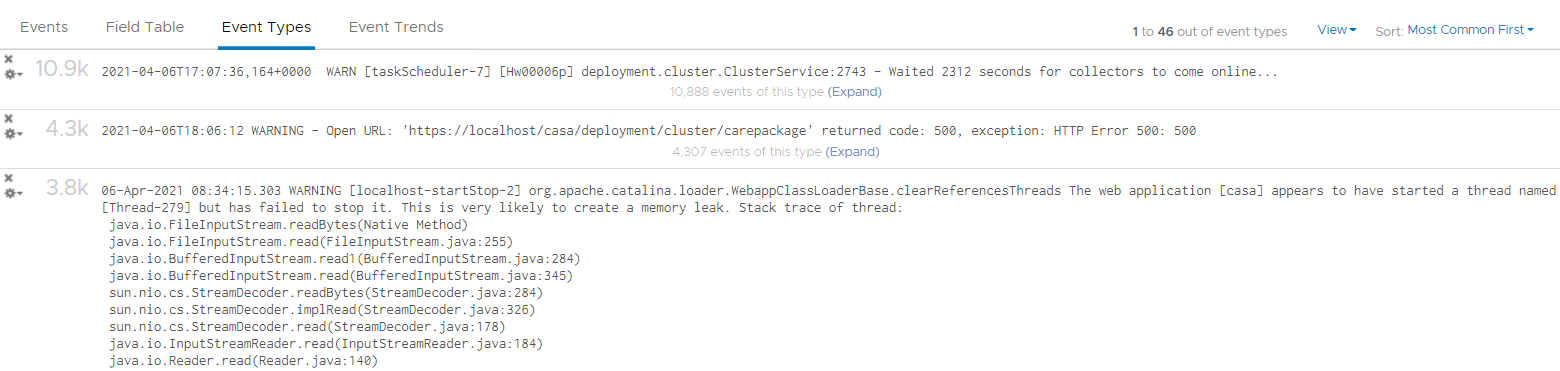
An example of the exceptions:

Note that the errors, warnings and exceptions may be not critical in this case and upgrade process may not be affected.
The last row contains the list of queries which are based on known Knowledge Base articles. Use it to check if a particular KB article is relevant in your environment. The last widget covers all log entries with exit code: 1. This is typically the reason for the failure of the upgrade process.