Automation
Part 4 Chapter 3
In other words, what you can operate should be automated.
It might surprise you but Aria Operations is doing automation out of the box in the form of automated control routines; Aria Operations is “automatically” monitoring the environment through predefined or custom Symptoms, Alert Definitions and Compliance Packs. These routines control triggering of Alarms and provide information presented through Dashboards and Reports.
Continuous Performance Optimization cares for best possible performance at minimal cost, driven by Operational Intent and Business Intent settings with ML supported predictive analytics driving actions to balance workloads and proactively avoid contention. The Automated Workload Balancing may help reduce software license costs, optimize performance based on performance or enforce compliance.
Various Compliance Packs help reduce risk and enforce IT and regulatory standards for VMware VCF based private clouds through continuous checks and automated drift remediation.
But there is more.
And this is exactly how you should operate your environment.
Why Automation?
Automation has profoundly impacted the industry since the advent of industrial robotics in the 1950s and 60s. But why is automation important, and what justifies the introduction of a seemingly complex and potentially costly technology?
Indeed, implementing automation requires an initial time investment, which translates to increased CAPEX. However, the benefits are substantial:
-
Reduction in OPEX: Repetitive tasks no longer need manual intervention, leading to operational cost savings.
-
Resource Optimization: Automation frees up time, allowing focus on more critical business activities.
-
Consistency and Accuracy: Automated processes follow a predefined procedure, minimizing human errors (excluding procedural errors).
-
Ease of Auditing: Automation simplifies or even enables the auditing process.
-
Enhanced Productivity, Reliability, and Performance: Automation drives improvements across these key areas.
Understanding these benefits highlights why automation is a valuable investment for any business.
Basic Principles of Automation
Before diving into the essentials of this chapter, let's briefly examine the typical components of automated systems. The following image illustrates the four fundamental elements of an automated system: a controller, sensors, actuators, and the plant we want to automate, all forming a closed loop.
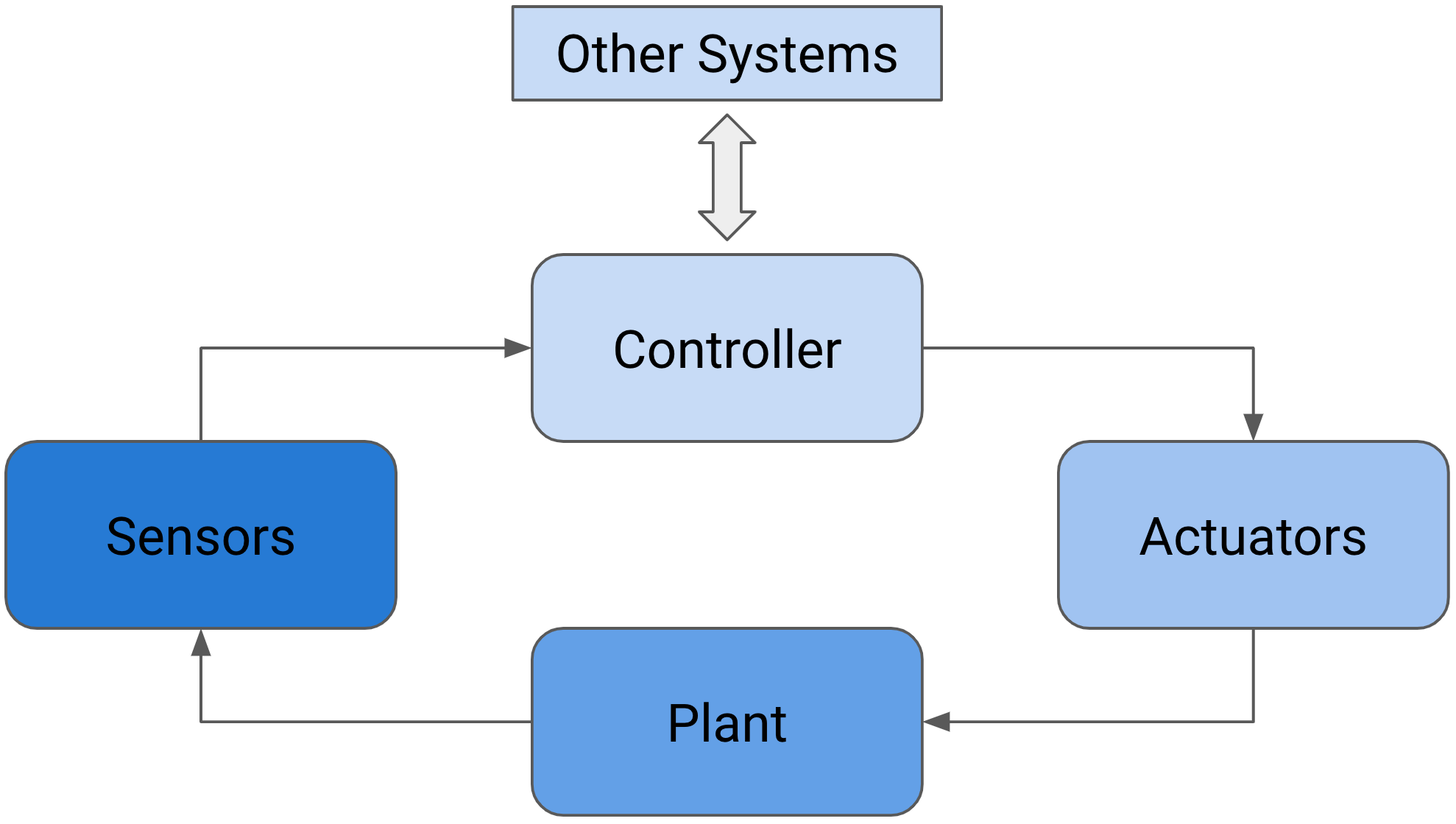
Figure 1: Components of an automated system in a closed-loop feedback control system.
This is example of a closed loop is also called closed-loop feedback control. Another, less complex kind of automated system is shown in the next picture. It is a so-called open-loop control.
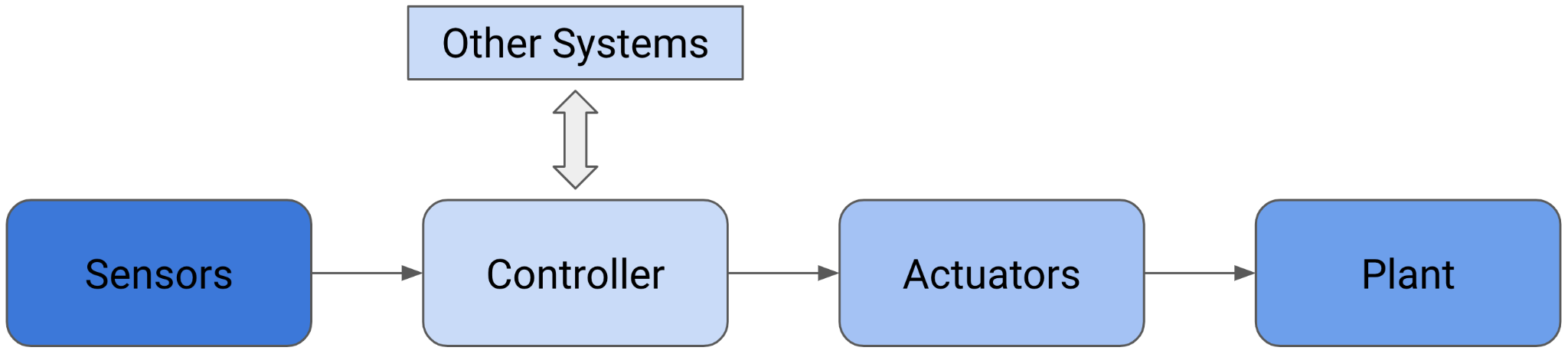
Figure 2: Open-loop control system.
How does this apply to an environment managed by Aria Operations? Let's begin with a simpler example, as the core components remain consistent in both cases. As shown in the next figure, certain parts can be easily mapped to components found in your Software-Defined Data Center (SDDC) run on VMware VCF.
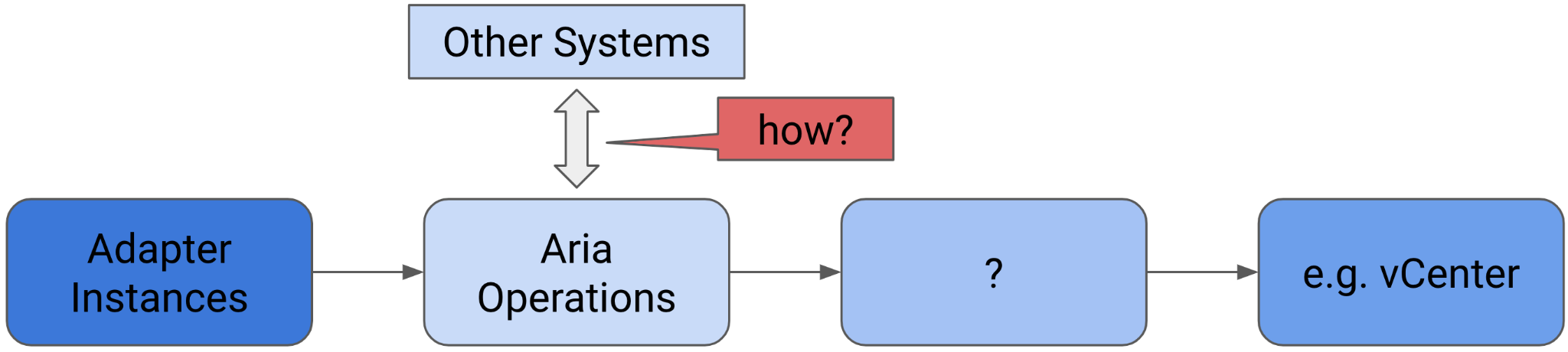
Figure 3: Aria Operations in an open-loop control system.
In this context, the sensors are our adapter instances that collect metrics and properties, the controller is Aria Operations itself, and the plant we aim to control or automate is, for example, our VMware vCenter instance or instances managing ESXi hosts, VMs, and Datastores.
But what are the actuators, and how can the controller (the Aria Operations instance) interact with other systems?
I will address both questions in the following subsections. So keep reading—you've made it through the theoretical part.
Aria Operations and Automation
Let's delve into the second part of the question: how can Aria Operations interface with other systems?
When referring to "other systems," I mean systems that contribute to automation but are not necessarily the target plant for control. It's not surprising that Aria Operations can interact with other systems using interfaces provided by those systems. In the realm of automation, we commonly utilize Application Programming Interfaces (APIs). Interacting with other systems involves both outbound and inbound communication from the perspective of Aria Operations.
Outgoing Communication
In this section I will describe the available options to communicate with 3rd party APIs and send information from Aria Operations to another, so called north-bound, systems.
When speaking about north-bound systems we usually refer to services like mail servers or SNMP trap receivers. Since the advent of 8.x versions of Aria Operations, the product supports more REST services like ServiceNow and Slack natively.
In the next subsection, I will describe the configuration of the commonly used north-bound outgoing connectivity.
Automated Action Plugin
In Aria Operations, there is a selection of Outbound Plugins designed for creating Outbound Instances. The following image displays the available plugins. To illustrate this concept, the Standard Email Plugin is utilized to configure Aria Operations for sending emails via SMTP. An Outbound Instance based on this plugin specifies a particular mail server for sending emails, along with various delivery parameters.
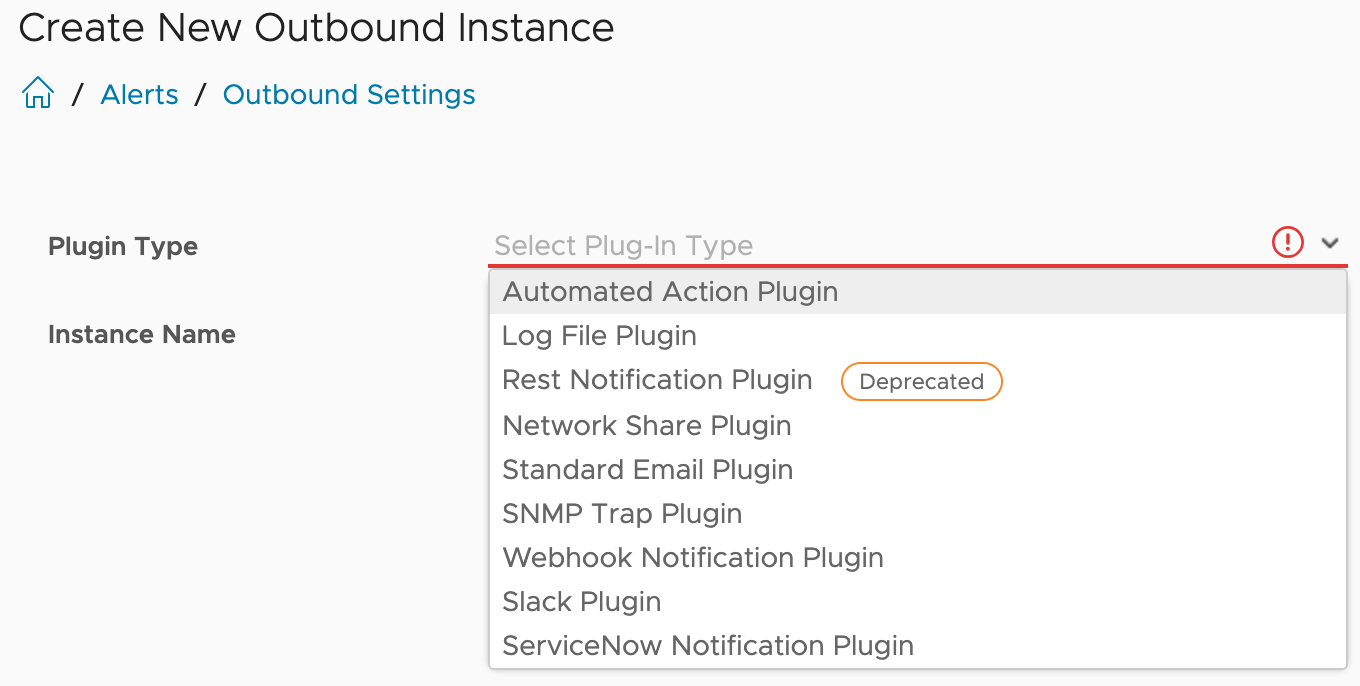
Figure 4: Aria Operations Outbound Plugins.
A configured Outbound Instance provides a one-way communication towards another system.
The first plugin type in this list is the Automated Actions Plugin. After initial installation and configuration of Aria Operations, an Outbound Instance based on this plugin is automatically available for consumption.
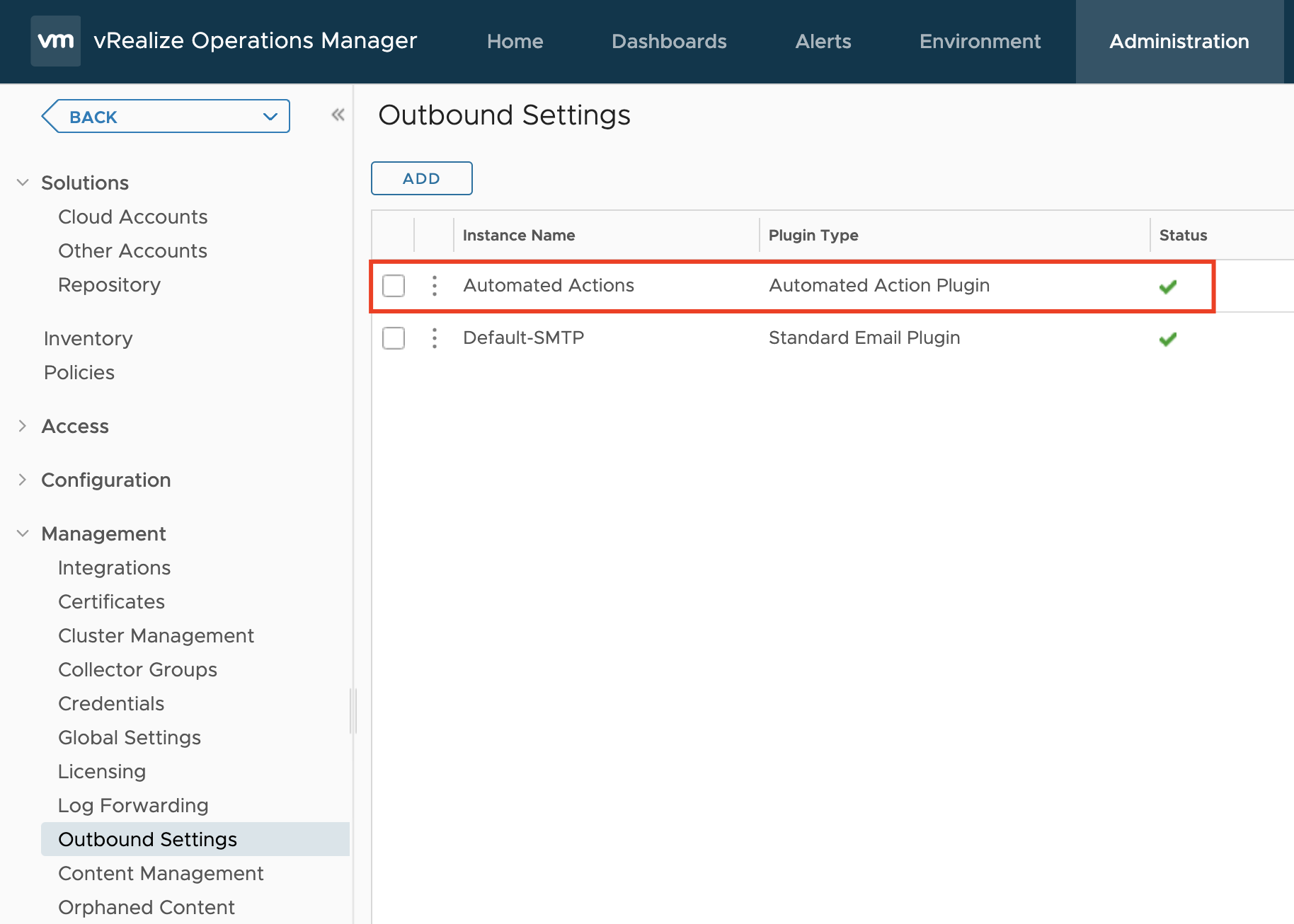
Figure 5: Automated Actions Outbound Instance.
This particular Outbound Instance enables Aria Operations users to perform actions on managed objects living in the connected vCenter instances directly from Aria Operations, as shown in the next screenshot. The actions available to us after the installation are part of the respective Management Packs.
The available actions in the Actions drop-down menu depend on the currently selected object and its type. The list varies, for example, between virtual machines and datastore objects.
In the following image, the actions marked with a small yellow icon are Aria Automation Orchestrator workflows that have been configured out-of-the-box.
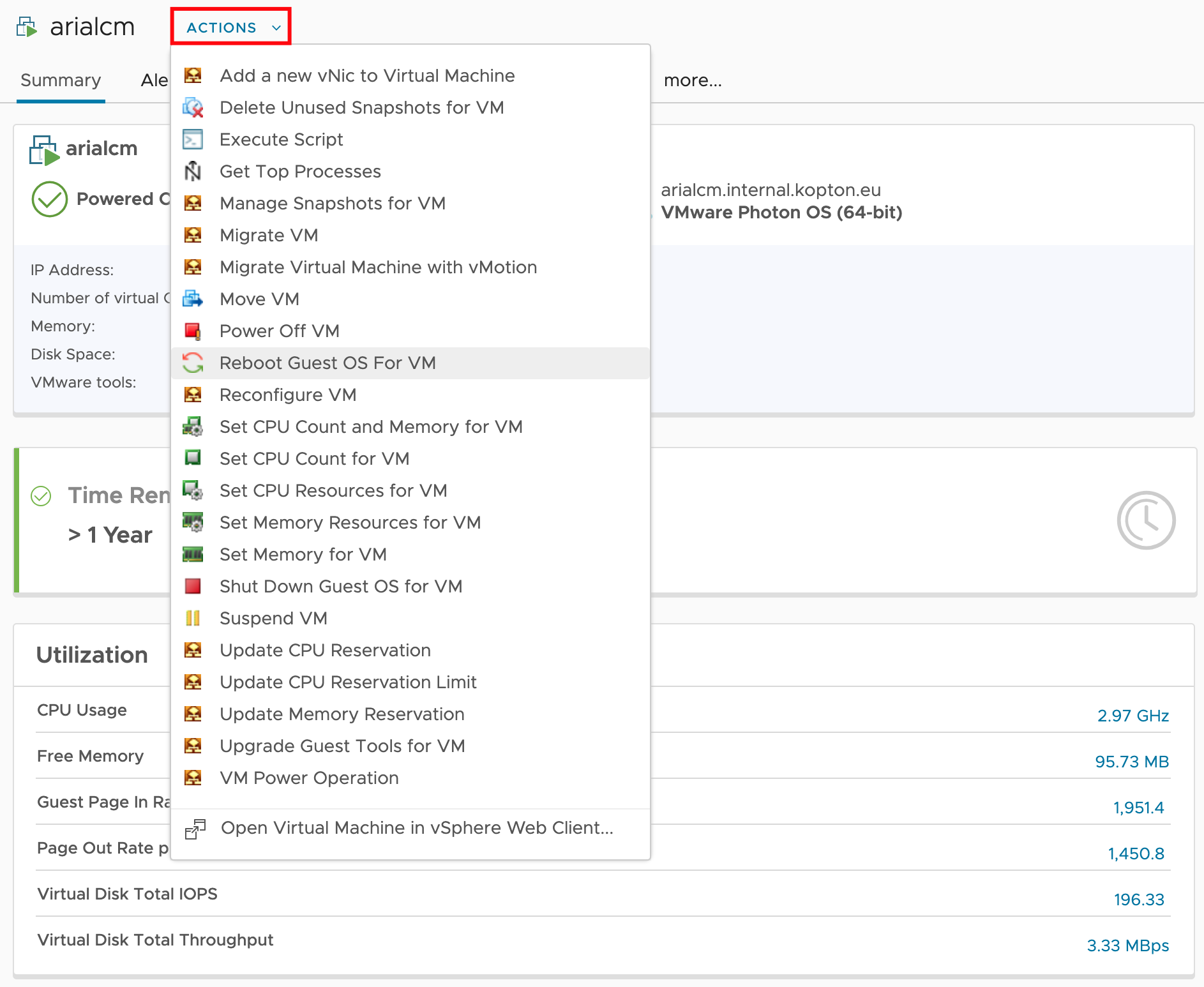
Figure 6: Available Automated Actions.
A prerequisite to enable such automated actions is enabling the Operational Actions setting in the configuration of the corresponding vCenter Cloud Account adapter instance and sufficient permissions granted to the account used for the vCenter connection.
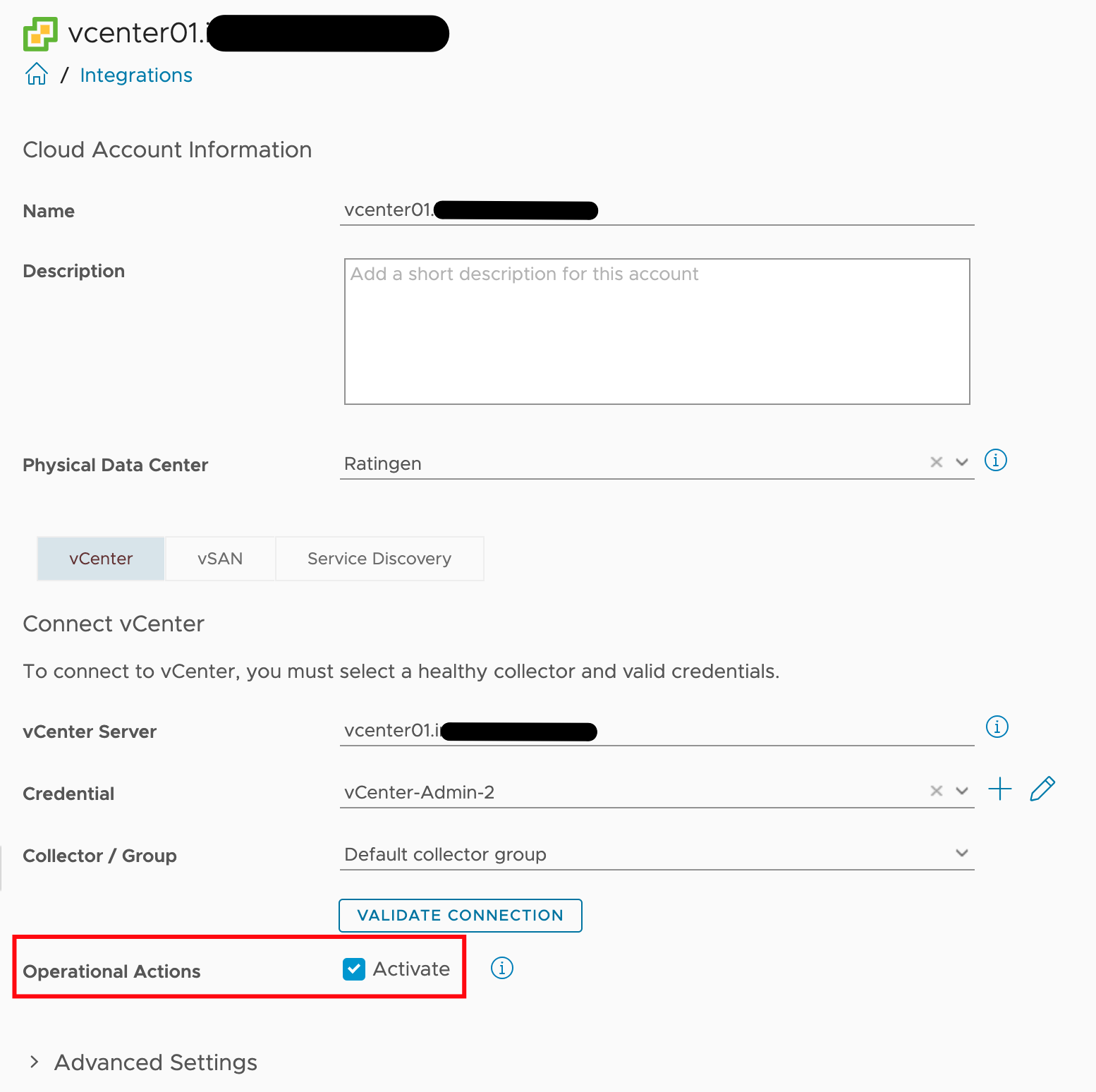
Figure 7: Operational Actions option of vCenter Adapter Instance.
Automated Actions, as the name implies, can be used to automate execution of tasks as part of a Recommendation within an Aria Operations Alert Definition.
Out-of-the-box Aria Operations provides several Recommendations containing vCenter actions, like shown in the following picture. The automated execution of such actions is enabled through Aria Operations Policies.
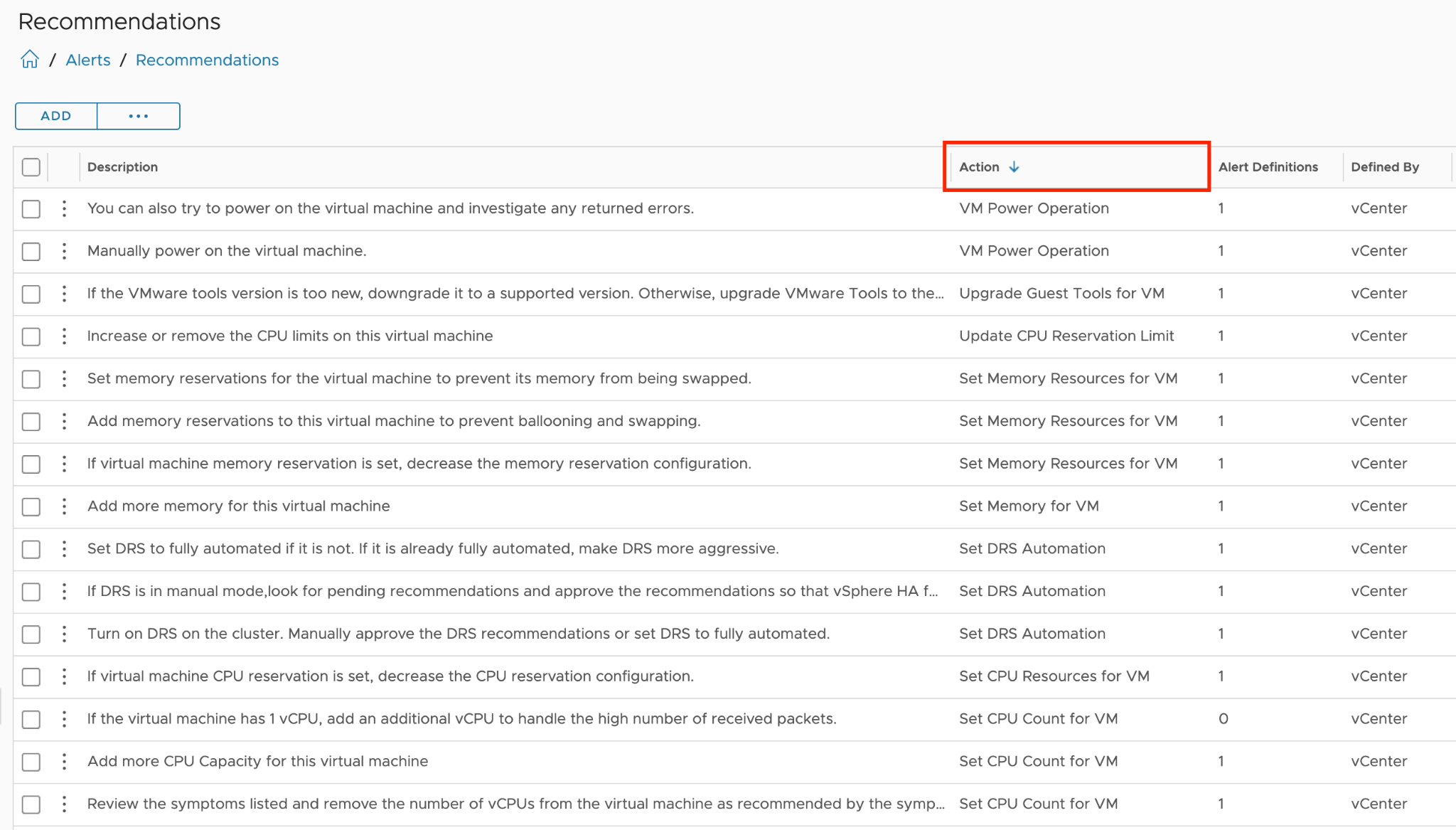
Figure 8: Actions and part of Recommendations.
The initial step towards achieving a Self-Healing Software-Defined Data Center involves automating these actions. However, in an SDDC, simply enabling automation is not sufficient. For instance, compliance with change management processes, involvement of VM owners, or obtaining approvals are necessary considerations. How to exactly address these requirements is not covered in this chapter, but you will explore the available options.
Now, before I provide a brief guide on enabling action automation with a simple example, let me briefly explain the Alert Definition concept in simplified terms.
The following diagram illustrates the relationships between the relevant objects. An Alert Definition can have one or multiple Recommendations. Each Recommendation may include an Action, which becomes accessible within the Recommendation and can be executed manually from the details view of an alert.
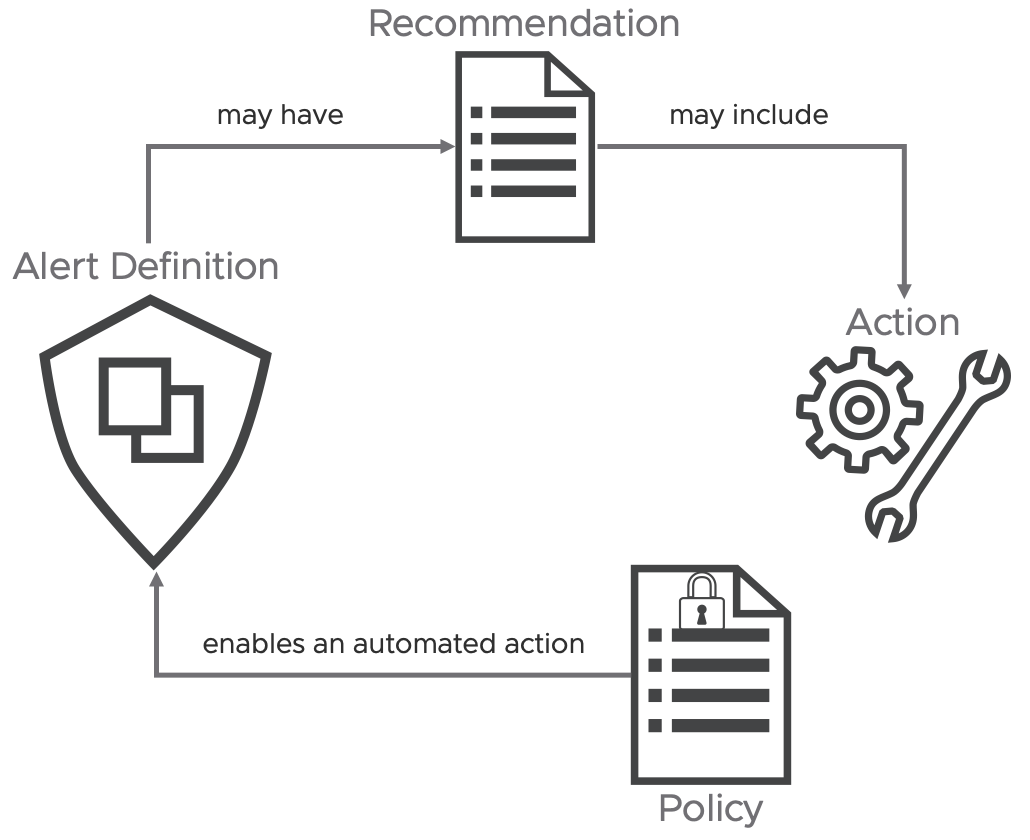
Figure 9: Simplified Alert Definition concept.
Now, there's just one more step needed to implement automation: enabling the automated execution of the action within the corresponding Aria Operations Policy that governs the behavior of each object. The following image illustrates this within my default policy, specifically in the Alert Definition section.
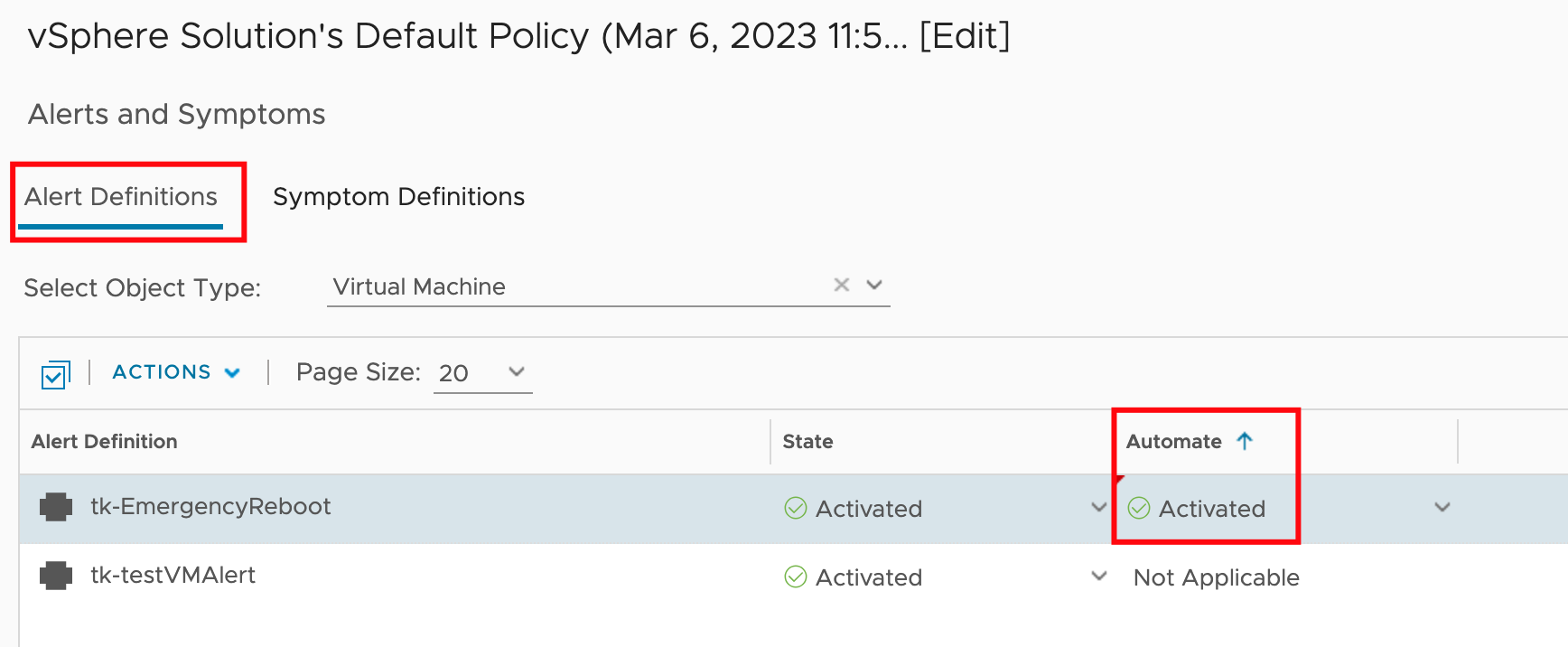
Figure 10: Enabling automated Actions in a Policy.
The next time this specific alert is triggered, Aria Operations will attempt to automatically execute the configured action. I use "attempt" because certain actions may require specific inputs and cannot run without interaction from the administrator.
Over time, the process of creating an Alert Definition in Aria Operations has become significantly clearer. The following image shows the individual steps, including the (optional) configuration of Alert Recommendations which may include Recommendations Actions.
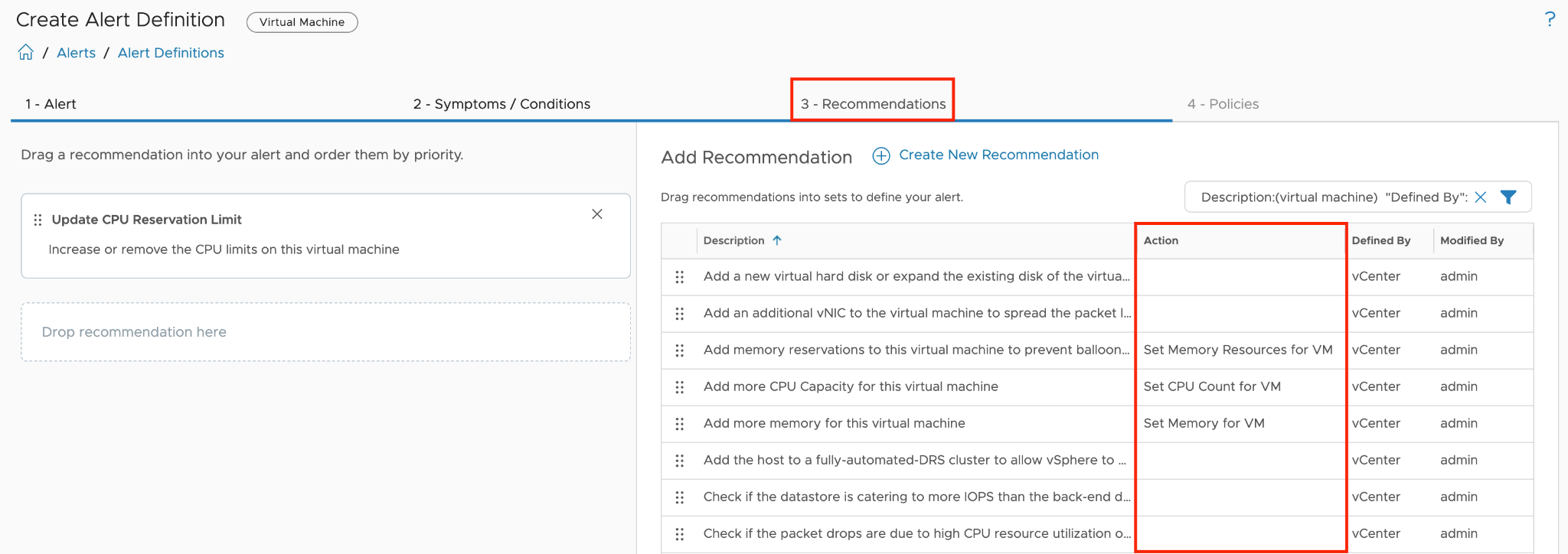
Figure 11: Recommendations option in Alert Definition.
The Automated Action Plugin is a convenient and user-friendly option for automating tasks triggered by Aria Operations alerts, but it has its limitations. The available actions are pre-configured and cannot be customized to address more complex scenarios or additional object types.
I will describe later in detail how to "overcome" the lack of flexibility of the pre-configured actions.
SNMP Trap Plugin
Another plugin that can automate tasks triggered by Aria Operations is the SNMP Trap Plugin. SNMP traps are typically set up to trigger alerts or open tickets through systems equipped with an SNMP receiver. By leveraging VMware Aria Automation Orchestrator as an SNMP Trap receiver, you can incorporate SNMP traps into your automation workflows. In the following image, you can view the configuration of an SNMP Outbound Instance, which is used to send SNMP traps to a VMware Aria Automation Orchestrator endpoint. In this example, the endpoint is the integrated Aria Automation Orchestrator instance.
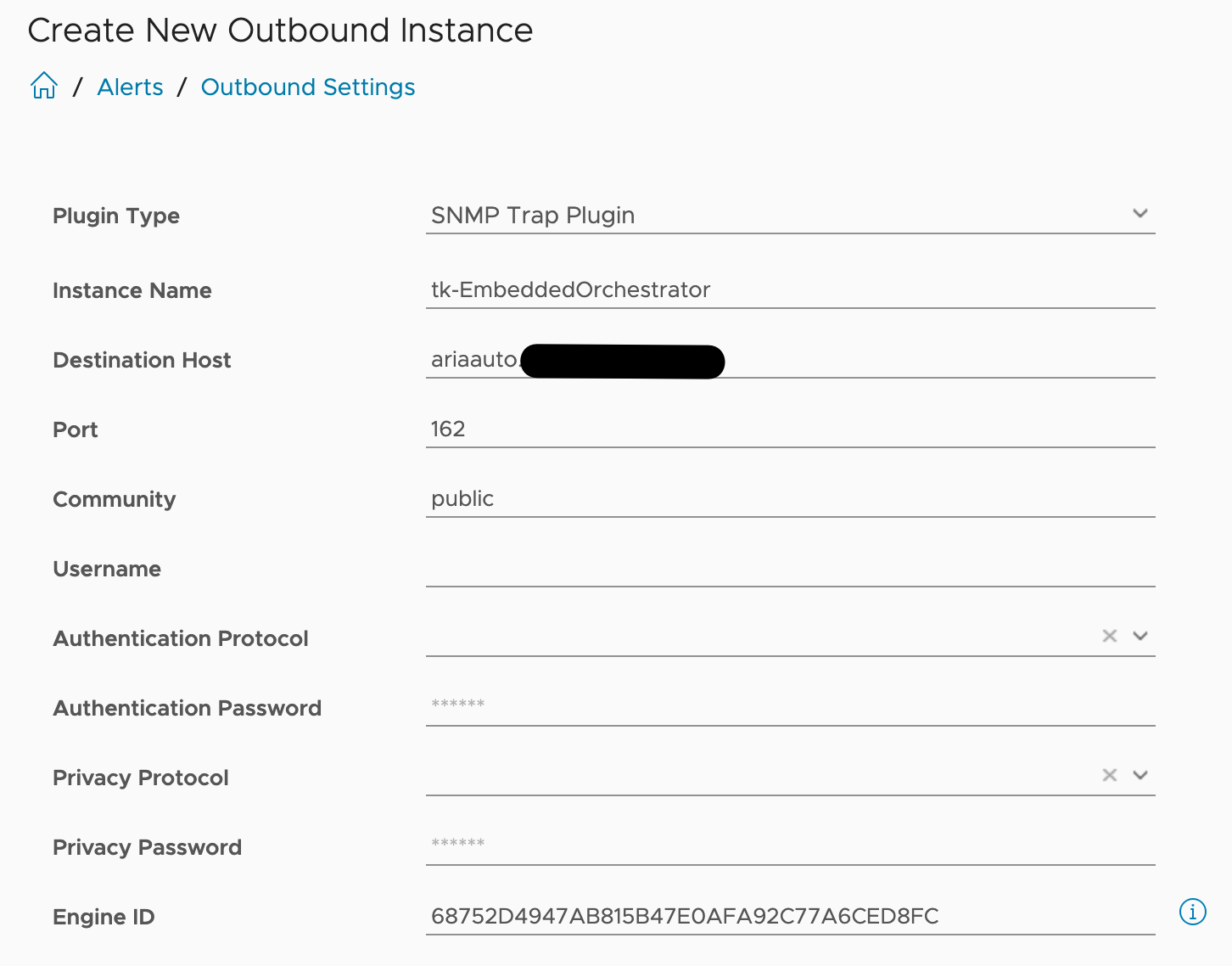
Figure 12: SNMP-Plugin Outbound Instance.
This link describes how to configure a SNMP Trap Receiver Policy in VMware Aria Automation Orchestrator which will be able to start scripts or workflows anytime a SNMP trap has been received. You can also learn how to set up all needed components to start an automated workflow using the SNMP Trap Plugin reading this blog post
Webhook Notification Plugin
The new Webhook Notification Plugin offers a versatile method to integrate with any REST API endpoint.
As we have already learned, we must first create a suitable Outbound Instance to establish a connection with a 3rd party REST API in order to invoke the methods provided there.
We'll look at an example that one of my esteemed colleagues worked on.
John Dias developed a sample Webhook for integrating with Microsoft Teams. To use MS Teams as a target for Aria Operations Notifications, you must first create an incoming Webhook connector for your Teams channel. The configuration of the Webhook in MS Teams is not covered in this chapter, but it is thoroughly explained in John’s post.
To utilize the MS Teams connector in Aria Operations, simply create an Outbound Notification Plugin Instance in Aria Operations with the complete URL of the MS Teams incoming webhook as a parameter, as demonstrated in the following image:
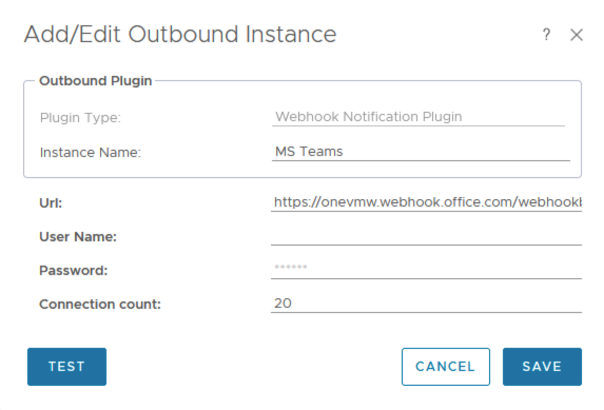
Figure 13: Webhook Notification Outbound Instance for MS Teams.
The supplied payload example simplifies the creation of a Notification. The Payload Template defines the information that Aria Operations will transmit to the target when the specified notification rules are met. The following figure displays the template that John created for the MS Teams integration.
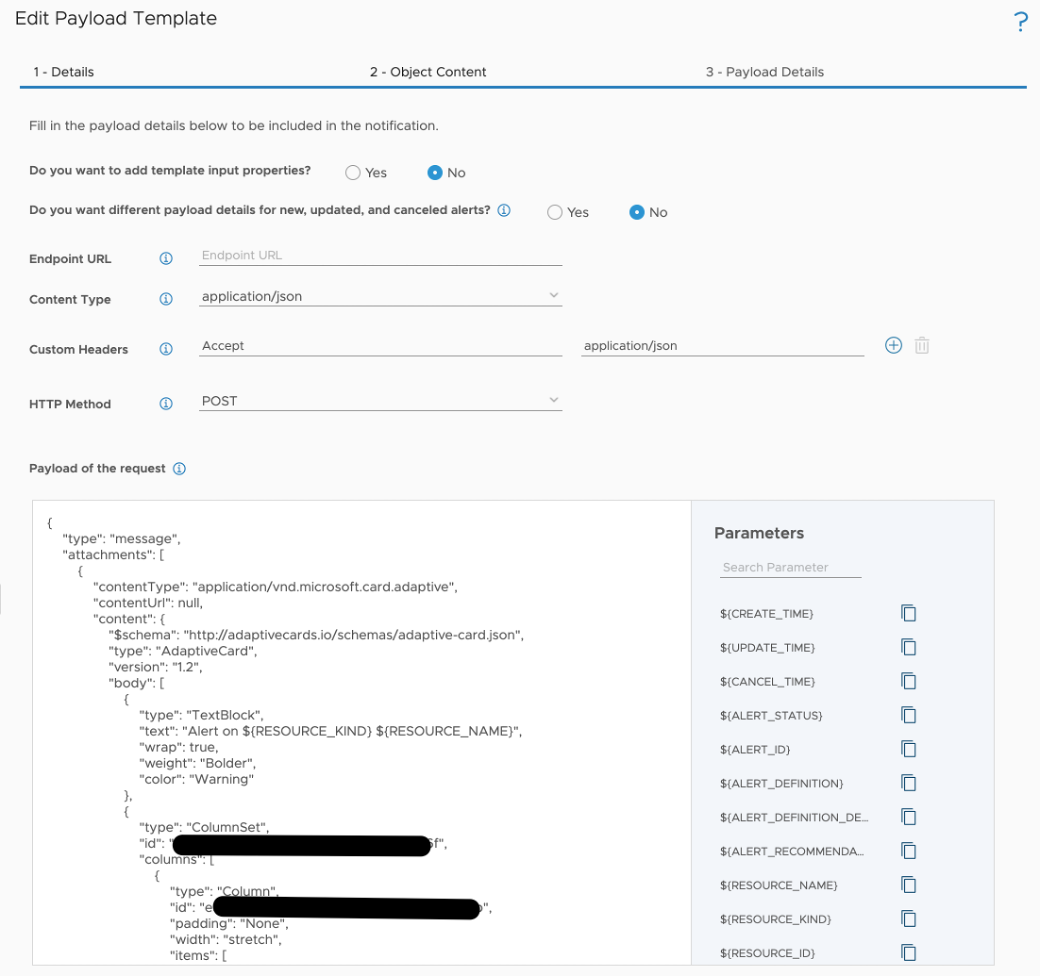
Figure 14: Webhook Payload Template for MS Teams.
Utilizing Notifications, the Webhook Notification Outbound Instance, and the new Payload Templates, you can finely tune the desired outbound payload down to specific metric levels. The following image demonstrates an example of the payload configuration applicable to a webhook outbound connection.
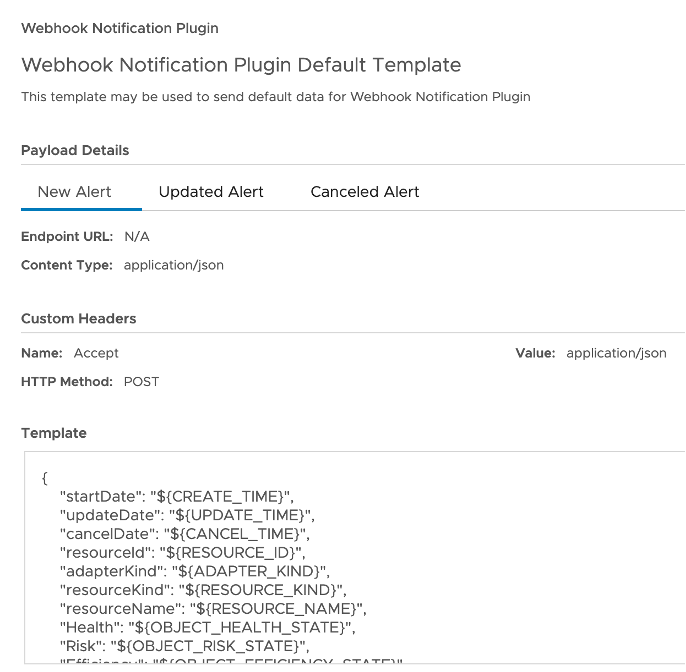
Figure 15: Webhook Payload Template general example.
The enhanced Webhook capabilities enable Aria Operations to integrate with systems that were previously not within our scope, such as for example message queues.
By configuring a Webhook Notification Plugin Instance to connect to a RabbitMQ endpoint and using an appropriate payload template, Aria Operations now supports creating notifications that send data to RabbitMQ queues based on specific events. For instance, this example demonstrates RabbitMQ queues for opened and cancelled alerts.
The prerequisite for this use case is, of course, a functional RabbitMQ instance with the following queues that will receive our messages.
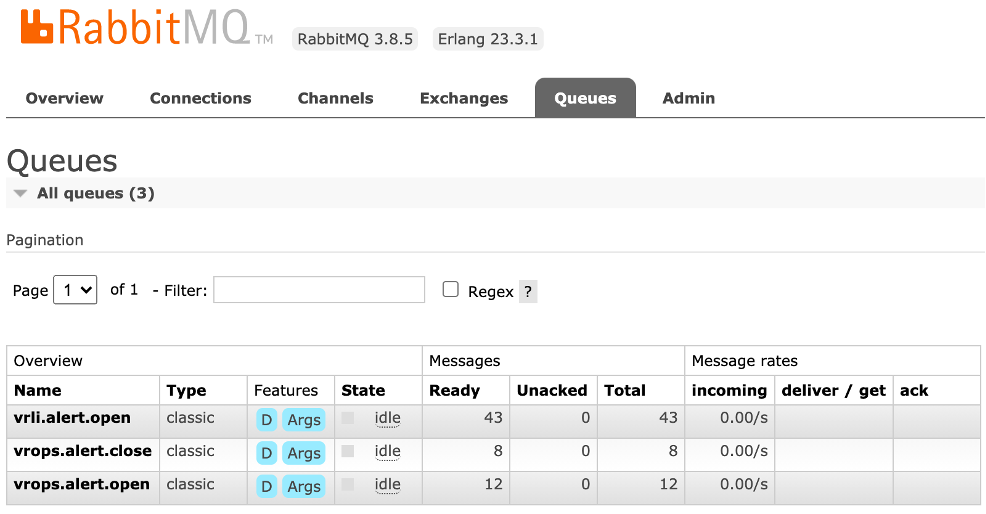
Figure 16: RabbitMQ queues.
The entire process is described in more detail here.
Basically, on the Aria Operations side, we need an Outbound Instance based on the Webhook Notification Plugin and suitable Payload Templates that will be used in Aria Operations Notifications.
In this context, although technically not necessary we could have different notifications for opening and closing an alert, both using the same Outbound Instance but employing different Payload Templates.
The next picture shows the Outbound Instance I have created to connect to my RabbitMQ server.
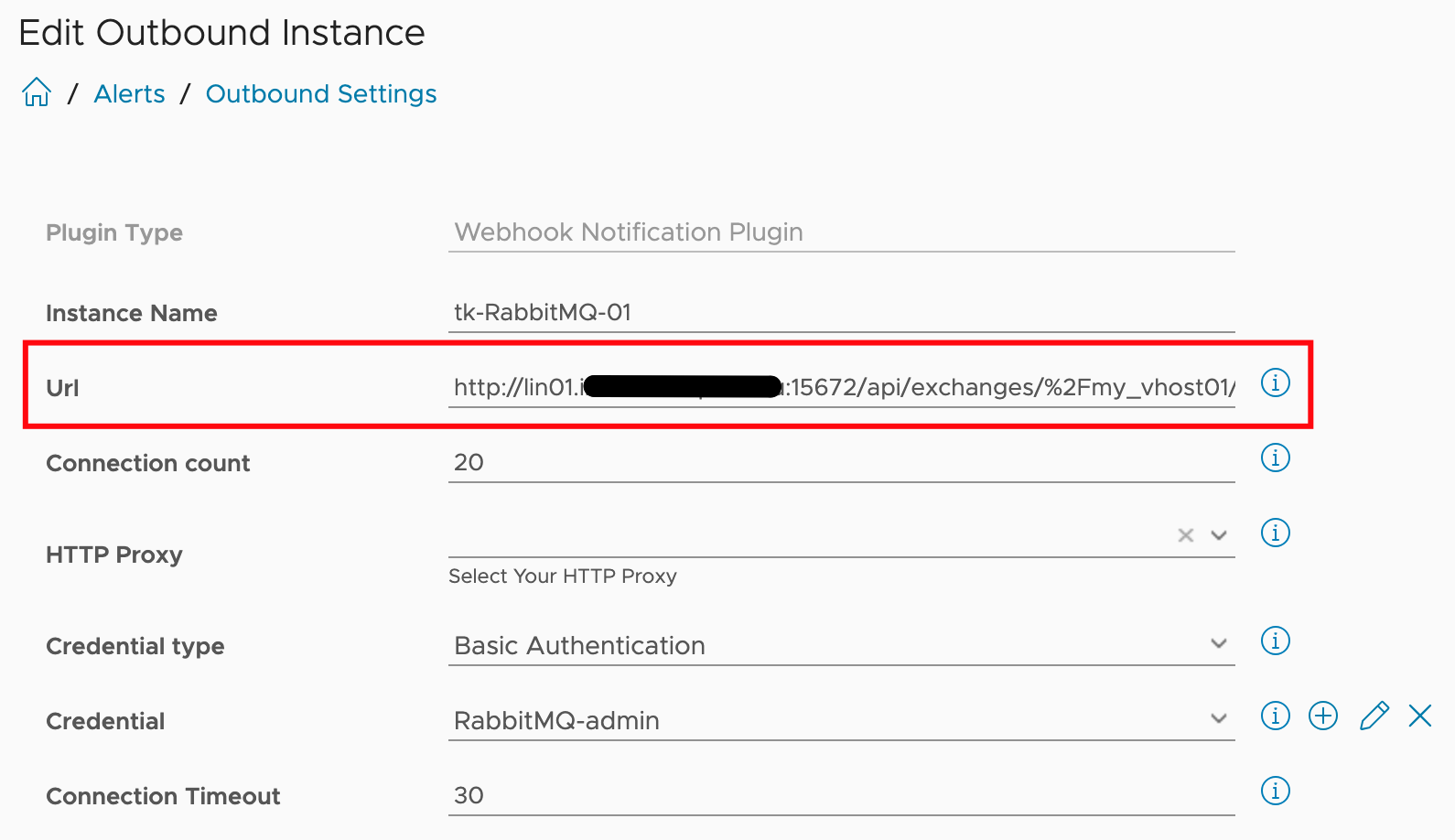
Figure 17: RabbitMQ Outbound Instance configuration.
Please notify that you have to specify the correct host and hosts configured in your RabbitMQ system.
The next image exemplifies the payload template used to place a message into the open queue using an Aria Operations Notification.
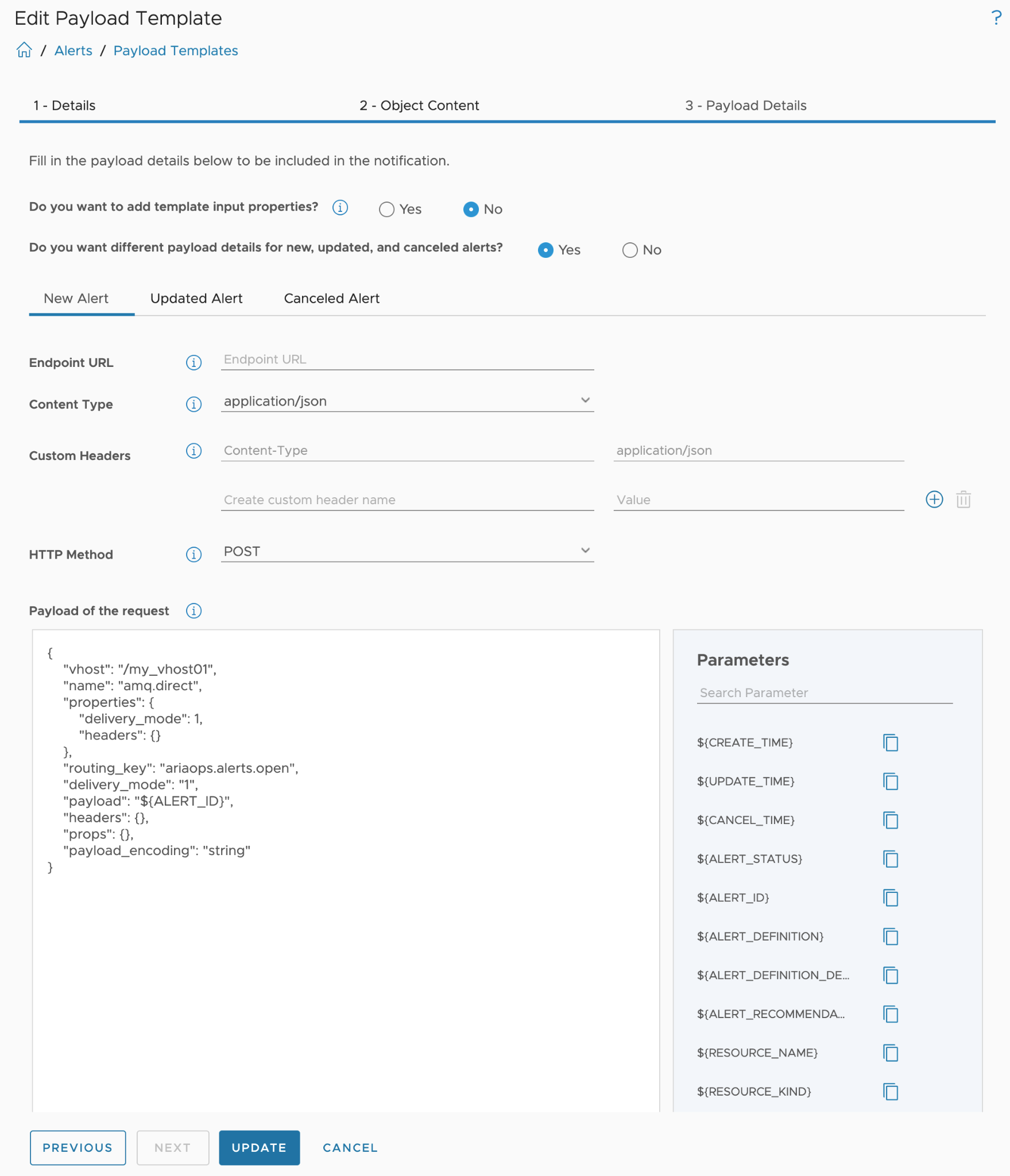
Figure 18: Payload Template for RabbitMQ Outbound Instance.
The payload template offers many configuration options, with the most important being the actual JSON body, especially when discussing REST POST calls. As shown in the last image, in addition to the body, we can configure headers, variables, and other elements typical for REST endpoints.
Notifications
I have mentioned the Aria Operations Notifications construct very often without describing what it actually is and how it is configured. I will address that now.
If you look again at the images of an open or closed-loop control system shown at the beginning, you will probably wonder what the role of the Actuators in Aria Operations is supposed to be. That is precisely the task of the Aria Operations Notifications.
The Notification element provides the required functionality to connect the sensors with the Actuators. The configuration of Notifications includes not only the rules or criteria for when a Notification should be triggered but also the Outbound Instance to be used and the appropriate Payload for the selected type of Outbound Instance.
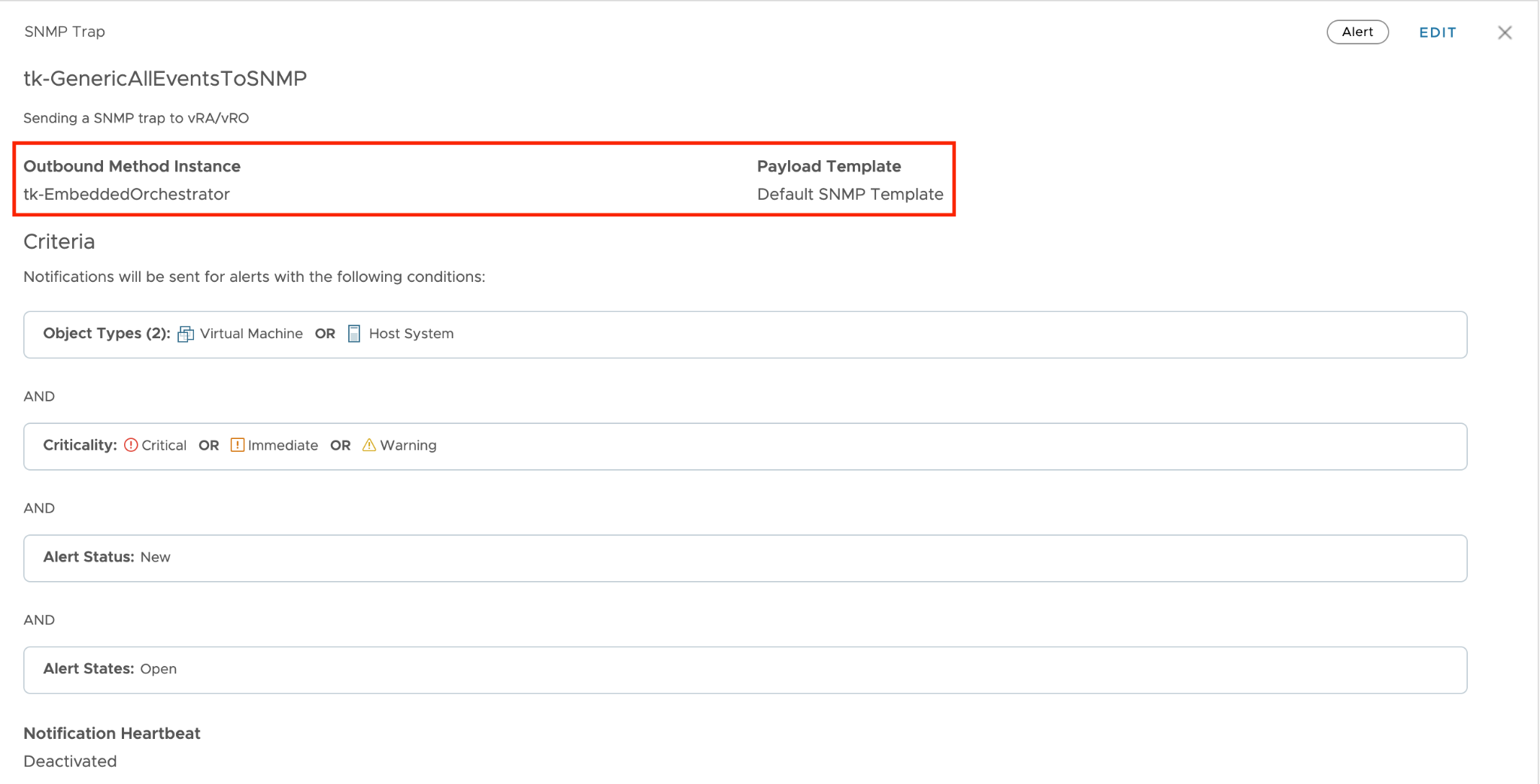
Figure 19: Notification using a SNMP Trap Outbound Instance.
With this information we can extend the model introduced in figure 9 to also include Notifications and Outbound Instances as possible building blocks of automated operations.
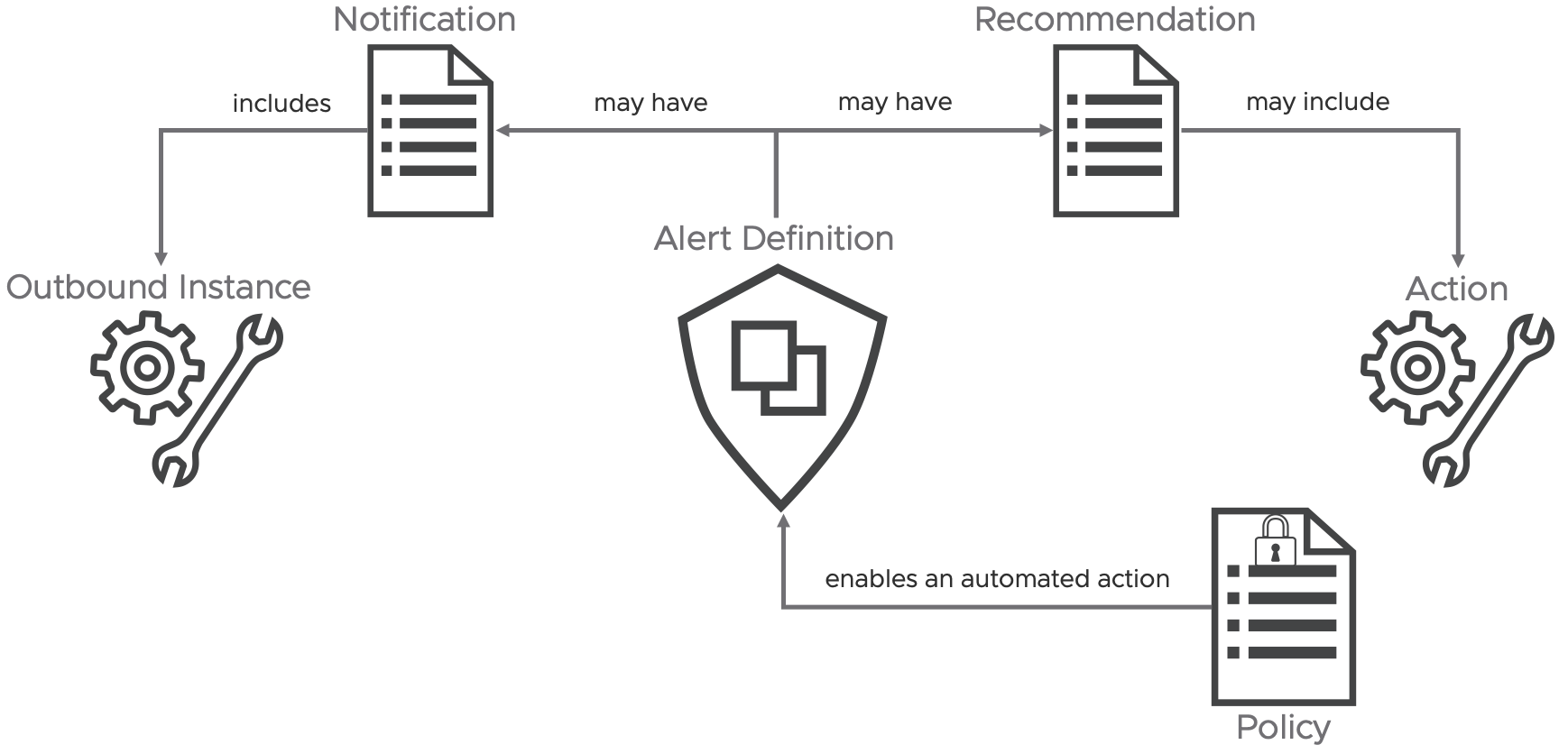
Figure 20: Extended Alert Definition concept.
In the context of automation using Aria Operations, both Automated Actions and Notifications using Outbound Instances exemplify what I would refer to as "fire-and-forget" or, as discussed earlier in this chapter, the open-loop approach to executing automation tasks. If your use cases demand more, such as retrieving additional data from Aria Operations to make more informed decisions, continue reading to discover how to effectively tackle these challenges.
Aria Operations Management Pack for Aria Automation Orchestrator
At the end of the "Automated Actions Plugin" chapter, I promised to discuss how the limited flexibility of Automated Actions can be overcome using other methods. In this chapter, I will describe how this can be achieved through the Aria Operations Management Pack for Aria Automation Orchestrator. It opens up completely new opportunities for automating your operational tasks and provides real self-healing capabilities. In particular, this Management Pack provides following features:
-
Insights into Aria Automation Orchestrator including various metrics, properties and predefined dashboards and alert definitions.
-
Aria Automation Orchestrator workflows available as Actions and within Recommendations.
With this solution it is easy to implement sophisticated self-healing and self-driving SDDC, managed by Aria Operations.
The ingredients are:
-
VMware Aria Automation Orchestrator instance. You can use a stand-alone Aria Automation Orchestrator instance or the instance deployed as part of the Aria Automation installation.
-
Aria Operations.
-
In Aria Operations the **Aria Operations Management Pack for Aria Automation Orchestrator **installed and configured.
To explain the individual configuration steps, I will use a use case that could occur in real operation.
“If a VM (the OS) crashes, this VM should be hard-reset.”
As the determination of whether a VM has actually crashed or the specific process for identifying this is not the focus of this chapter, we will assume that we have appropriate symptom and alert definitions established.
The general approach from use case to automated remediation or any other task is broadly applicable in most scenarios:
-
Develop an VMware Aria Automation Orchestrator workflow tailored to your specific use case.
-
Create or modify an Aria Automation Orchestrator package to include your workflow or workflows.
-
Incorporate the required workflows into Aria Operations by discovering or re-discovering the Aria Automation Orchestrator package created or modified in the previous step.
-
Configure the workflow or workflows within Aria Operations, this is an important step in the entire process.
-
Create or refine Aria Operations Recommendations.
-
Integrate Aria Operations Recommendations into an Aria Operations Alert Definition.
-
(Optional) Undertake manual remediation steps if necessary.
-
(Optional) Activate automated remediation processes for enhanced efficiency.
In this post, I won't delve into the specifics of the workflow content or coding in Aria Automation Orchestrator. Instead, I'll concentrate on how to seamlessly integrate any workflow into Aria Operations, enabling it to execute automatically as part of the alert remediation process.
For our use case, which focuses on a Virtual Machine, the Aria Automation Orchestrator workflow requires at least one input parameter, in my example it is the vm input parameter, to pass the vCenter VM object reference from Aria Operations to Aria Automation Orchestrator. In the image below, you'll also see a second input parameter, vrops_alert_id. When this parameter is available, Aria Operations will pass the internal Aria Operations Alert ID to Aria Automation Orchestrator. This ID can be used for callbacks to retrieve more information from Aria Operations. The next subsection of this chapter will explain how to achieve this.

Figure 21: Aria Automation Orchestrator workflow and its input parameters.
The workflow inputs are:
-
vm as VC:<Datatype>, it will be populated with the reference to the VM object which triggered the alert.
-
vrops_alert_id as String, it will be populated with the actual Aria Operations Alert ID for further callbacks.
To use workflows in Aria Operations, they need to be included in a new or existing Aria Automation Orchestrator package. Remember, all workflows within the package that we import in the next step will be visible in Aria Operations. I recommend creating a dedicated package specifically for workflows used in Aria Operations. The next image illustrates a package containing the Reset-VM workflow.
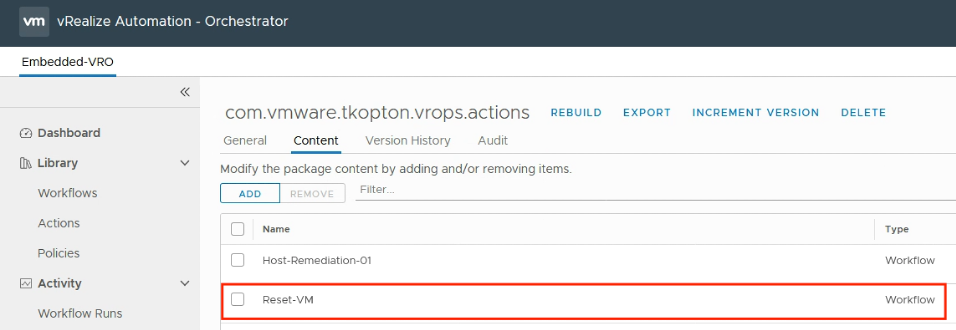
Figure 22: Aria Automation Orchestrator package content.
To make Aria Operations aware of the available workflows, we need to discover the package created or modified in the previous step. This process is straightforward. Navigate to "Environment," then "VMware Aria Automation Orchestrator," and finally "Aria Automation Orchestrator Workflows," as illustrated in the next image.
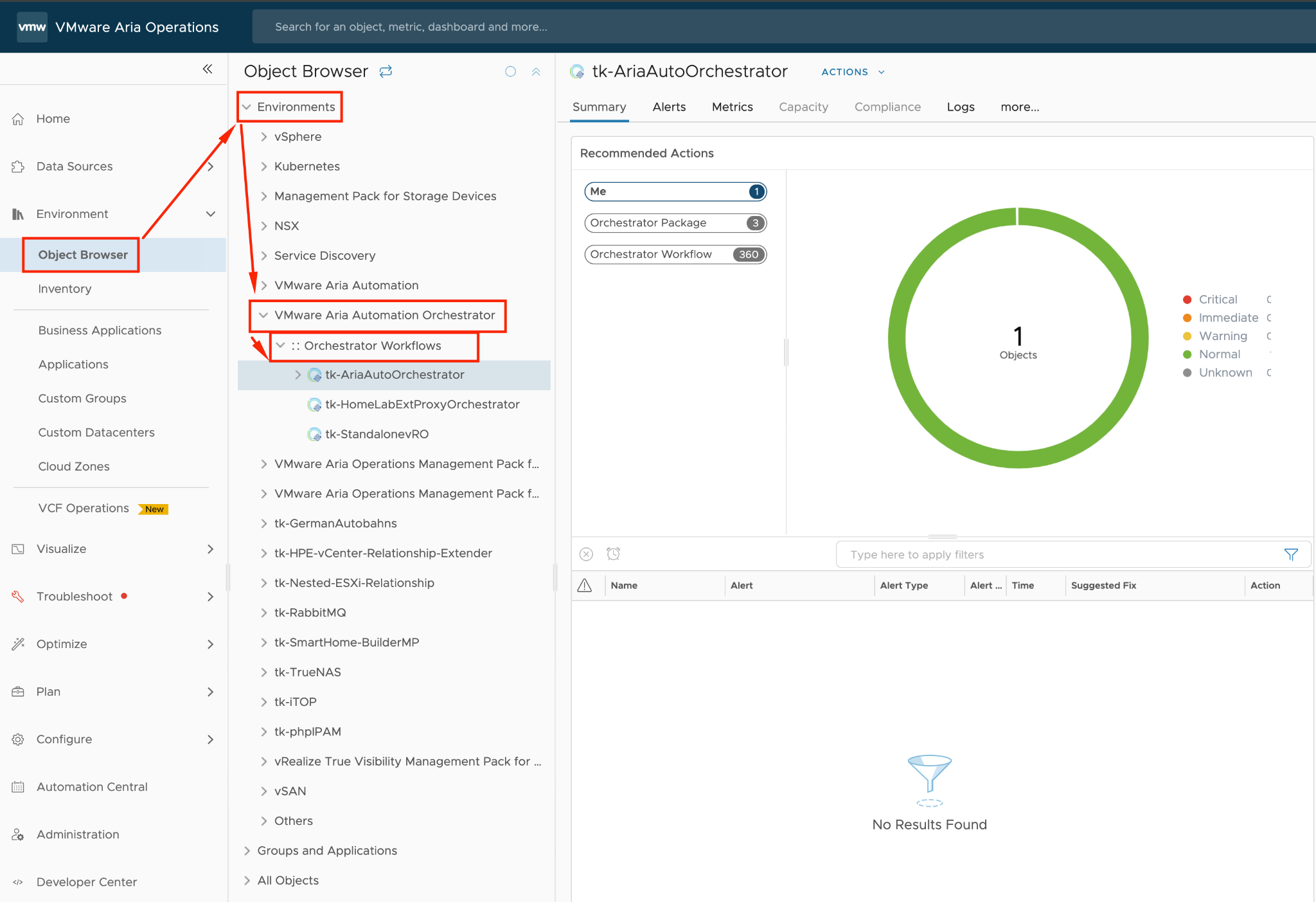
Figure 23: Aria Automation Orchestrator package discovery process.
The next step involves selecting your Aria Automation Orchestrator adapter instance. In my example, this is the integrated Aria Automation Orchestrator, followed by running the "Configure Package Discovery" action from the Actions menu. The subsequent figure illustrates this process.
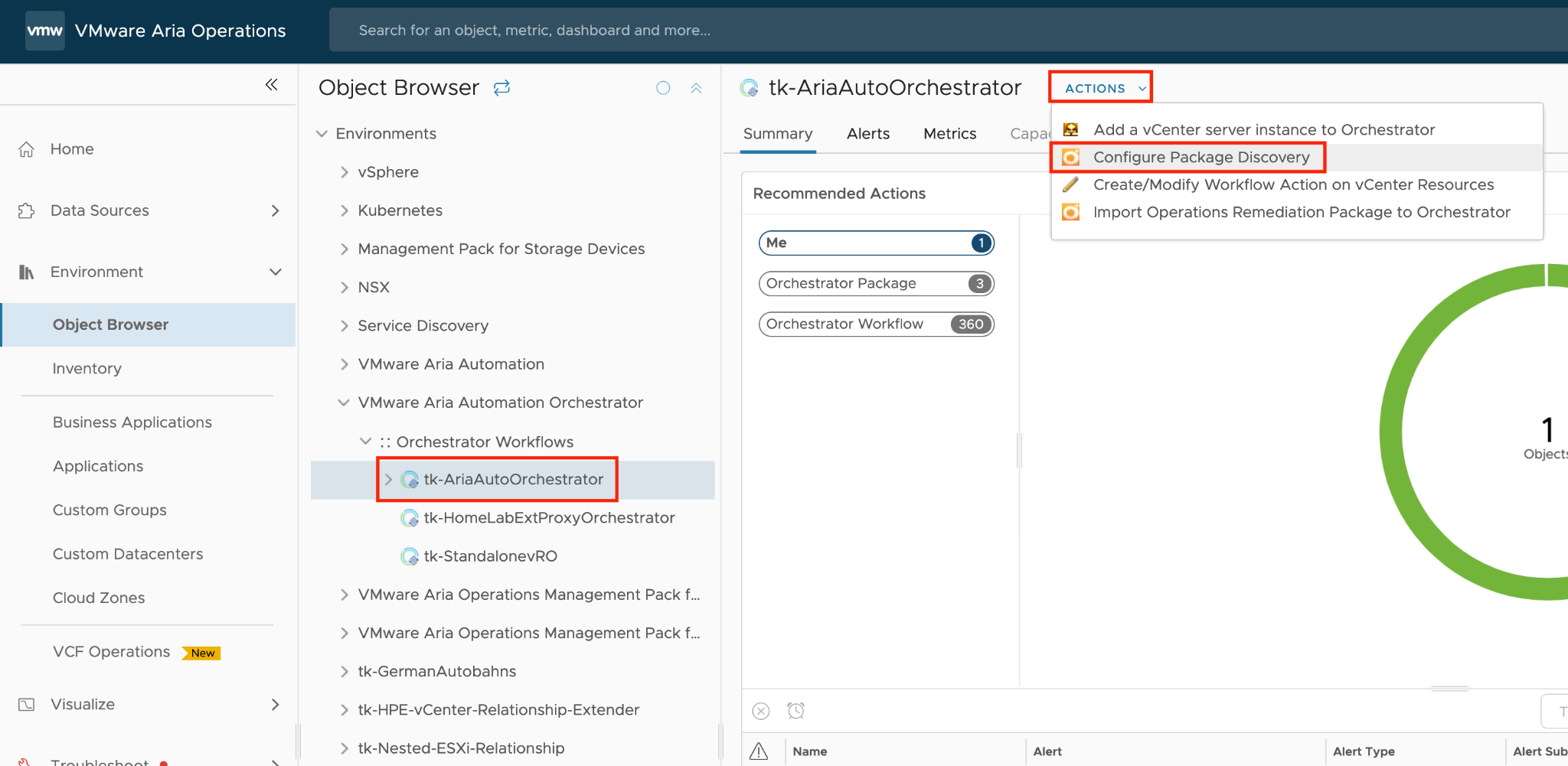
Figure 24: Configure package discovery in Aria Operations.
To initiate the discovery, you'll need to include the relevant package or packages in the list of all packages to inspect. Of course you can remove any package you do not want to be discovered by Aria Operations. Before you remove any package, make sure that none of the included workflows is being used in any of your recommendations. In my example the package I want to scan for workflows is represented by com.vmware.tkopton.vrops.actions. The process begins with the "Begin Action," illustrated in the following figure.
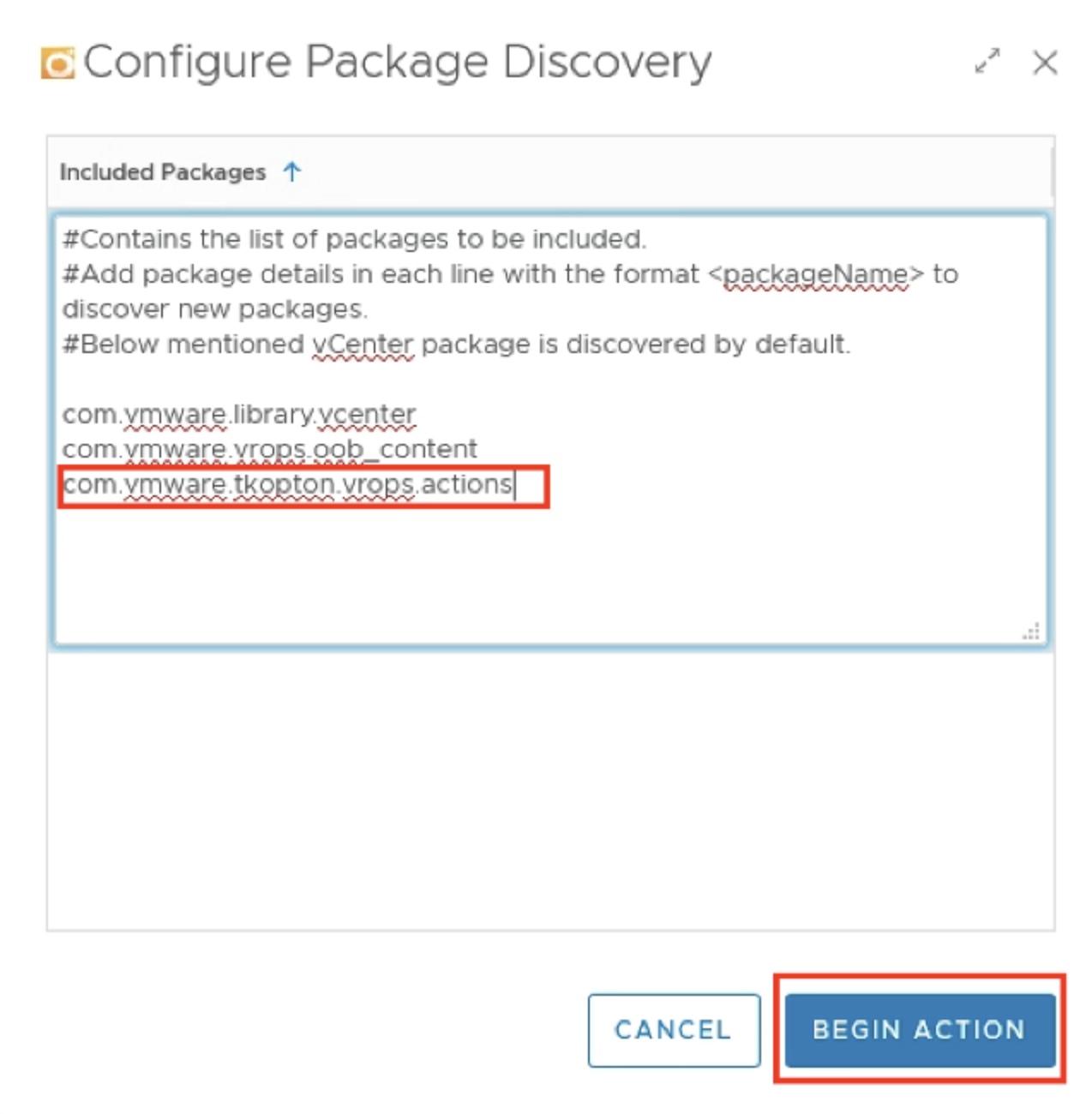
Figure 25: Running the package discovery.
Next picture shows the package and the included workflows after successful completion of the discovery process.
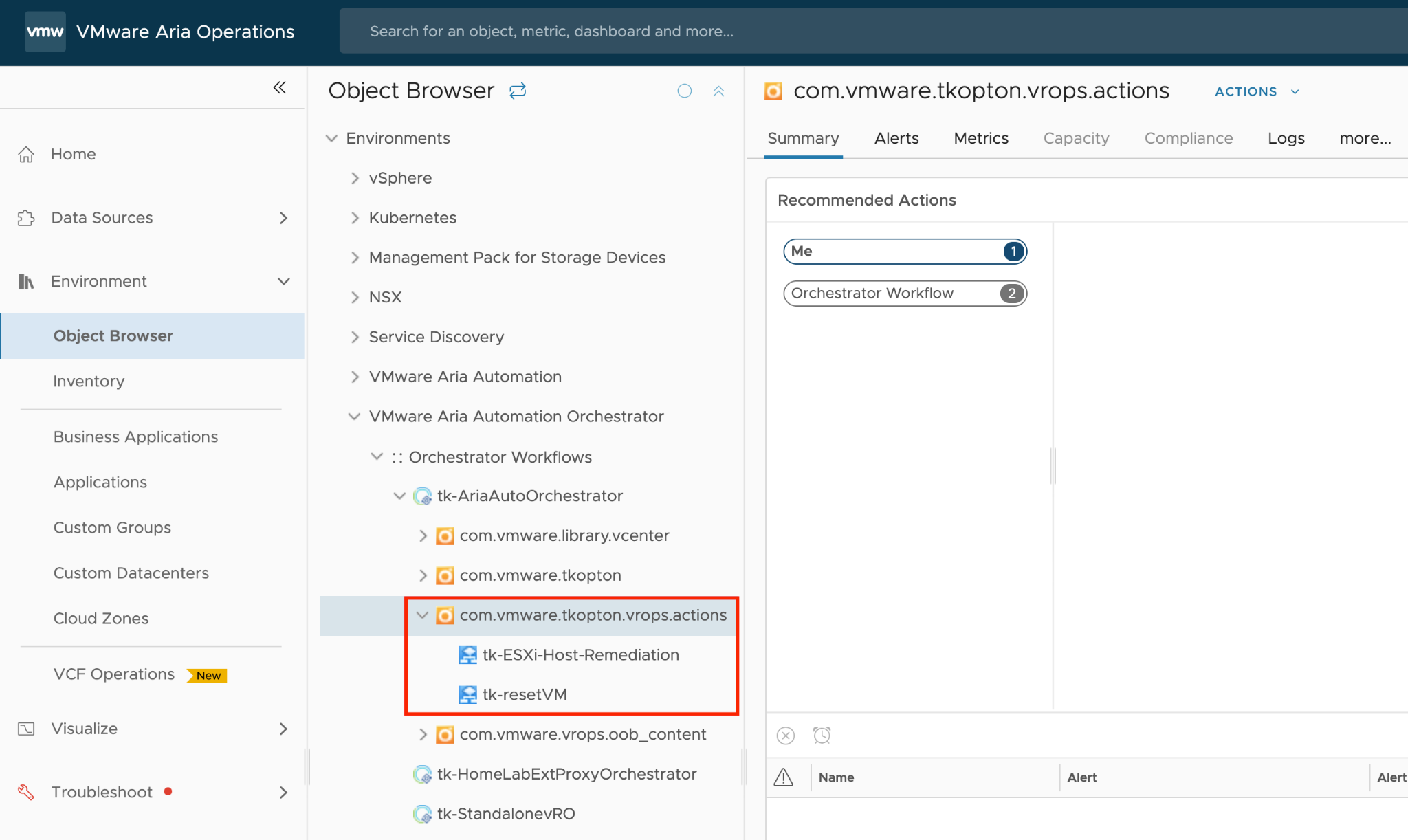
Figure 26: Discovered workflows.
If the use case necessitates executing the workflow on a specific vCenter object, such as a Virtual Machine in this example, it must be properly configured in Aria Operations. Aria Operations-driven automation needs to identify the resource types within an alert definition that will trigger the alert, and the resource type in Aria Automation Orchestrator on which the configured workflow can be executed. These two object types are usually the same but they do not have to be identical.
Furthermore, a workflow can have several different resource types for which it will be available. The target type is, of course, always the same, as it is the input expected by the workflow.
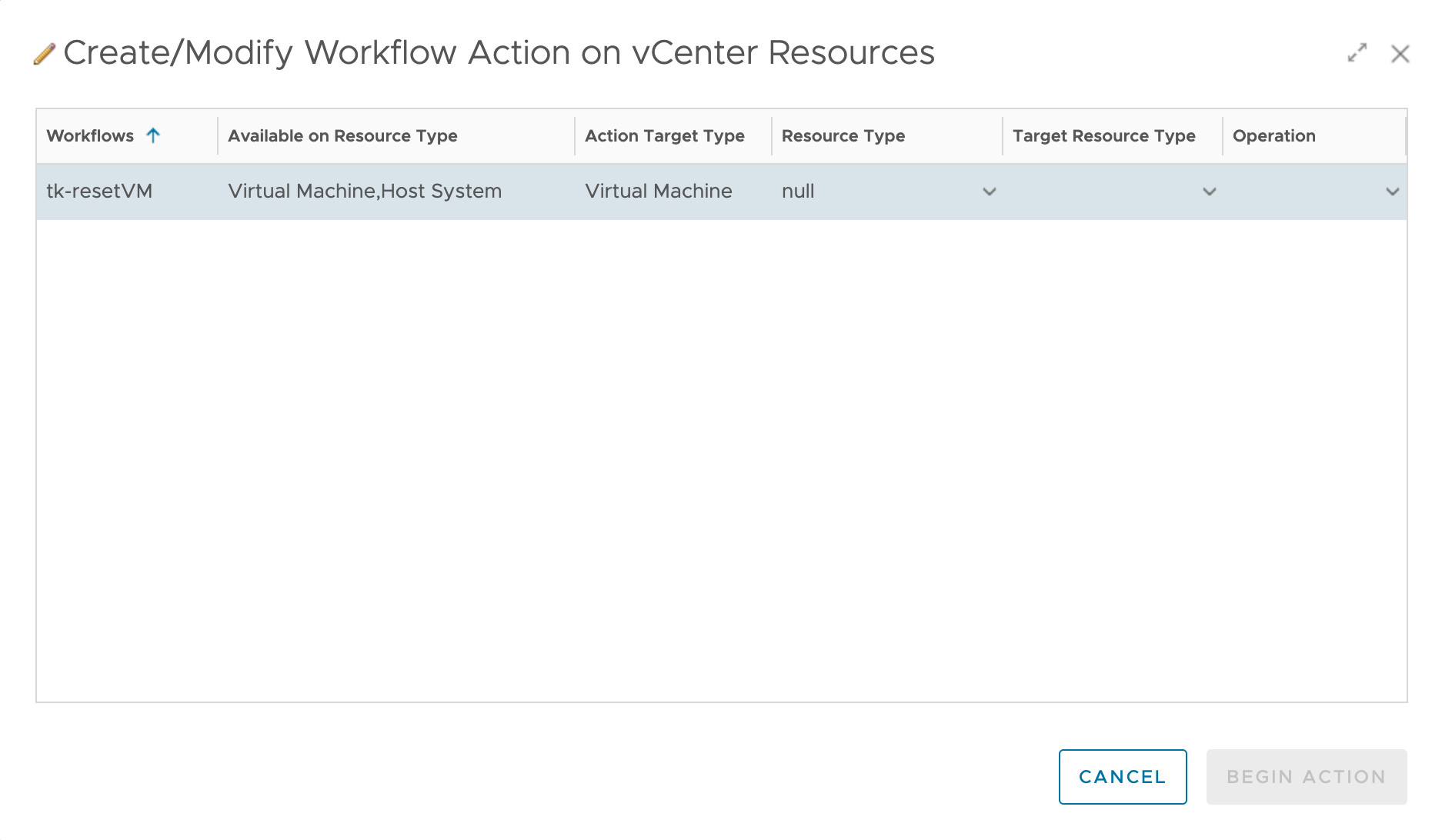
Figure 27: Workflow Action configuration with multiple Resource Types.
To configure this, run the “Create/Modify Workflow Action on vCenter Resources” from the “Actions” menu in the context of the specific workflow, as shown in the following figure.
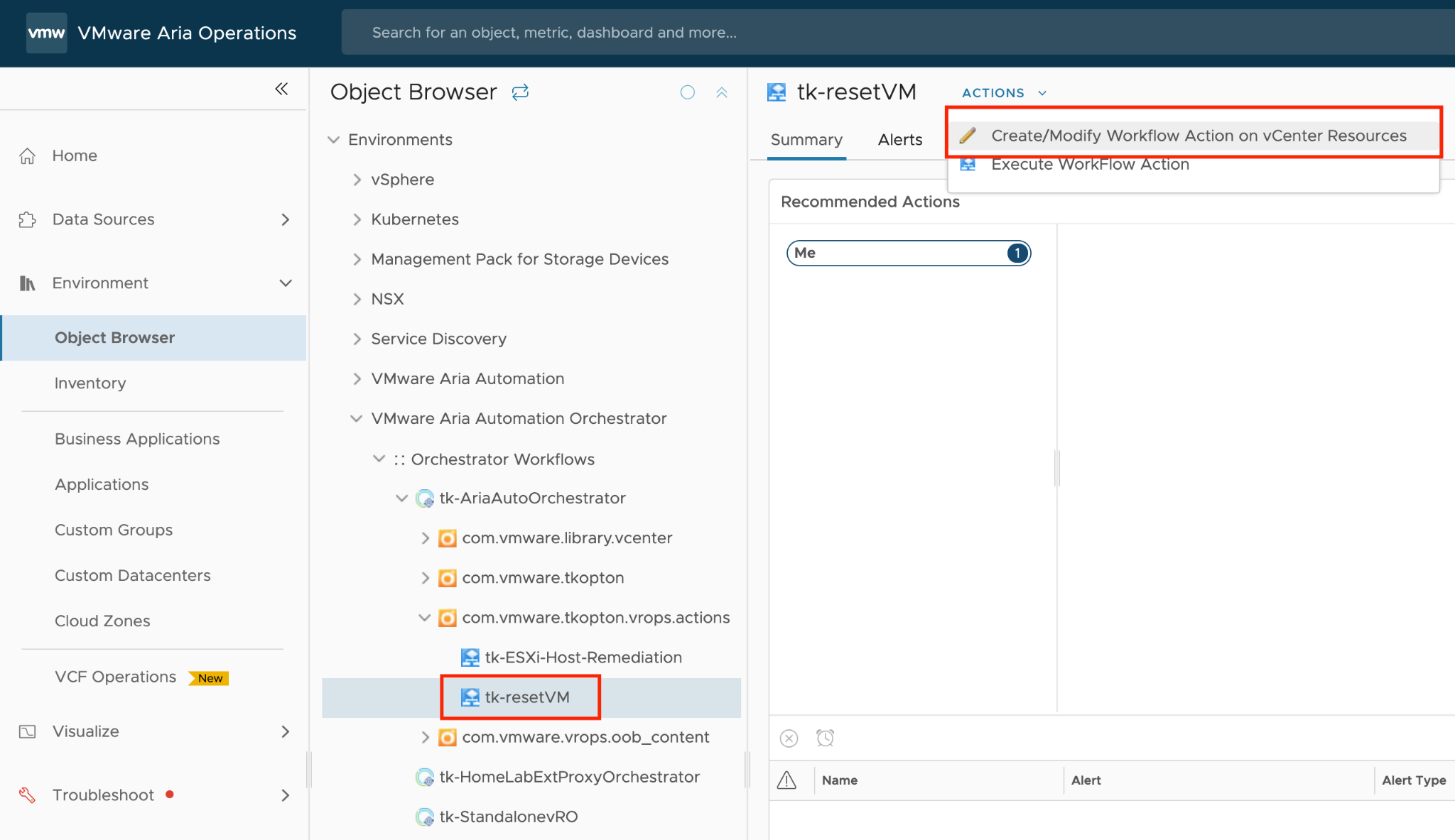
Figure 28: Configuring the workflow for specific resource type.
The parent object is the Resource Type, while the Target Type refers to the specific vCenter object for which the workflow is intended. The workflow takes the target object as its input parameter. For instance, if you want to map a workflow called “Change Ram” to a host system and run this workflow on multiple virtual machines under that host, you should select the Resource Type as Host System and the Target Type as Virtual Machine.
In the example use case, the alert will be triggered on a Virtual Machine resource type and executed on a Virtual Machine resource in vCenter. To achieve this, configure the Virtual Machine as shown in the following picture. The final step is to click “Add” to configure the workflow as a usable action.
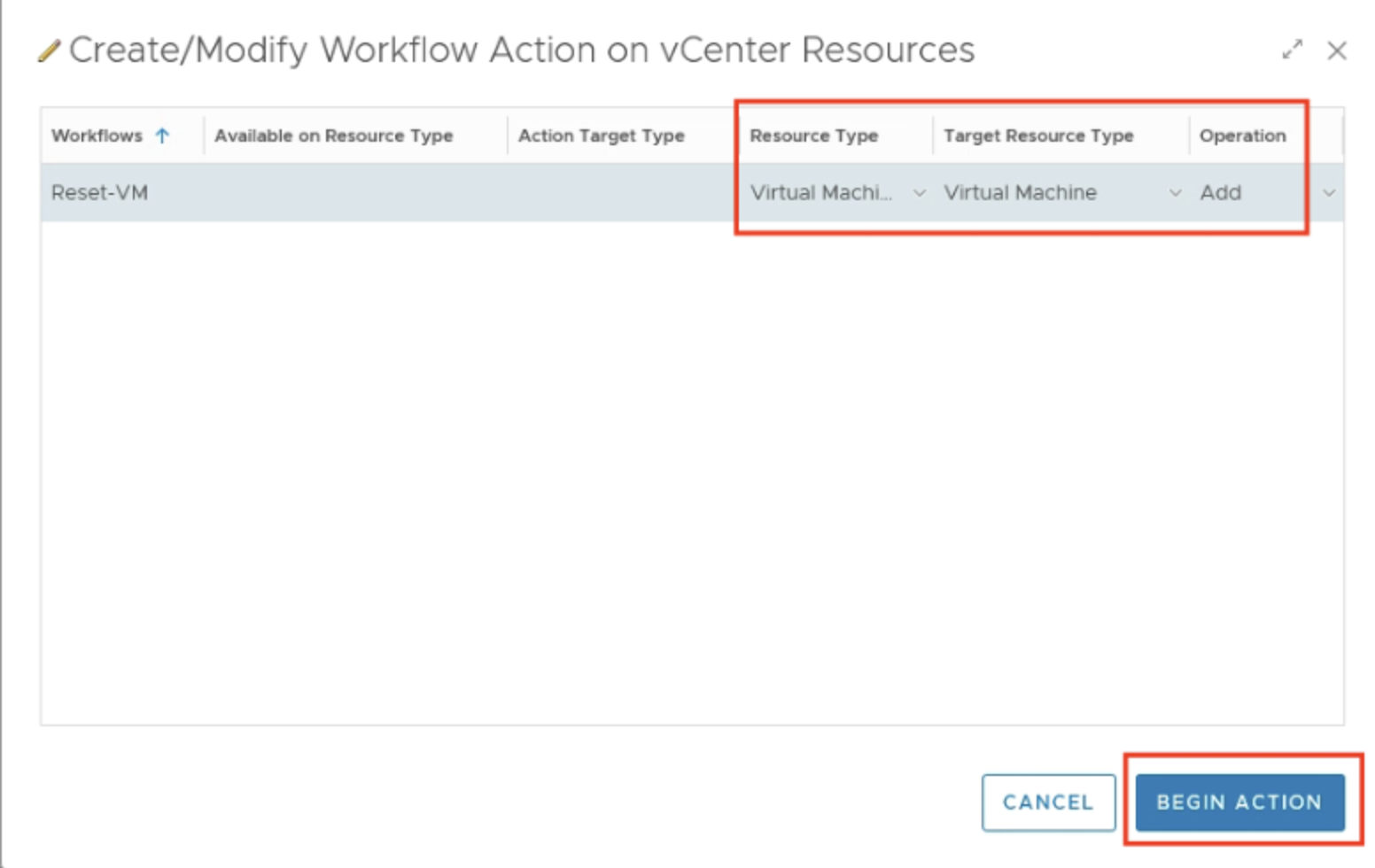
Figure 29: Workflow Action parameters configuration.
With this configuration, Aria Operations has all the necessary information to automate tasks using Aria Automation Orchestrator workflows. The final step is to configure these workflow-based actions within the appropriate Recommendation definition and enable the automation within the respective policy.
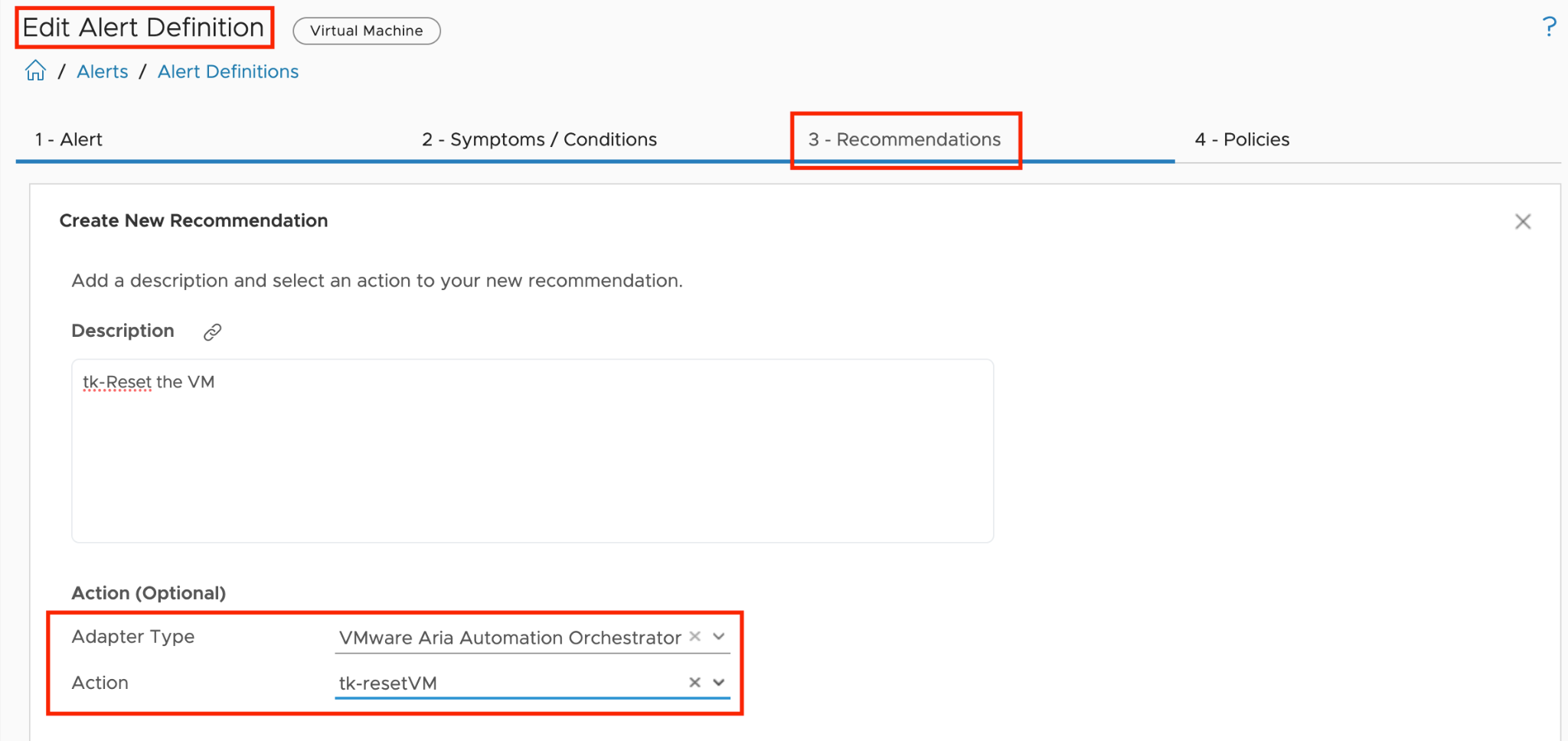
Figure 30: Alert Definition with a Recommendation containing a Workflow Action.
Upon execution, the properly configured Aria Automation Orchestrator workflow will receive the Aria Operations alert ID and a reference to the affected Virtual Machine, as shown in the next figure. This ID can be used to further enhance the automated actions.
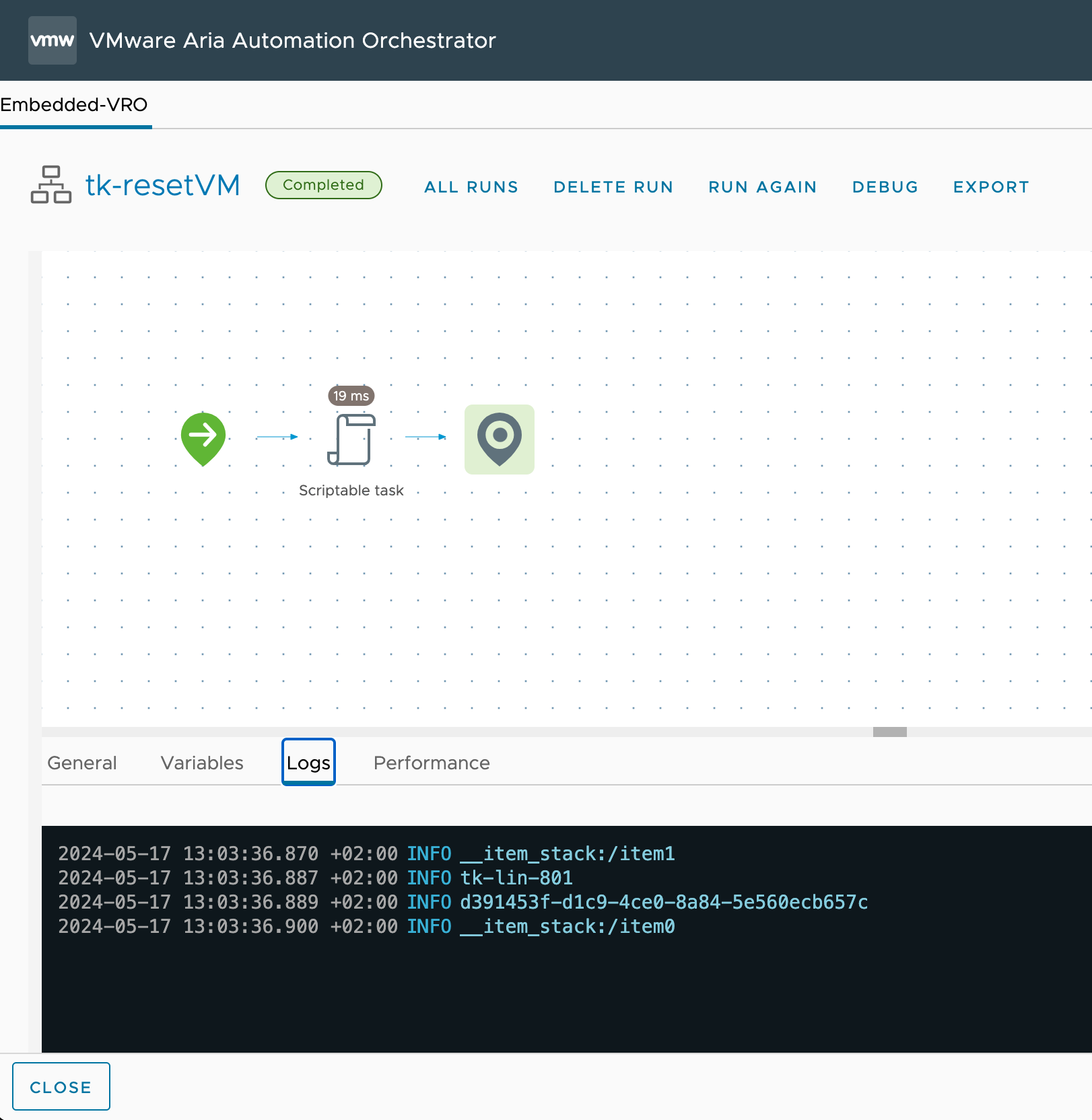
Figure 31: Workflow output in Aria Automation Orchestrator.
With the management pack for Aria Automation Orchestrator we have almost unlimited possibilities to extend Aria Operations actions and implement self-healing operations.
Automation Central
Automation Central is a powerful feature within Aria Operations that enables IT administrators to create, manage, and schedule automated jobs for optimizing virtual environments. This centralized hub allows users to automate various optimization actions, including reclaiming resources, rightsizing VMs, and performing routine maintenance tasks across vCenter and public cloud environments.
Automation Central serves as a cornerstone for efficient infrastructure management. It provides a user-friendly interface where administrators can set up recurring jobs, track their execution, and obtain detailed reports on the impact of these automated actions. By leveraging Automation Central, organizations can significantly reduce manual workload, improve resource utilization, and maintain a more optimized and cost-effective virtual infrastructure.
Key capabilities of Automation Central include scheduling actions like deleting old snapshots, powering off idle VMs, rightsizing oversized VMs, and even performing operations across multiple cloud platforms. This chapter will delve into the features, benefits, and best practices for utilizing Automation Central to streamline your VMware environment management.
Let's start with a look at the main page of Automation Central. Here we see at a glance all currently scheduled jobs in a calendar overview. As is typical in a calendar, we can navigate through the months, view the details of existing jobs, and start creating new jobs with just a click on "Add Job".
On the Automation Central Home Screen, we can also view Reclamation and Rightsizing Reports, which give us a quick overview of the outcome of our jobs in terms of optimized resources.
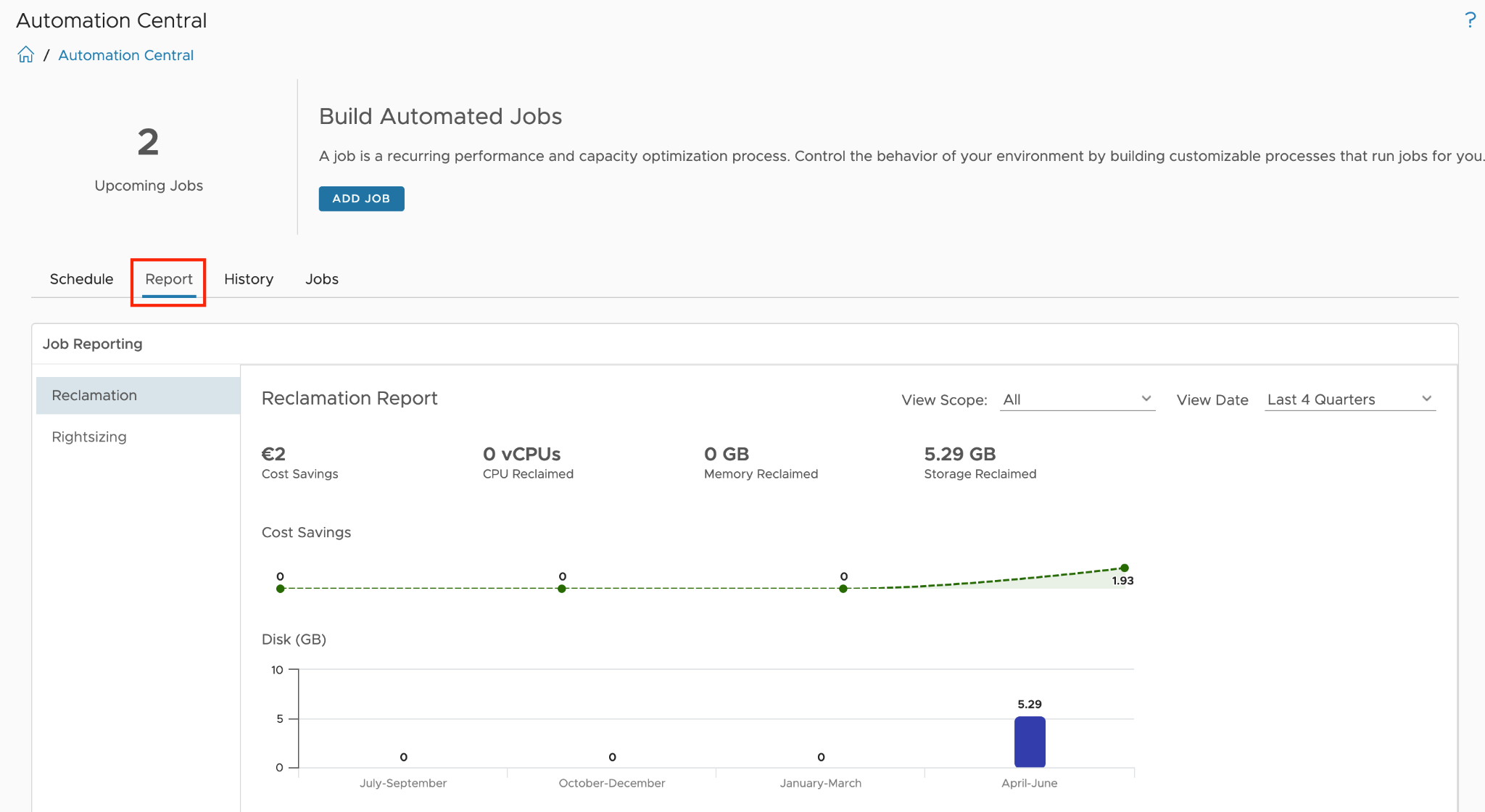
Figure 32: Automation Central - Reclamation Report
To review the History of configured jobs that have run, navigate to the History tab above the calendar. This tab provides a tabular view of job names and details. You can use the search function to find specific jobs or VMs, and the drop-down in the search box allows for advanced search options. Note that the job history page only displays the status of jobs.
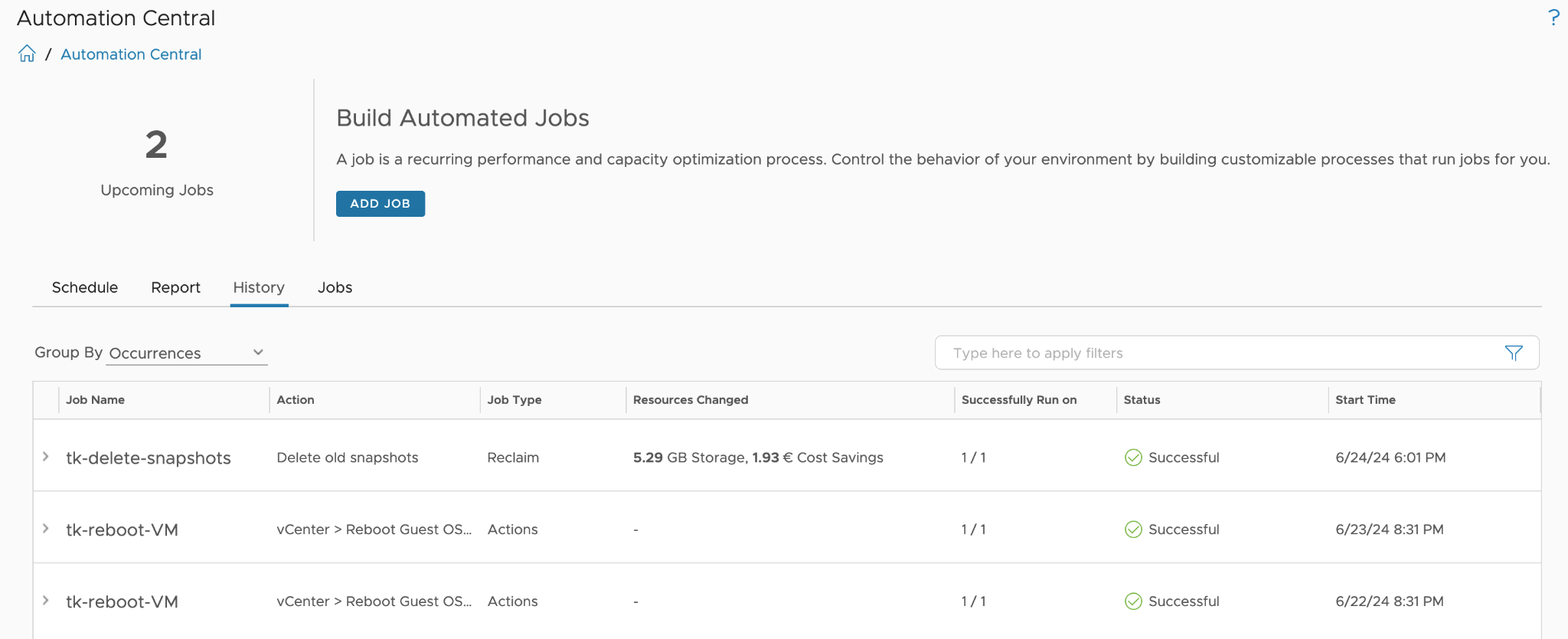
Figure 33: Automation Central - Job History
The Jobs tab displays a list of all configured jobs. For each job, clicking the ellipses icon brings up a menu where you can edit, delete, clone, or deactivate the job. If a job you created is not visible in the list, you can search for it by entering the name in the search box. Alternatively, you can check the job status by using the advanced search options available in the drop-down menu of the search box.
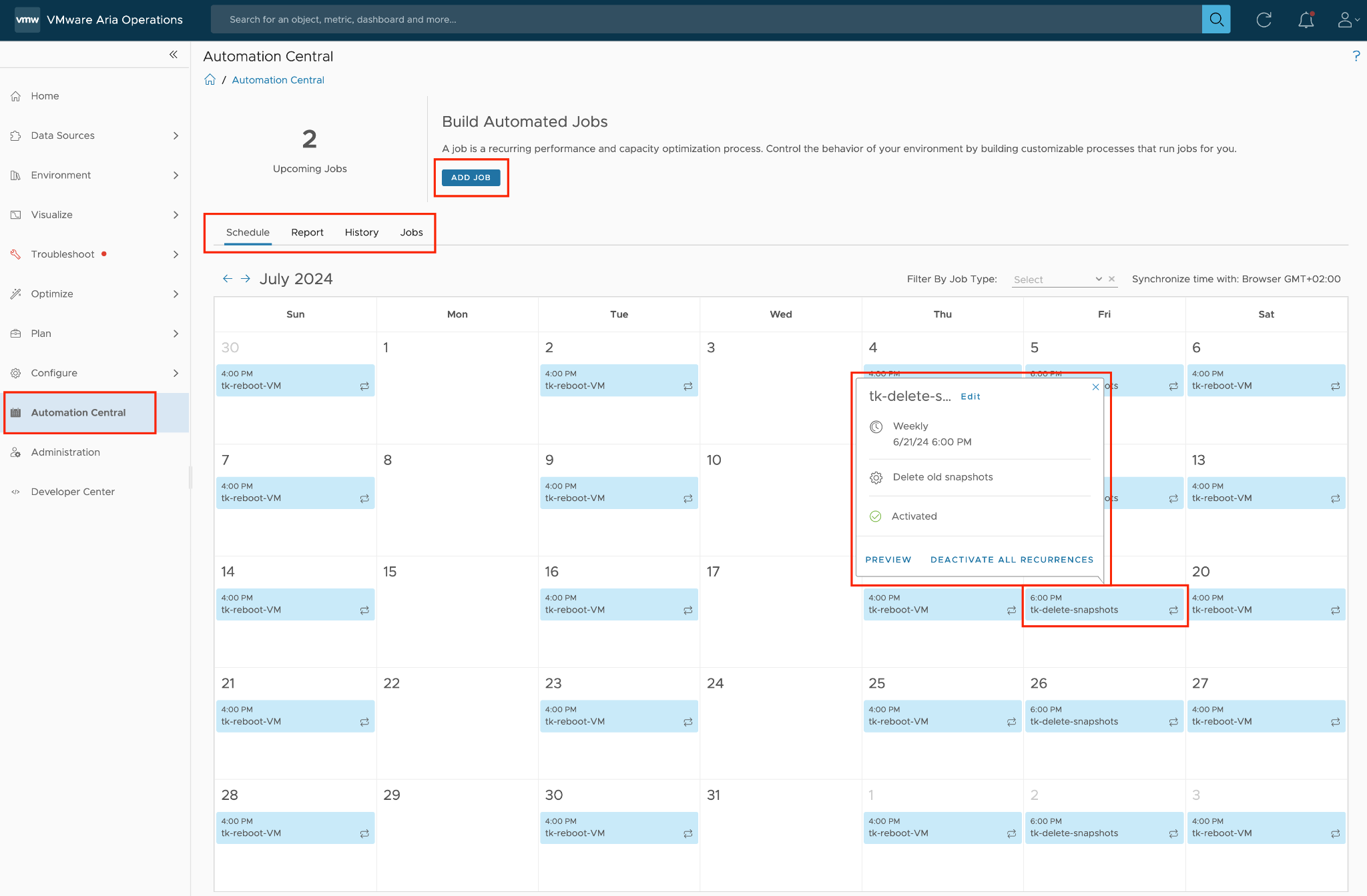
Figure 34: Automation Central - Schedule overview
Creating new fully automated jobs begins with selecting the action to be performed in the job. At the time of writing this chapter, the following three options are available:
-
Reclaim: to optimize unused resources. This action may include one of the following options: Delete old snapshots, Delete idle VMs, Power off idle VMs, Delete powered off VMs.
-
Rightsize: to optimize the configuration of VMs. This action may include one of the two options: Downsize oversized VMs or Scale-up undersized VMs
-
Actions: to schedule reboots or power cycles in a multi-cloud environment including Public Cloud offerings.
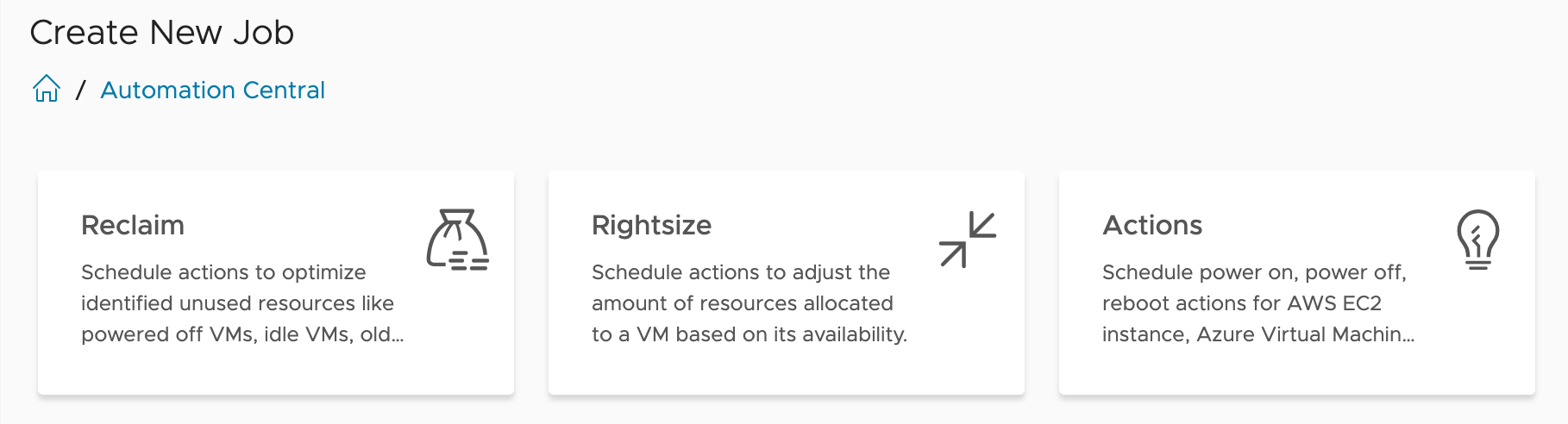
Figure 35: Automation Central - Three types of automated jobs
Creating an automated job is a four-step process. The following screenshots illustrate each step using a Rightsizing job as an example.
In the first step, "1-Rightsize Information", we define the specific action to be performed. In the case of Rightsizing, we have the choice between Downsize and Scale-Up. In this step, the parameters for the selected action are also specified.
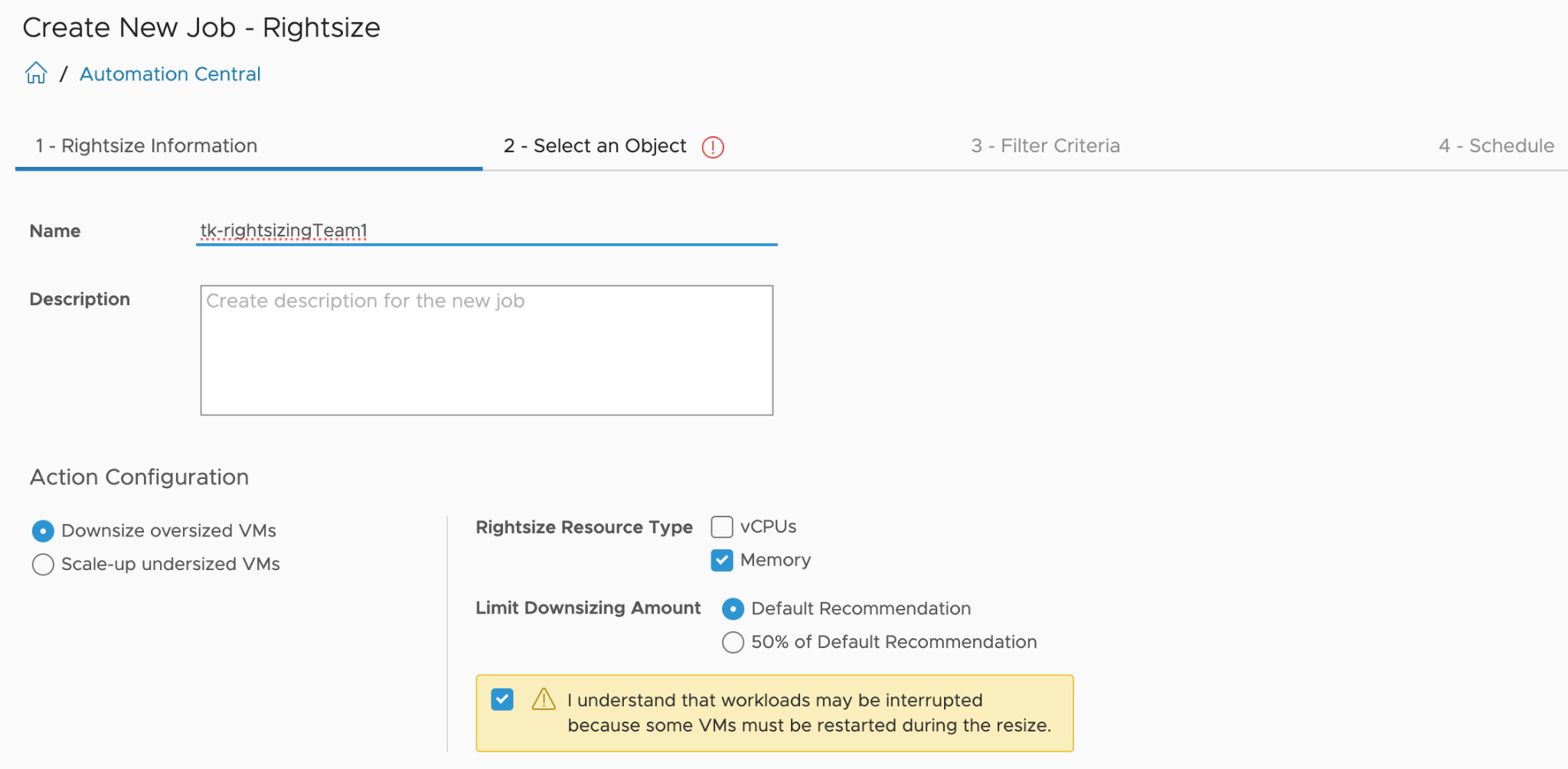
Figure 36: Automation Central - Creating a new job, step 1
In the second step, we define which objects the job should be executed on. Special caution is required here to ensure that the scope is not set too broadly, potentially affecting VMs that were not intended for automation.
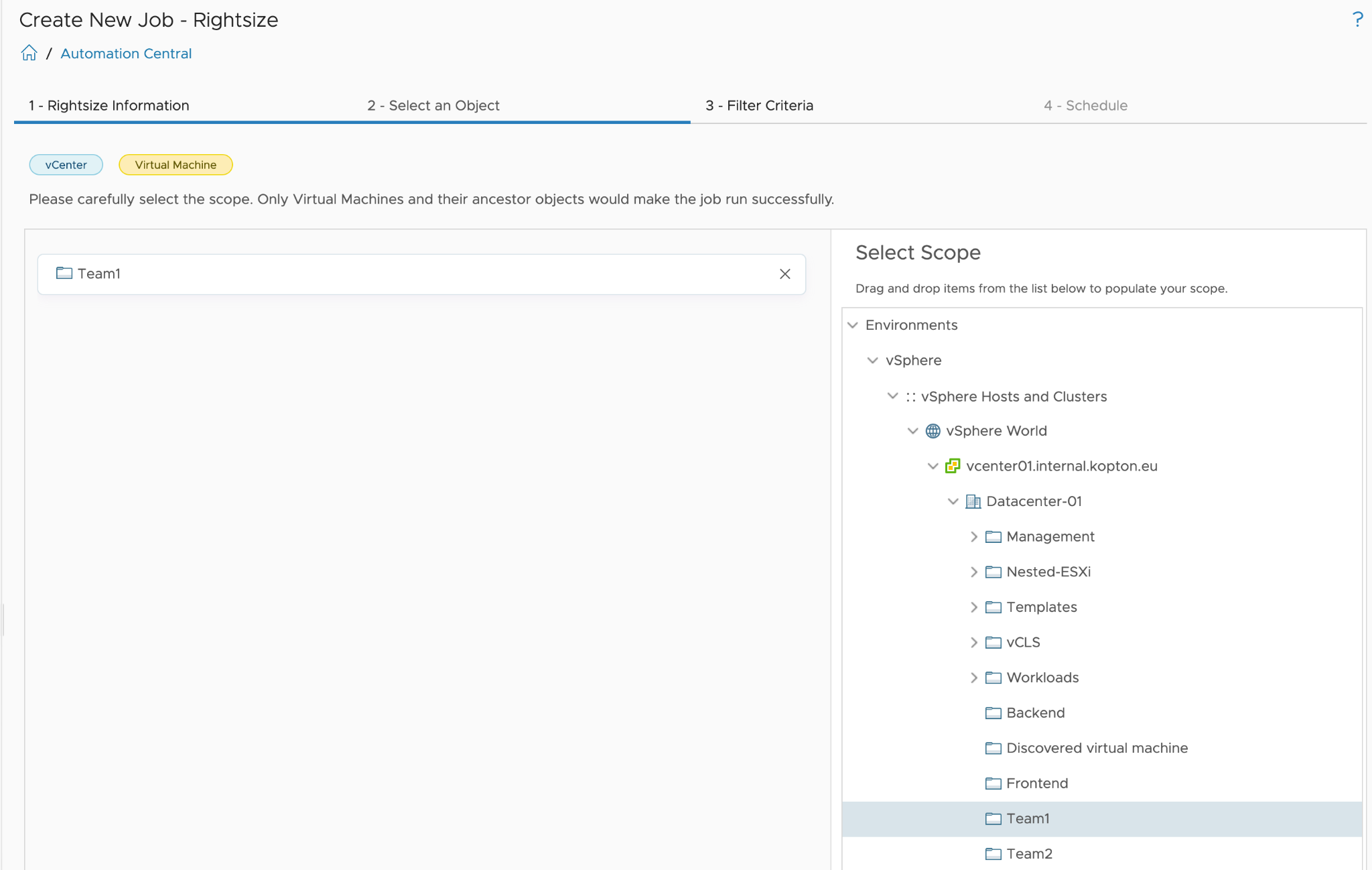
Figure 37: Automation Central - Creating a new job, step 2, selecting object(s)
In the third step, we can set filters to further refine the scope defined in the previous step. For example, a filter could be configured here to capture only VMs with a specific tag within the parent scope.
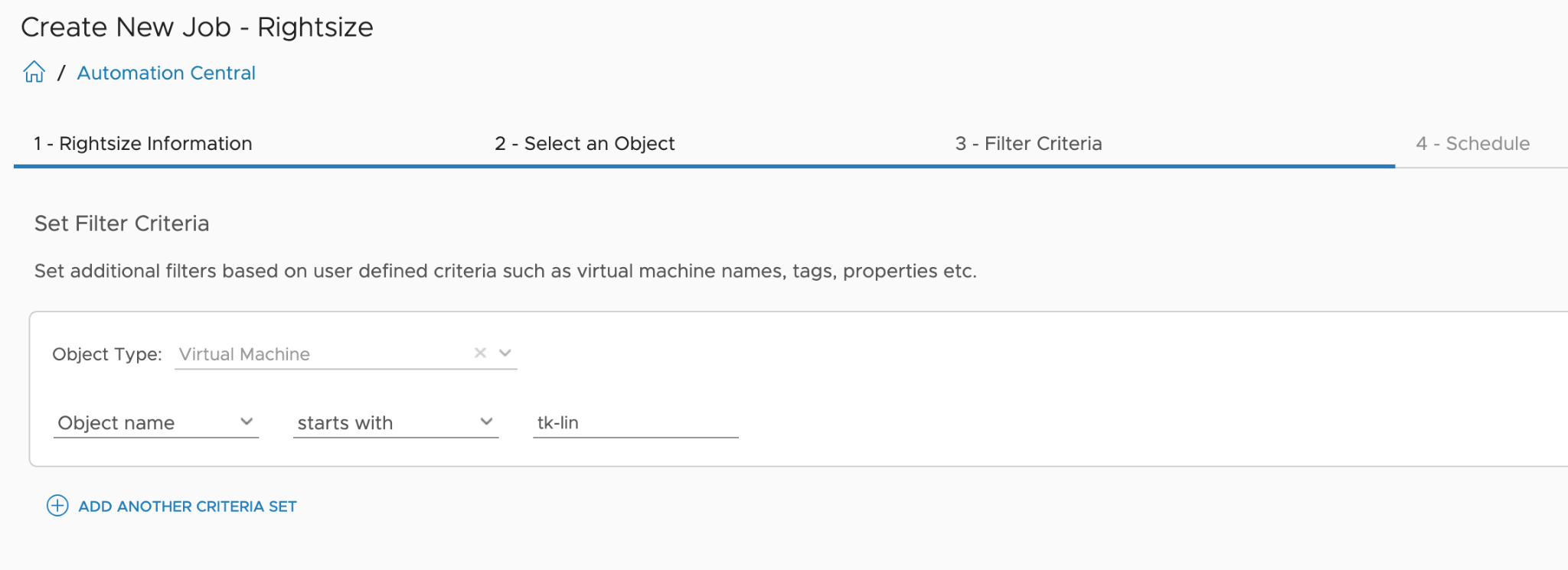
Figure 38: Automation Central - Creating a new job, step 3, filtering criteria
Finally, in the fourth step, the schedule is defined to determine when the job should be executed.
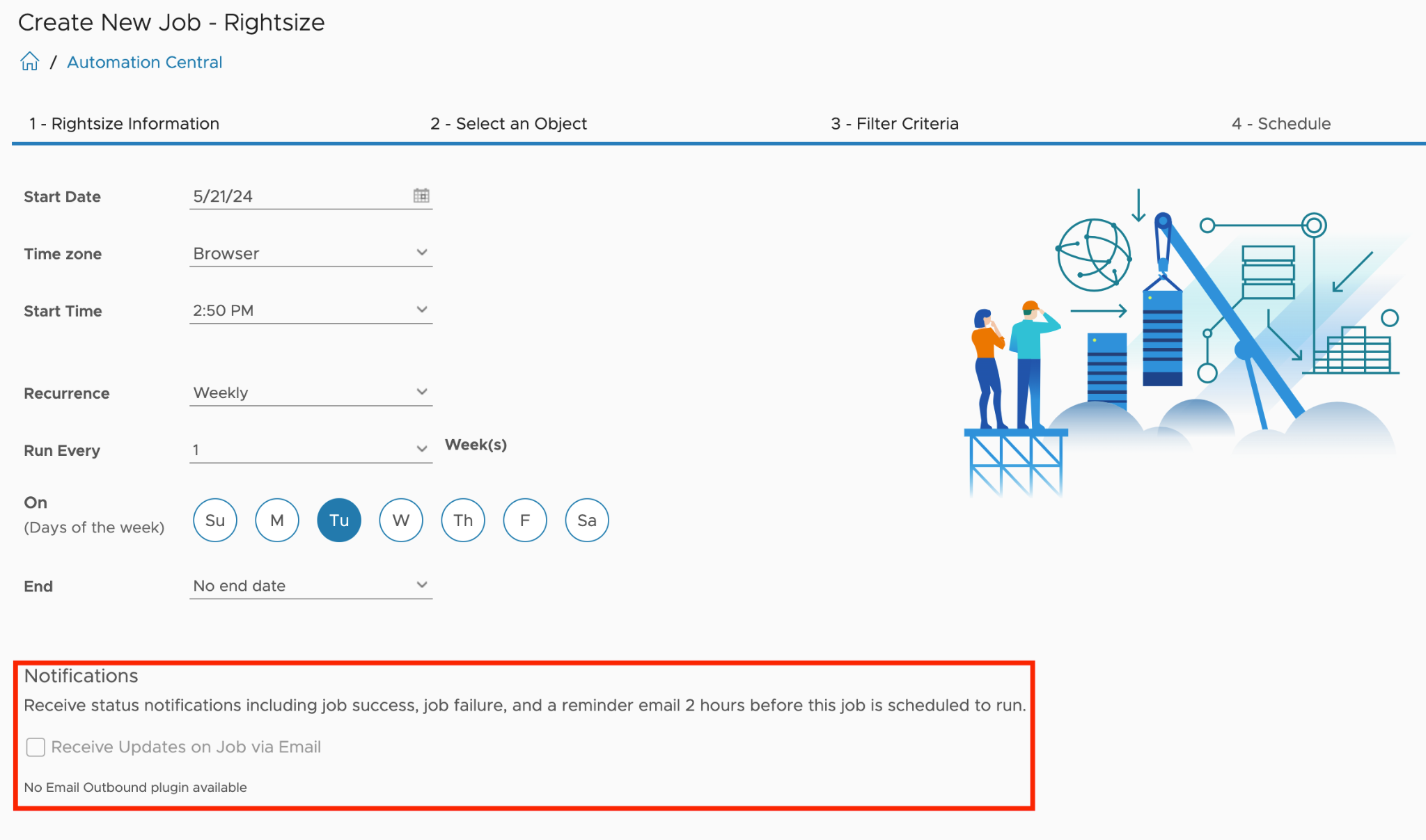
Figure 39: Automation Central - Creating a new job, final step 4, the schedule
While Automation Central provides a convenient way to schedule routine VM operations, its capabilities are currently limited compared to more advanced automation tools like Aria Automation Orchestrator. However, as already stated, it offers a simple and centralized interface within Aria Operations for common VM lifecycle management tasks.
Incoming Communication
Even though Aria Operations offers extensive possibilities with the Management Pack for Aria Automation Orchestrator and the Aria Operations Webhooks to control various systems and perform diverse automation tasks, these solutions are fundamentally 'fire-and-forget' or open-loop approaches as depicted in the following figure. This means that once an automation task is initiated, it runs to completion without ongoing feedback or adjustments based on real-time conditions.
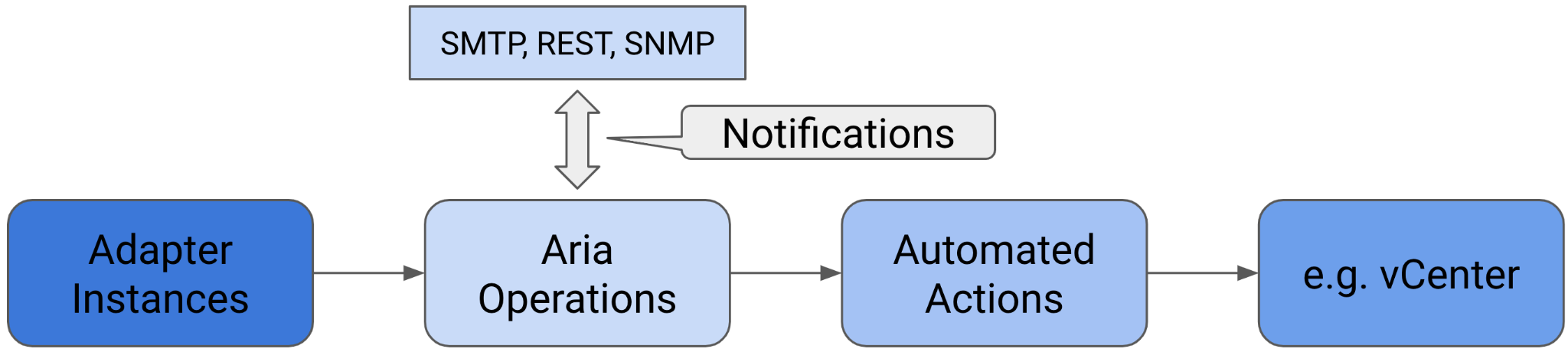
Figure 40: Open Control Loop
Naturally, we can design the primary workflow to execute other workflows and integrate additional systems to enhance the overall automation process. However, the question arises: how do we close the loop back to Aria Operations? What mechanisms are available to return to Aria Operations and obtain further information? Is it possible to extend Aria Operations with custom object types and metrics? The answer is straightforward: yes, it is possible.
By leveraging the Application Programming Interface (API), we can create a feedback loop that allows automated tasks to receive data from Aria Operations and make informed decisions based on the latest information. This capability enables more dynamic and responsive automation, ensuring that the system can adapt to changing conditions.
REST API
Aria Operations, in line with contemporary enterprise solutions, provides a comprehensive REST API for programmatic interaction with the platform. Since the release of version 8.2, VMware has enhanced accessibility to the REST API documentation by integrating Swagger UI. This interactive documentation is now available on every Aria Operations instance, offering developers and administrators direct access to API specifications and testing capabilities.
The REST API documentation can be accessed through the following URL on any Aria Operations deployment:
https://<AriaOps FQDN>/suite-api/doc/swagger-ui.html
This integration of Swagger UI not only simplifies API exploration but also promotes more efficient development and integration processes, allowing users to interact with the API directly from the documentation interface.
The next image shows the landing page of the Suite API Swagger documentation, which offers very simple navigation and an overview of the available methods.
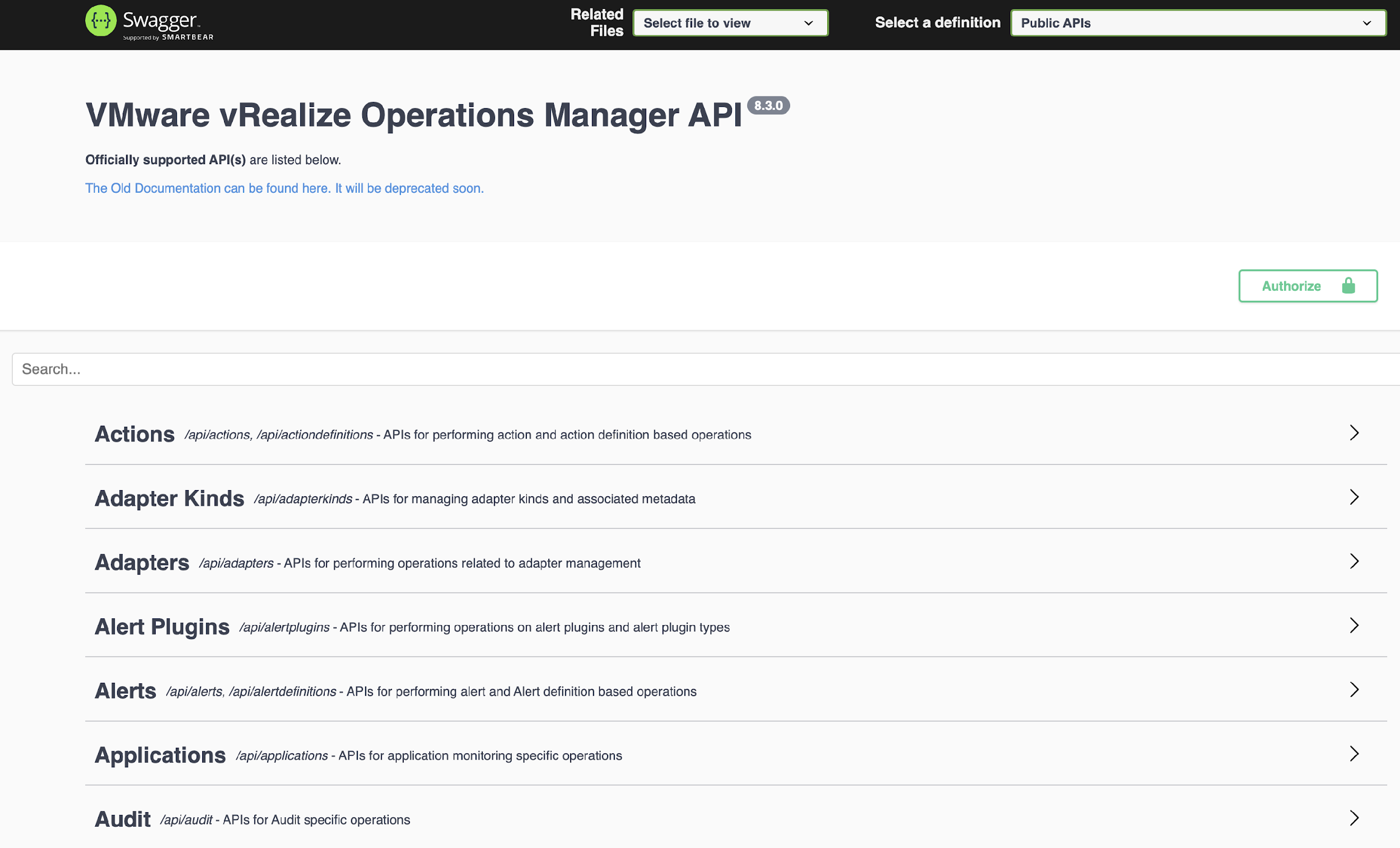
Figure 41: Aria Operations Swagger UI Suite-API documentation.
The Aria Operations REST API provides comprehensive programmatic access to all entities managed by the platform, including their associated metrics, properties, and Aria Operations constructs such as Alert and Symptom Definitions and Recommendations. With appropriate authorization, users can not only extract data from Aria Operations but also introduce new information into the system.
This capability extends to the creation of entirely new custom objects, either of existing or new types, complete with their unique sets of metrics and properties. Furthermore, users can enhance existing objects already collected by Aria Operations adapter instances with custom metrics and properties.
The API offers methods to programmatically manipulate, create, or delete various Aria Operations constructs, including but not limited to Alert and Symptom Definitions, Adapter Configurations, and Super Metrics.
As of the current release, the API supports both XML and JSON formats for data exchange, with JSON being the preferred and recommended format due to its efficiency and widespread adoption in modern web services.
This robust API framework enables developers and administrators to integrate Aria Operations seamlessly with other systems, automate complex workflows, and extend the platform's capabilities to meet specific organizational requirements.
Swagger UI provides an intuitive interface for testing available API methods before implementing them in code. Whether utilizing Swagger UI or working directly within the codebase, the initial step involves authentication. In the context of programmatic access, Aria Operations requires the use of the 'acquire' POST method to obtain an object containing an authentication token and its associated validity period. This token is then utilized in subsequent REST API calls to maintain a secure session.
The authentication process can be visualized and tested through Swagger UI, which offers a user-friendly representation of the 'acquire token' method. This interactive documentation not only facilitates understanding of the API structure but also allows for real-time testing of API endpoints, ensuring developers can validate their authentication approach before full implementation.
Figure 42 illustrates the 'acquire token' method as presented in Swagger UI, demonstrating the required parameters and expected responses for successful authentication.
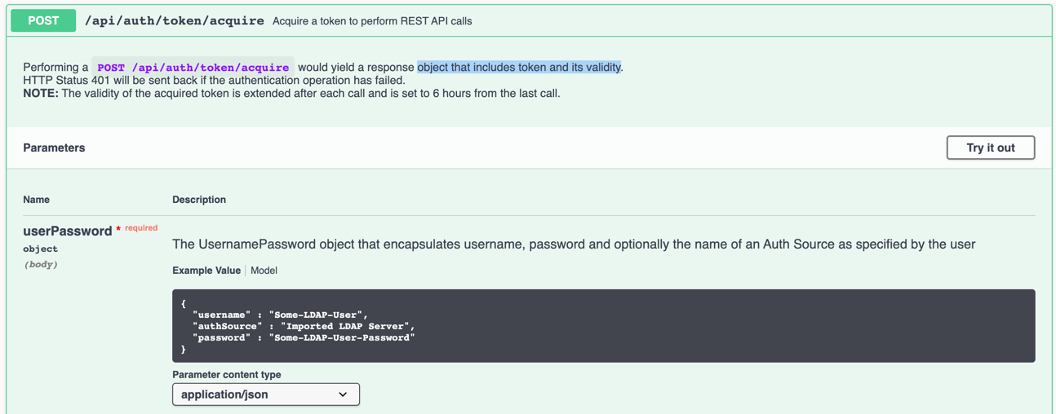
Figure 42: Acquire token REST API call.
This approach to API exploration and authentication setup exemplifies the robust and developer-friendly nature of Aria Operations' API infrastructure, enabling efficient integration and custom solution development.
The Swagger UI provides an efficient mechanism for identifying the appropriate API function. Users can utilize the search functionality by entering relevant keywords, which then filters and displays the available options. Figure 43 illustrates a curated list (shortened) of accessible methods pertaining to Aria Operations Alerts, demonstrating the intuitive nature of the Swagger interface.
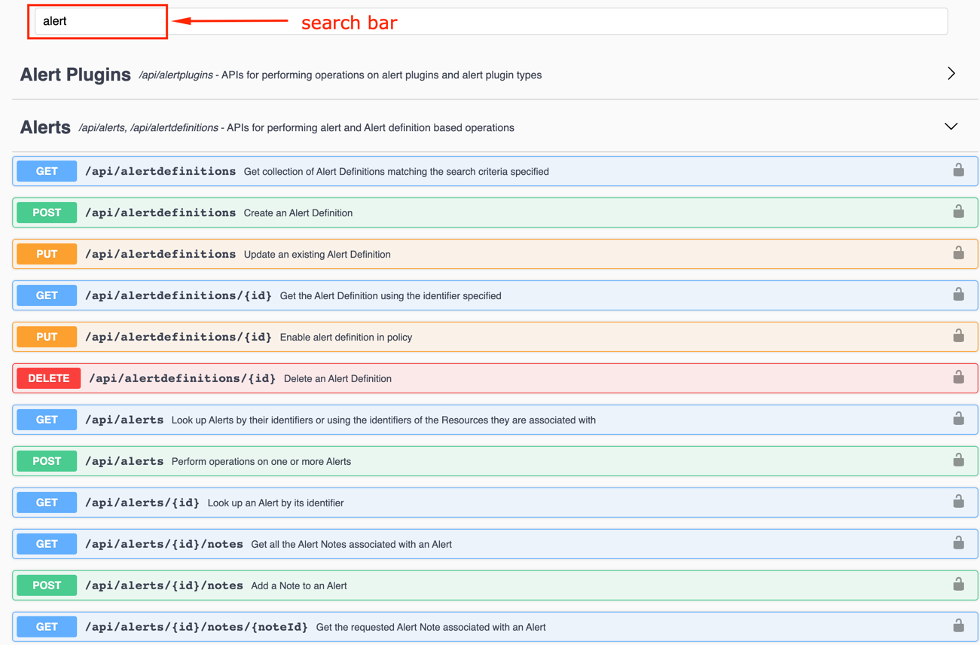
Figure 43: Finding method in the Swagger UI documentation.
This search-driven approach to API exploration not only streamlines the development process but also enhances the overall user experience, allowing developers to quickly locate and understand the specific endpoints required for their integration or automation tasks. The Swagger UI's interactive documentation serves as a valuable resource, bridging the gap between API specification and practical implementation in the context of Aria Operations.
The Swagger UI provides a straightforward method for identifying the appropriate function. By simply entering your search term, you can observe the available options. The following illustration presents a condensed list of accessible methods related to Aria Operations Alerts.
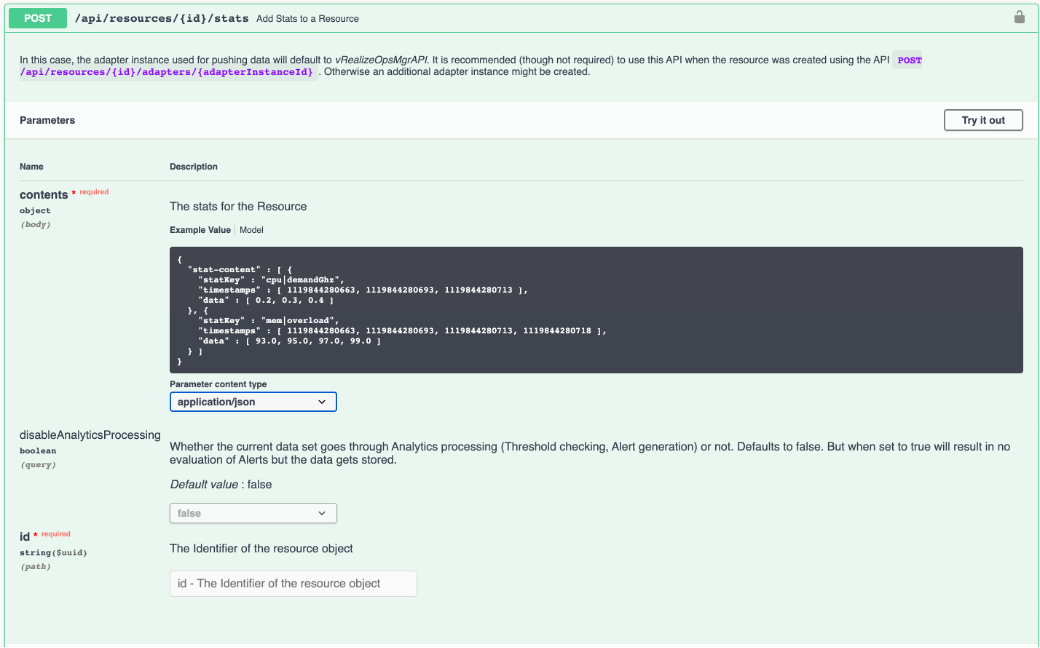
Figure 44: Add Stats REST POST call example.
In a concise example, we will examine the structure of a JSON payload, also referred to as the body, required to append a new metric and a new property to an existing object, in this case, an ESXi host, via the API.
{
"stat-content": [
{
"statKey": "CustomMetrics|Fan01|Speed",
"timestamps": [
{{epoch}}
],
"data": [
1700.0
],
"others": [],
"otherAttributes": {}
}
]
}
Please note that this example was executed in Postman, utilizing an {{epoch}} variable for determining the current timestamp. This variable contains the result of a pre-request script executed at runtime.
The script code in Postman:
var epoch = (new Date).getTime();
postman.setEnvironmentVariable("epoch", epoch);
The corresponding curl command (FQDN, ObjectID and the Token have been shortened):
curl --location 'https://vrops/suite-api/api/resources/18xxx2/stats' \
--header 'Content-Type: application/json' \
--header 'Accept: application/json' \
--header 'Authorization: vRealizeOpsToken f0xxx1' \
--data '{
"stat-content": [
{
"statKey": "CustomMetrics|Fan01|Speed",
"timestamps": [
1720088952741
],
"data": [
1700.0
],
"others": [],
"otherAttributes": {}
}
]
}'
And this is how the result looks like in the Aria Operations UI.
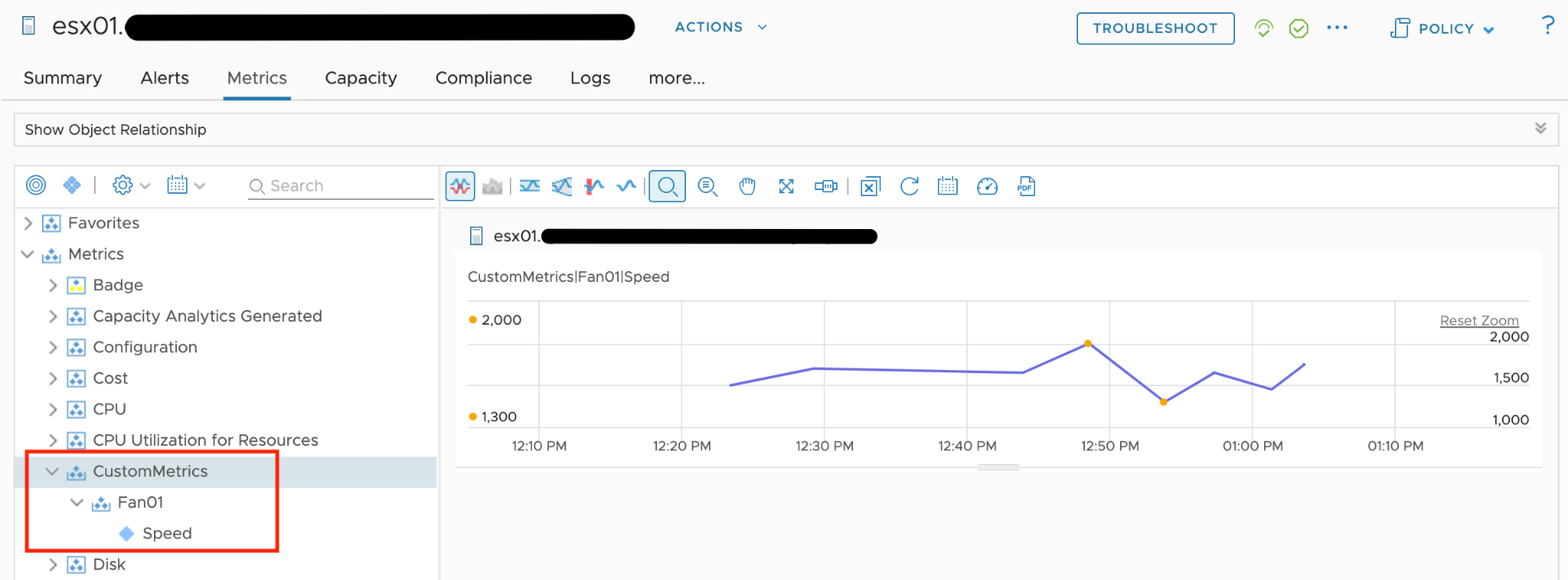
Figure 45: Custom Metrics in Aria Operations UI
Example of a JSON body showing how to add a custom property:
{
"property-content": [
{
"statKey": "CustomProps|Fan01|Status",
"timestamps": [
{{epoch}}
],
"values": [
"ON"
],
"others": [],
"otherAttributes": {}
}
]
}
The corresponding curl command (FQDN, ObjectID and the Token have been shortened):
curl --location 'https://vrops/suite-api/api/resources/18xxx2/properties' \
--header 'Content-Type: application/json' \
--header 'Accept: application/json' \
--header 'Authorization: vRealizeOpsToken f0xxx1' \
--data '{
"property-content": [
{
"statKey": "CustomProps|Fan01|Status",
"timestamps": [
1720099341117
],
"values": [
"ON"
],
"others": [],
"otherAttributes": {}
}
]
}'
And the representation in the UI:
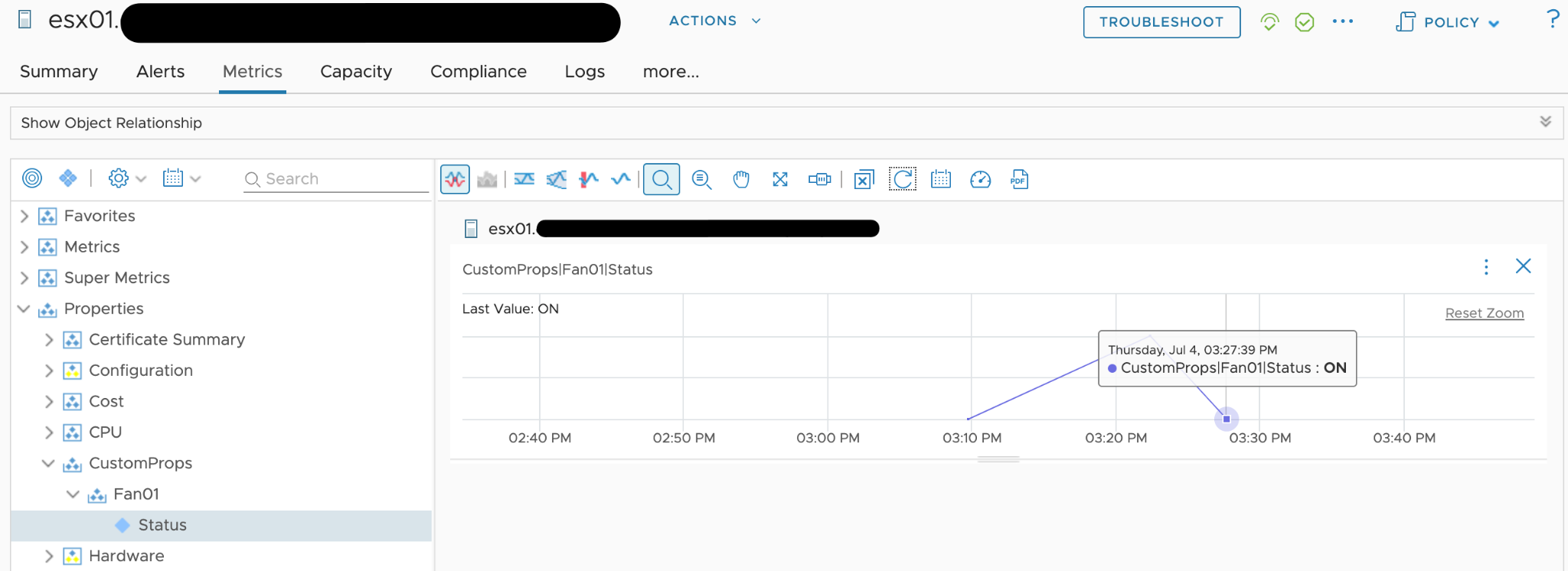
Figure 46: Custom Property in Aria Operations UI
The available API methods are divided into two distinct groups: the public API definitions and the internal API.
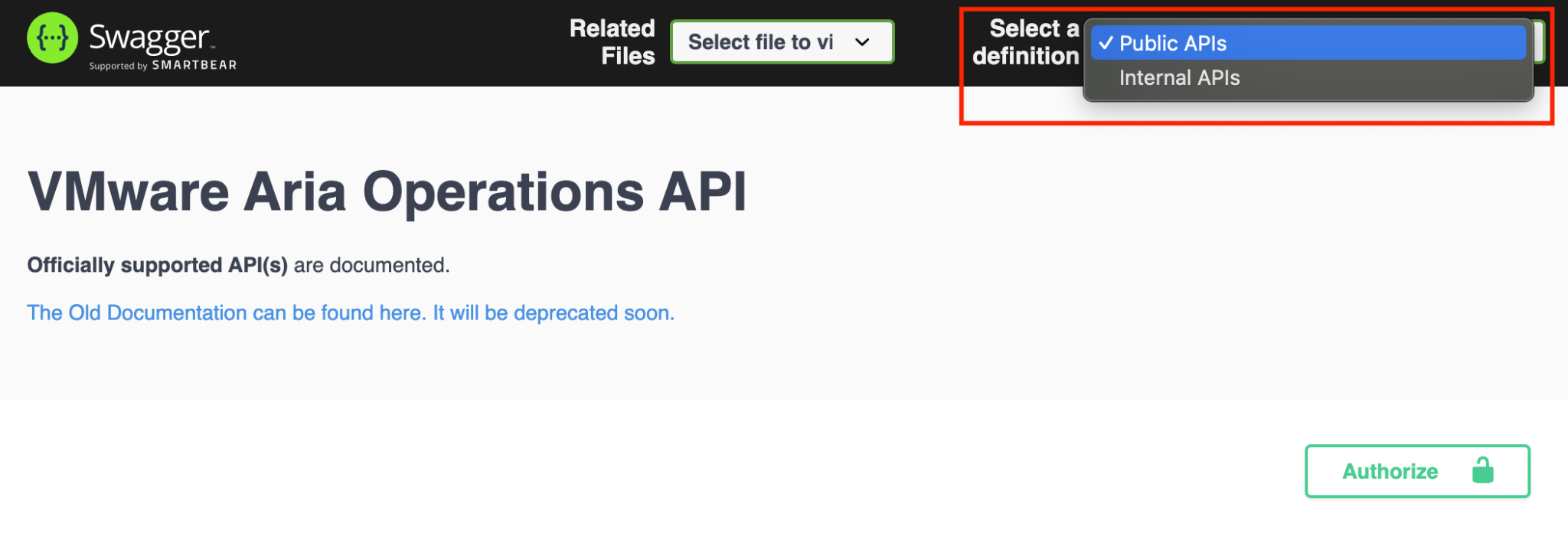
Figure 47: Public and Internal API
While the public API is considered stable and supported, the internal API methods should be used with caution. Please note that the internal API methods may be subject to change or removal in future releases without prior notice. Utilizing the internal API is done at the user's own risk.
One remarkable use case leveraging the Aria Operations REST API is the vRealize Operations Export Tool (vrops-export), developed by Pontus Rydin. This utility facilitates the export of data from Aria Operations.
The latest version, as of the time of writing these words, can be found here.
Closing the Loop - Callbacks
With the ability to connect back to Aria Operations to retrieve data or push custom information, we can finally close the loop to achieve a fully featured closed-control loop. The following diagram represents our closed-loop control system, incorporating all concepts we have learned in the previous sections of this chapter.
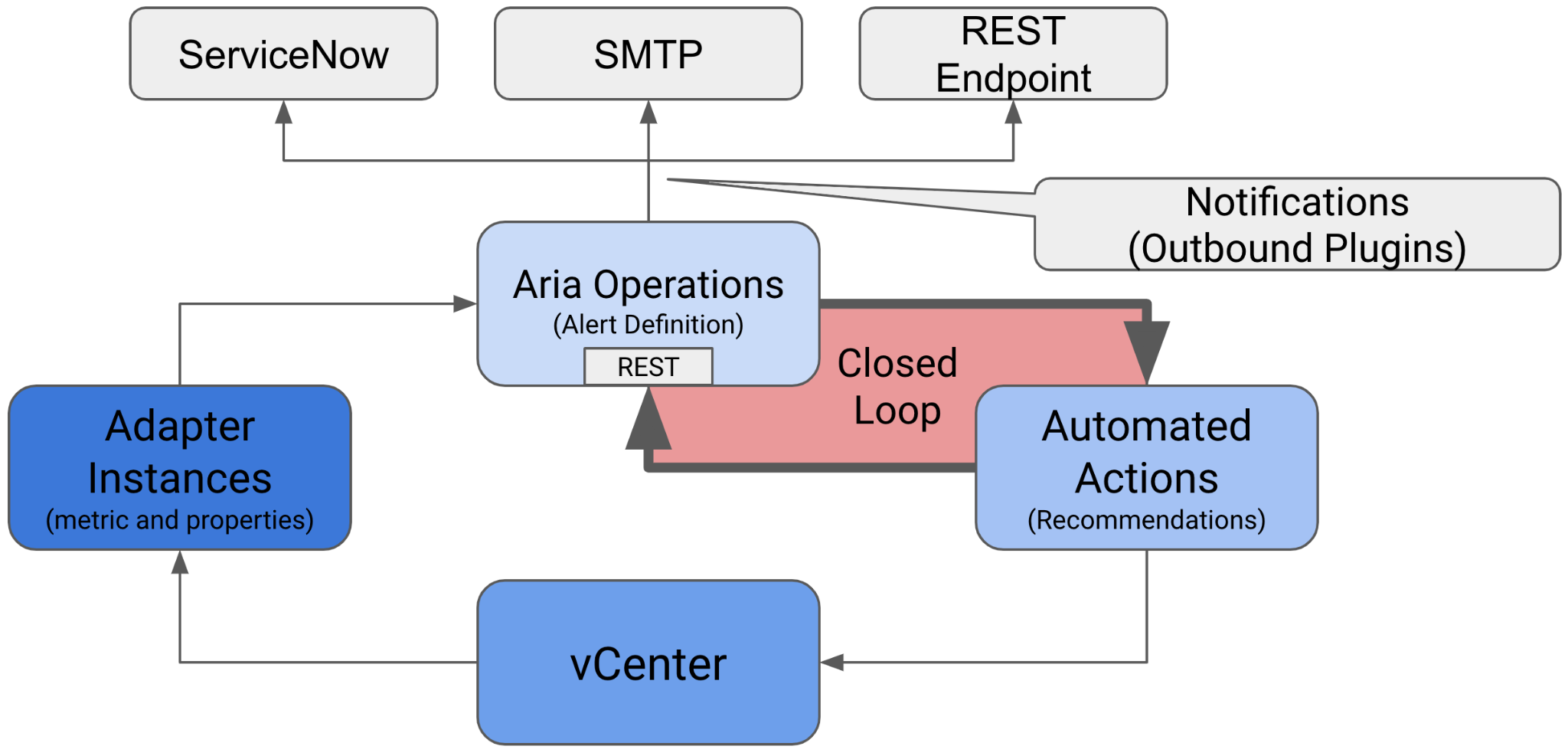
Figure 48: Closed Control Loop
Upon comparing the diagram to Figure 2 “Open Control Loop”, you will notice that we now have a continuous and closed-loop between the entity executing our automated actions and the entity collecting the data that reflect the behavior of objects we control. We are no longer limited to the "fire and forget, until the sensors do something" method. With the possibility to execute callbacks to the REST API, Aria Operations becomes an integral part of an automated SDDC solution.
Let us revisit our initial use case: "If a VM (the OS) crashes, this VM should be hard-reset." We can expand this use case to achieve a sophisticated and automated remediation process leveraging all the concepts presented in this chapter. Let us revisit the diagram xy and extract the possible components of the automation.
The central control point is, of course, Aria Operations itself. This platform provides the necessary tools and integrations to automate and manage VMs and other objects effectively.
Within Aria Operations, we have an Alert Definition that leverages specific symptoms to trigger an alarm when the symptoms indicate that something is amiss, such as a VM crash. This alarm is based on symptom evaluation, which may not directly point to a root cause.
Upon alarm generation, the configured Notification:
-
Creates a problem ticket in ServiceNow.
-
Sends a notification email to the admin team.
Simultaneously, the Action configured within the Recommendation initiates a Aria Automation Orchestrator Workflow. This workflow may:
-
Attempt to connect to the VM via RDP or SSH.
-
Execute ping or TCP connect checks.
-
Reset the VM if the configured checks support the initial assumption.
-
Verify the VM's availability.
-
Update the alert status in Aria Operations if necessary.
-
Push additional properties (e.g., count of Aria Automation Orchestrator-initiated reset events) to the VM object.
When the alarm status changes, the configured Notification:
-
Updates the problem ticket in ServiceNow.
-
Sends another notification email to the admin team.
With Aria Operations, its comprehensive REST API, the wide range of Management Packs, integrated Notification Plugins, and the capability to run Actions using Aria Automation Orchestrator, you have extensive possibilities to automate your SDDC management and elevate it to become a Self-Driving SDDC.