Capacity: VM
VM right-sizing is a commonly misunderstood term because there are actually 2 distinct formulas: 1 internal and 1 external.
-
Internal means sizing the Guest OS, which lives inside a VM. Let’s call this Guest OS Sizing.
-
External means sizing the footprint of the VM to the underlying ESXi and infrastructure. Let’s call this VM Footprint.
VM Footprint | Guest OS Sizing
To see the difference between internal and external sizing, let’s examine a few popular use cases:
-
Your application team asks for extra vCPU. In this case, the hypervisor overhead is irrelevant. When you size NSX edge vCPU, you do not need to add extra vCPU for the overhead to do the packet processing. This means you’re sizing Guest OS.
-
Infrastructure team is migrating a VM to a new ESXi with CPUs that are 2x the speed. For example, from a 2 GHz ESXi to 4 GHz. All else being equal, you can cut down the VM size by 2. A 16 vCPU becomes 8. In this case, the hypervisor counter is more accurate.
However, you are worried about causing queue inside the Guest OS as the application may expect 16 slow threads vs 8 fast ones. In this case, you need to look inside Guest OS but do that after rightsizing. -
You’re migrating a VM from classic VMFS to vSAN. In this case, use the hypervisor metric as it will be adjusted according to vSAN FTT policy.
-
You’re converting VM virtual disks from thin to thick. In this case, the consumption at Guest OS level is irrelevant as you’re inflating the virtual disk into its configured size.
From the above use cases, we need two different formulas:
| Purpose | Method |
| Guest OS Sizing | Using Windows/Linux counters. Excludes VM overhead, includes Guest OS Queue. Used to size the “VM”, meaning the CPU and RAM requirements of Windows or Linux. For disk, that means the size of the Guest partitions, but expressed in terms of virtual disks. |
| VM Footprint | Using vSphere counters. Includes VM overhead, excludes Guest OS Queue. Used to size the “infrastructure footprint” of the VM |
Once we know what the VM needs, we need to project based on past data and recommend the new size. The new size is then adjusted to comply with NUMA.
You’ll see below that CPU, RAM and storage all require different approach.
Benefits
Rightsizing is important for a VM, more so than for a physical server. Here are some benefits:
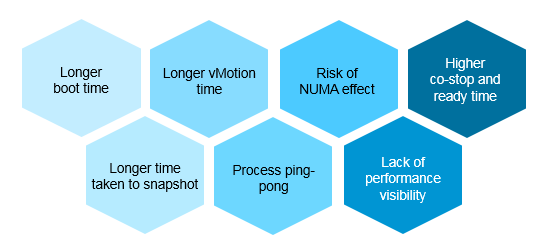
I’ve seen large enterprise customers try to do a mass adjustment, downsizing many VMs, only to have the effort backfire when a tiny percentage of VM performance suffers. Take time and effort to educate the VM Owner that right sizing actually improves performance, despite the seemingly odd logic. A carrot is a lot more effective than a stick, especially for those with money. Saving money is a weak argument in most cases, as VM Owners have paid for the VMs.
Here is an example where accuracy in right-sizing matters:
-
The ESXi CPU has 2 socket, 16 cores each.
-
The VM has 16 vCPU. It runs at 90%, so it fits into a single socket.
-
The queue inside Linux is below 2 per vCPU for 95% of the time. This means the 16 vCPU is working hard, but able to serve all processes well.
-
However, you decide to use the CPU Usage counter, which runs 25% higher due to Turbo.
-
16 vCPU x 90% x 125% = 18 vCPU
-
Based on the above, you incorrectly increase the size to 18 vCPU
-
The VM now spread into 2 NUMA nodes. You can have either 9 per side, or 10 vs 6. You do not like the idea of running odd numbers, plus you think it’s safer to give buffer, so you bump the number to 20 vCPU.
-
The VM vCPU will now be spread into 2 CPU. This means the memory will be spread too. The result is NUMA effect.
With CPU having CCD complex within a single socket, the NUMA effect does happen within a socket albeit with less penalty.
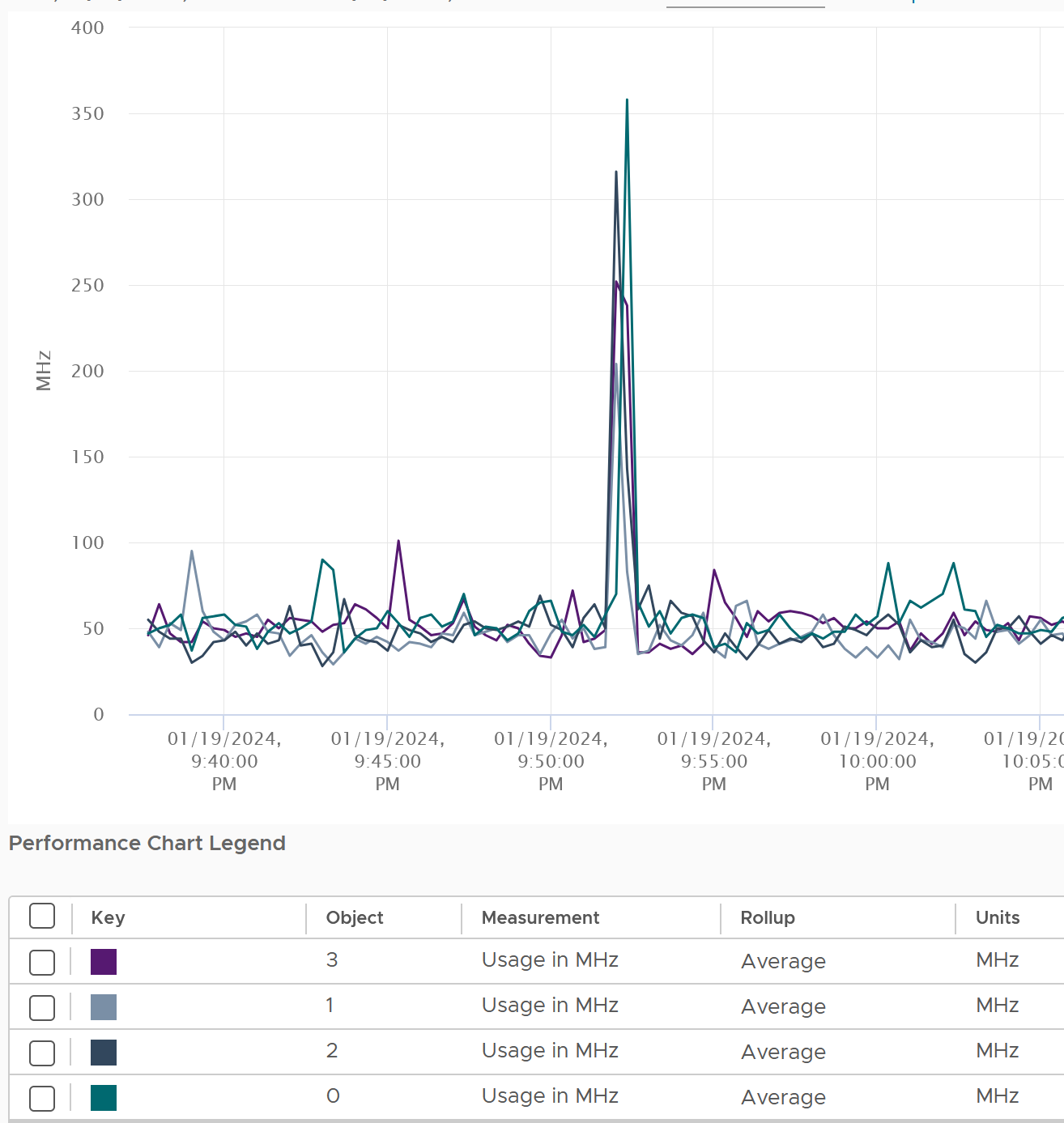
Another benefit of rightsizing is potentially faster speed from higher CPU frequency. Less vCPU means less physical threads to run. This means ESXi is able to boost the active threads by keeping unused cores. To see this, choose the CPU Usage (MHz) counter and show all the vCPU.
Lower co-stop and ready time. Even if not all vCPU is used by the application, the Guest OS will still demand all the vCPU be provided by the hypervisor.
Faster snapshot time, especially if memory snapshot is included.
Faster vMotion. Windows and Linux use memory as cache. The more it has, the more it uses, all else being equal.
Faster boot time. If a VM does not have a reservation, vSphere will create a swap file the size of the configured RAM. This can impact the boot time if the storage subsystem is slow.
Guest OS Sizing
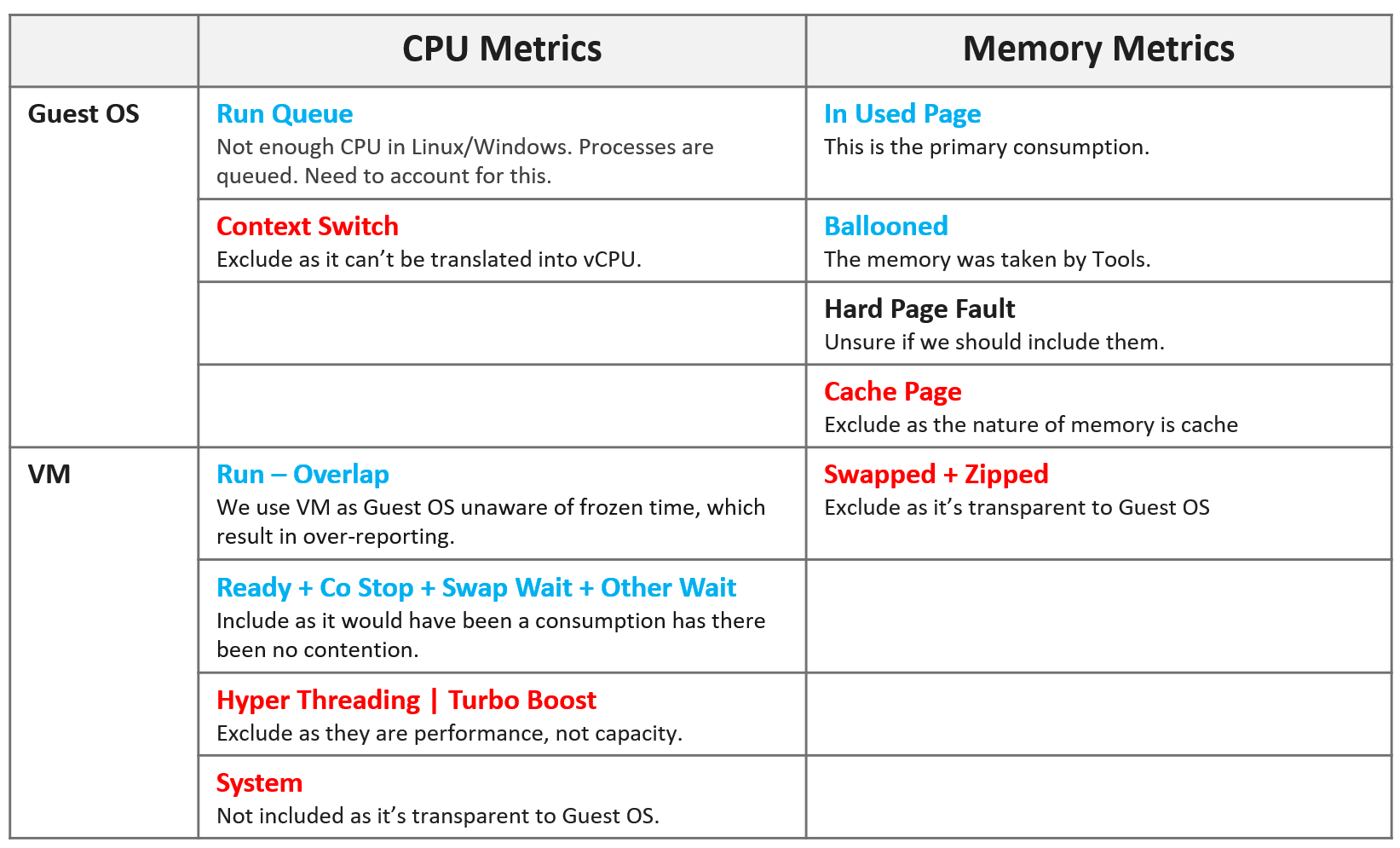
What rules to follow then sizing the Guest OS?
CPU Sizing
What metrics should be excluded when sizing Guest OS? What metrics should be included?
Having the correct inputs increase the accuracy of the prediction.
Exclusion
| Hyper-Threading | The Guest OS is unaware of HT. Windows/Linux is still running, regardless of speed and throughput. When Windows/Linux vCPU happens to run on a thread that is sharing a core with another thread, the OS will simply run with lower efficiency. It experiences 37.5% drops in computing power. For example, instead of running on a 3 GHz, it feels like it’s running on 1.875 GHz chip. The VM CPU Demand and VM CPU Usage metrics are not suitable as their values are affected by CPU Frequency and HT. |
| CPU Frequency | Same reason as above. The only exception here is the initial sizing, when the VM is not yet created. The application team may request 32 vCPU at 3 GHz. If what you have is 2 GHz, you need to provide more vCPU. |
| CPU idle time | Guest OS CPU will be idle for a while when waiting for ESXi to execute IO. However, while making the IO subsystem faster will result in higher CPU utilization, that’s a separate scope. |
| CPU Context Switch | 3 reasons:
|
| Hypervisor overhead | Reason is they are not used by the Guest OS. MKS, VMX, System. While it’s part of Demand, it’s not a demand coming from within the Guest. The VM CPU Used, Demand, Usage counter include system time at VM level, hence they are not appropriate. |
Inclusion
| Co-stop & Ready | The Guest OS actually wants to run. Had there been no blockage, the CPU would have been utilized. Adding/reducing CPU does not change the value of these waits, as this represents a bottleneck somewhere else. However, it does say that this is what the CPU needs, and we need to reflect that. We need not consider CPU Limit as it’s already accounted for. Guest OS number will be inaccurate because there is “no data”, due to its time being frozen. |
| Other Wait | Guest OS becomes idle as CPU is waiting for RAM or IO (disk or network). So this is the same case with Ready and Co-stop. |
| Swap Wait | |
| Overlap | The Guest OS actually wants to run, but it’s interrupted by the kernel. Note that this is already a part of CPU Run, so mathematically is not required if we use CPU Run counter. |
| Guest OS CPU Run Queue | This is the primary counter tracking if Windows or Linux is unable to cope with the demand. |
Formula
Based on all the above, the formula to size the Guest OS is:
Guest OS CPU Needed = Configured vCPU – Idle + CPU Run Queue factor
The result is in the number of vCPU. It is not in % or GHz. We are sizing the Guest OS, not the VM.
We’re including all the time the vCPU cannot run (Ready, Costop, Swap Wait, Other Wait) as the Guest OS would have wanted to run.
Guest OS CPU Run Queue metric needs some conversion before it can be used. Let’s take an example:
-
VM has 8 vCPU.
-
CPU Run Queue = 28 for the entire VM.
-
Using Run Queue = 3 as the threshold per vCPU, the VM has 24 queues before we add vCPU.
-
There is a shortage of 28 – 24 = 4 queues.
-
Each additional vCPU can handle 1 process + 3 queues.
-
Conclusion: we add 1 vCPU.
Compared with CPU Usage, Guest OS Needed without the CPU run queue factor tends to be within 10% difference. Usage is higher as it includes system time, and turbo boost. Usage would be lower in HT and CPU frequency clocked down case.
Here is an example where Usage is higher.
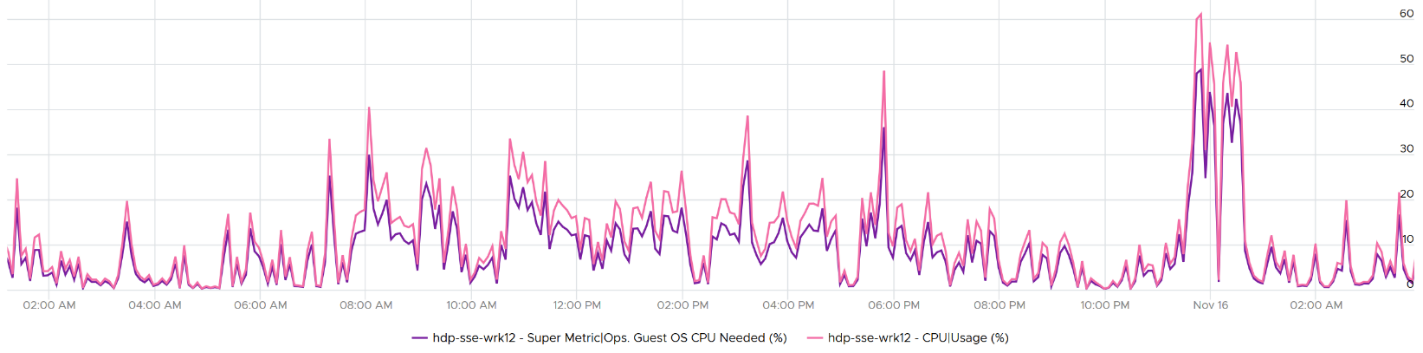
Here is an example where Usage is lower.
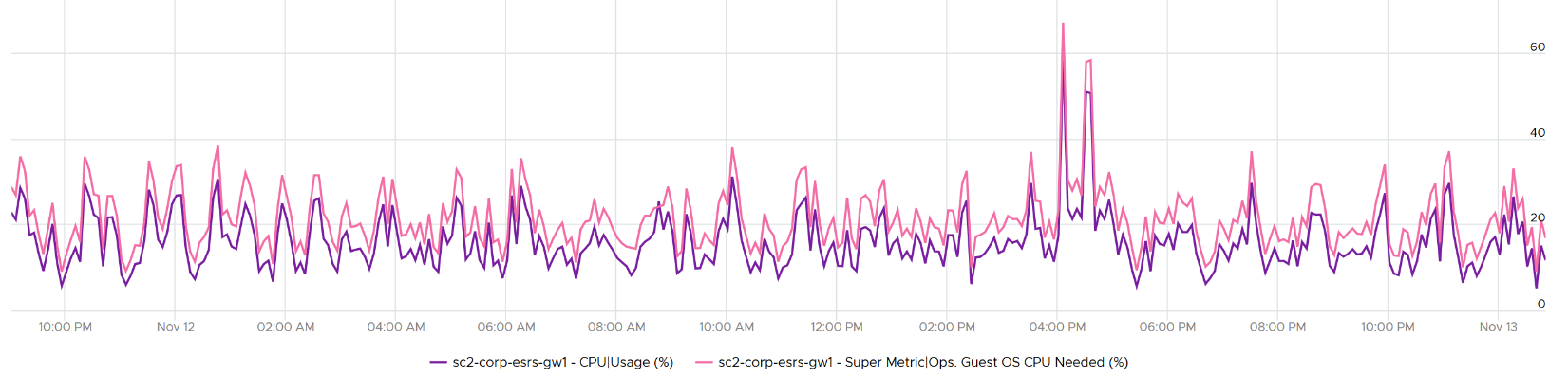
Once we know what the Guest OS needs, we can then calculate the recommended size. This is a projection, taking lots of value. Ideally, the recommendation is NUMA aware. It is applied after the sizing is determined. You size, then adjust to account for NUMA. This adjustment depends on the ESXi Host. So it can vary from cluster to cluster, if your vSphere clusters are not identical.
Guest OS Recommended Size (vCPU) = round up NUMA (projection (Guest OS Needed (vCPU))
For basic NUMA compliant, use 1 socket many cores until you exceed the socket boundary. That means you use 2 vCore 1 vSocket instead of 2 vSockets with 1 vCore each.
With the release of Windows 2008, switching the Hardware Abstraction Layer (HAL) was handled automatically by the OS, and with the release of 64-bit Windows, there is no concept of a separate HAL for uniprocessor and multi-processor machines. That means one vCPU is a valid configuration and you shouldn’t be making two vCPU as the minimum.
You should use the smallest NUMA node size across the entire cluster, if you have mixed ESXi with different NUMA node sizes in the cluster. For example, a 12-vCPU VM should be 2 socket x 6 cores and not 1 socket x 12 core as that fits better on both the dual socket 10 core and dual socket 12 core hosts. Take note that the amount of memory on the host and VM could change that recommendation, so this recommendation assumes memory is not a limiting factor in your scenario.
Notice the number is in vCPU, not GHz, not %. Reason is the adjustment is done at a whole vCPU. In fact in most case, it should be an even number, as odd numbers don’t work in NUMA when you cross the size of a CPU socket.
Note that when you change the VM configuration, application setting may need to change. This is especially on applications that manage its own memory (e.g. database and JVM), and schedule fixed number of threads.
You can enable Hot Add on VM, but take note of impact on NUMA.
Reference: rightsizing by Brandon Gordon.
Memory Sizing
Accuracy of Guest OS memory has been a debate for a long time in virtualization world. Take a look at the following utilization diagram. It has two bars, showing memory utilization of Windows/Linux. They use different set of thresholds.
Which one should you use for memory?
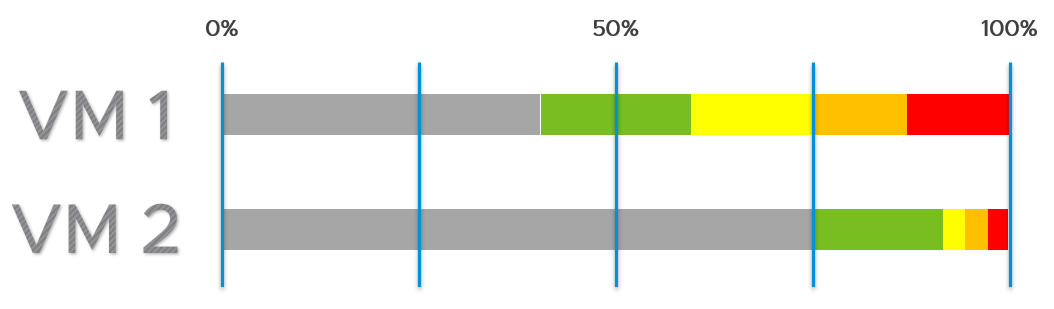
My recommendation is no 2.
The reason is memory is a form of cache. It stays even though it’s not actively used.
When you spend your money on infrastructure, you want to maximize its use, ideally at 100%. After all, you pay for the whole box. In the case of memory, it even makes sense to use the whole hardware as the very purpose of memory is just a cache for disk.
The green range is where you want the utilization to fall. Below the green threshold lies a grey zone, symbolizing wastage. The company is wasting money if the utilization falls below 50%. So what lies beneath the green zone is not an even greener zone; it is a wastage zone. On the other hand, higher than 75% opens the risk that performance may be impacted. Hence I put a yellow, orange and red threshold. The green zone is actually a relatively narrow band.
In general, applications tend to work on a portion of its Working Set at any given time. The process is not touching all its memory all the time. As a result, the rest becomes cache. This is why it’s fine to have active + cache beyond 95%. If your ESXi is showing 99%, do not panic. In fact, ESXi will wait until it touches 99.1% before it triggers ballooning process. Windows and Linux are doing this too. The modern-day OS is doing its job caching all those pages for you. So you want to keep the Free pages low.
| Include cache | Guest OS uses RAM as cache. If you size the OS based on what it actually uses, it will have neither cache nor free memory. It will start paging out to make room for Cache and Free, which can cause performance problems. As a result, the name of this proposed counter should not be called Demand as it contains more than unmet demand. It is what the OS needs to operate without heavy paging. Hence the counter name to use is Needed Memory, not Memory Demand. The challenge here is how much cache do you want to include? |
| Exclude page file | Including the pagefile will result in sizing that is too conservative as Windows and Linux already has cache even in their In Use counter. Guest OS uses virtual RAM and physical RAM together. They page-in proactively, prefetching pages when there is no real demand due to memory mapped files. This makes determining unmet demand impossible. A page vault does not distinguish between real need versus proactive need. |
| Exclude balloon | It results in more usage inside the Guest OS, if it comes from the free page. |
| Don’t fallback to VM metric | Since we are sizing the Guest OS, we use Guest OS only. No falling back to VM as it’s inaccurate. |
| Exclude latency | RAM contention measures latency, hence not applicable. We’re measuring the disk space, not latency. Space, not Speed. Utilization, not Performance. |
Unlike CPU, there are more difference between Windows and Linux when it comes to memory.
For VCF Operations specific implementation, review this post by Brandon Gordon.
VM Footprint
What rules to follow then sizing the footprint of the VM to the underlying SDDC?
CPU Sizing
| Include Hyper-Threading | When a VM runs on a thread that has a peer thread running, it’s getting less CPU cycle. |
| Include CPU Frequency | It impacts the footprint. For example, moving a VM to cluster with lower frequency may require more vCPU |
| Include contention | The VM actually wants to run, but blocked by hypervisor. This means Overlap needs to be added as Used does not include it. |
| Include VM overhead | They are not insignificant in cases such as Fault Tolerant. |
| Exclude Guest OS queue | It’s transparent to the VM |
Based on all the above, the formula to size the VM is:
VM CPU Needed = (Used + Overlap + Co-stop + Ready + Other Wait + Swap Wait) + System / 20000
You express in GHz (utilization model) and vCPU (allocation model).
The GHz is especially important when you need to migrate into another ESXi with different clock speed. To convert into GHz, we multiply the number by the nominal, static clock speed.
Enhance the sizing by considering CPU generation and speed. Take note this can introduce a new problem if not done properly. An application may perform poorly after the reduction in vCPU if it works better with many slow threads vs a few fast threads.
Memory Sizing
Since the goal is to calculate the total footprint, you need to include all the pages associated to the VM.
VM Memory Needed = Consumed + Overhead + Swapped + Compressed + Ballooned
The effect of Transparent Page Sharing should be included as that likely persist when you vMotion the VM. The challenge is it’s not possible to separate intra-VM sharing and inter-VM sharing.
Memory contention is not included as that measures speed, not space.
Part 3 Chapter 7
In a private cloud architecture, the provider layer is the shared infrastructure. It consists of objects such as vSphere Cluster, ESXi host, datastore, distributed virtual switch, and vSAN.